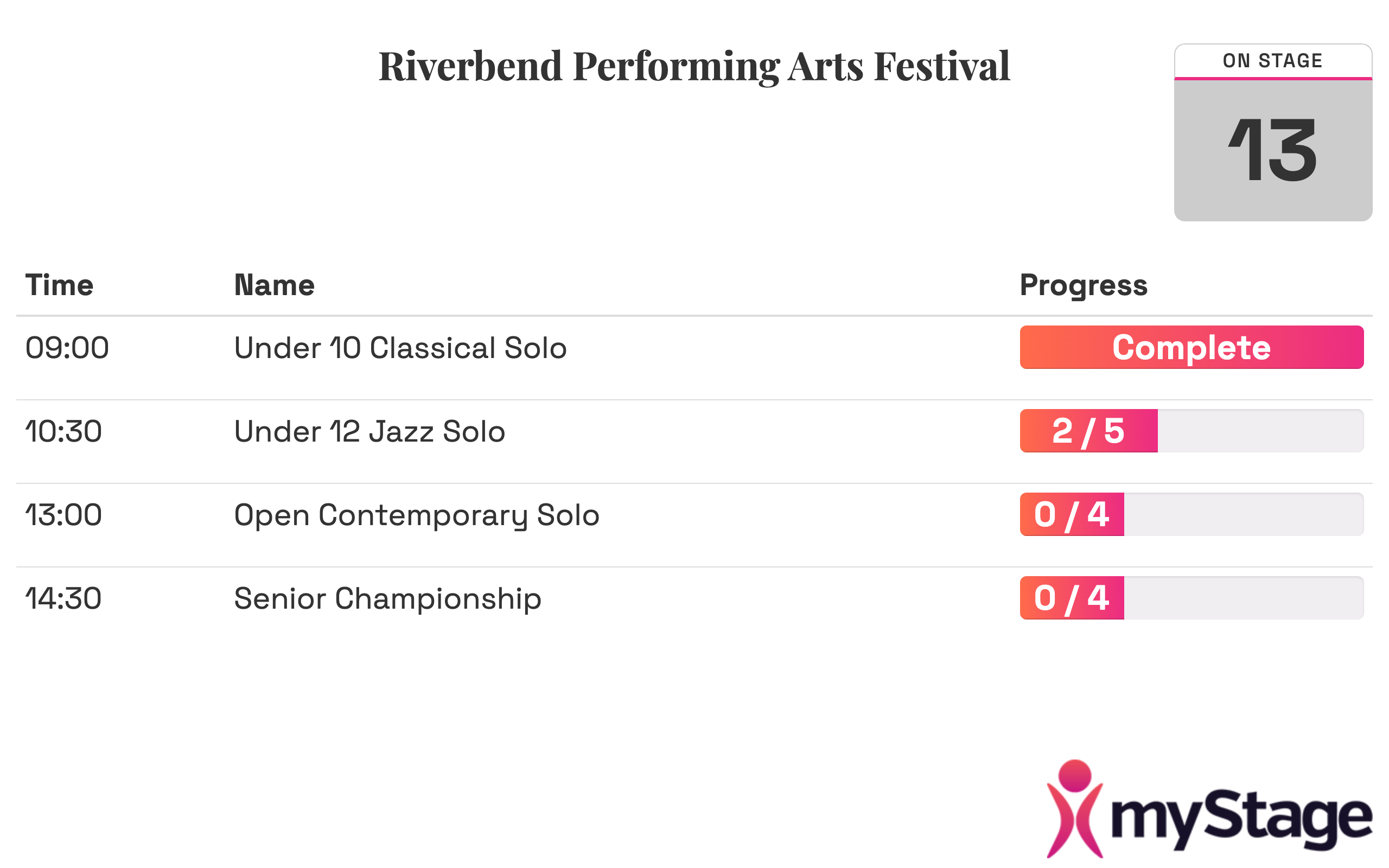
Displays
Displays allow you to show information on screens around a venue, or over a livestream. For example:
- Current competitor number on stage
- Progress of sections at the venue
- A competitor number overlay for a livestream (for example in OBS)
Displays update by themselves as volunteers change statuses in myStage. You don't need to refresh them.
Administration
Setting up the client
Before you set up the screen as an administrator, you need to get it working on the machine you are running it on.
To do this you need a computer with internet access connected to the display. On the display go to https://www.mystage.net.au/myStage/display
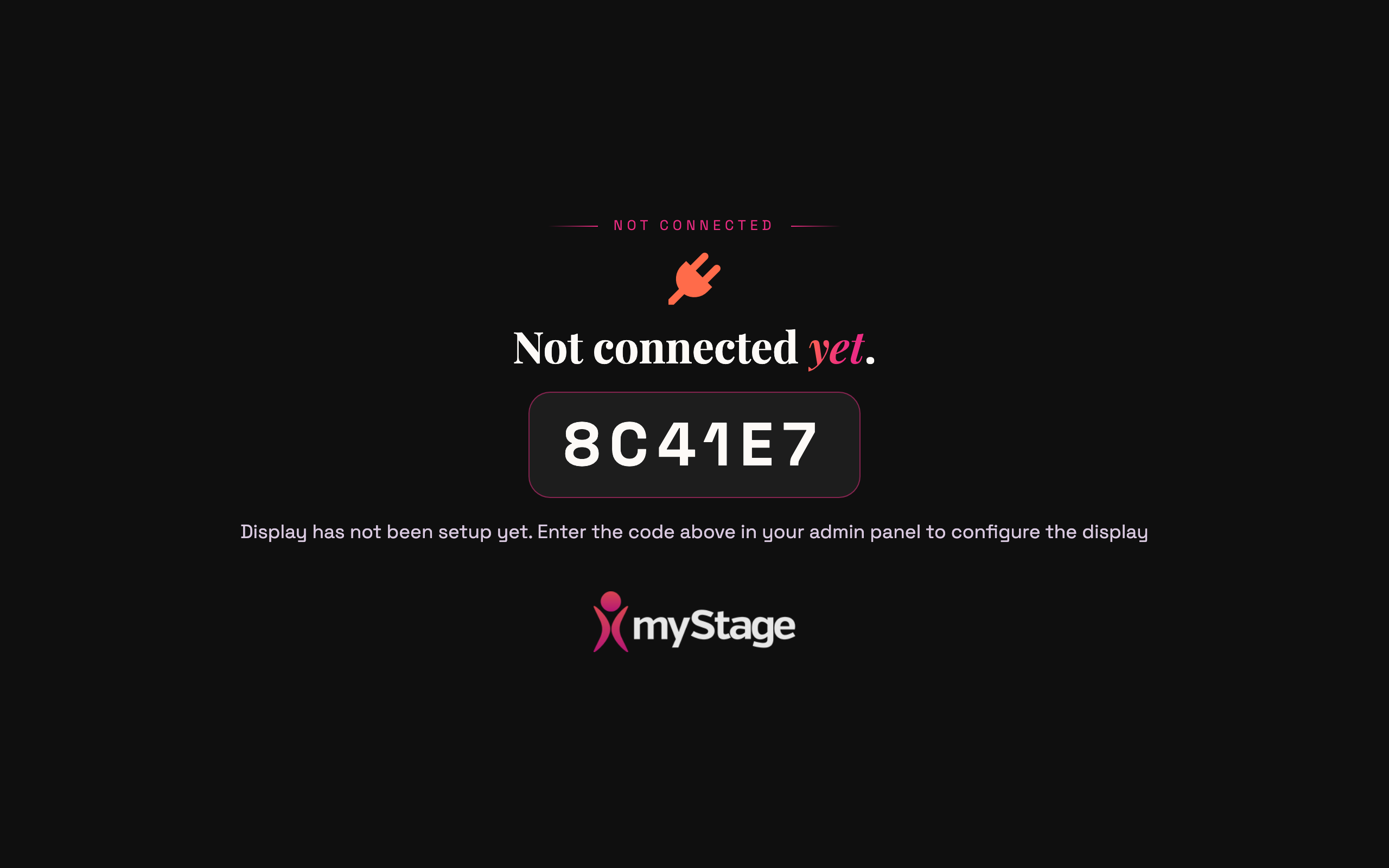
This will show a Not connected yet screen with a unique code, which you will need later.
Going fullscreen
In most browsers you can go fullscreen by pressing the F11 key
Note
The code is remembered by the browser on that computer. If you clear the browser data, or use a different browser, a new code will be shown and you will need to set the display up again.
Configuring the display
Once you have the code from the step above:
- Go to Admin > Reference Data.
- Under Presentation, click Displays.
- Click Create.
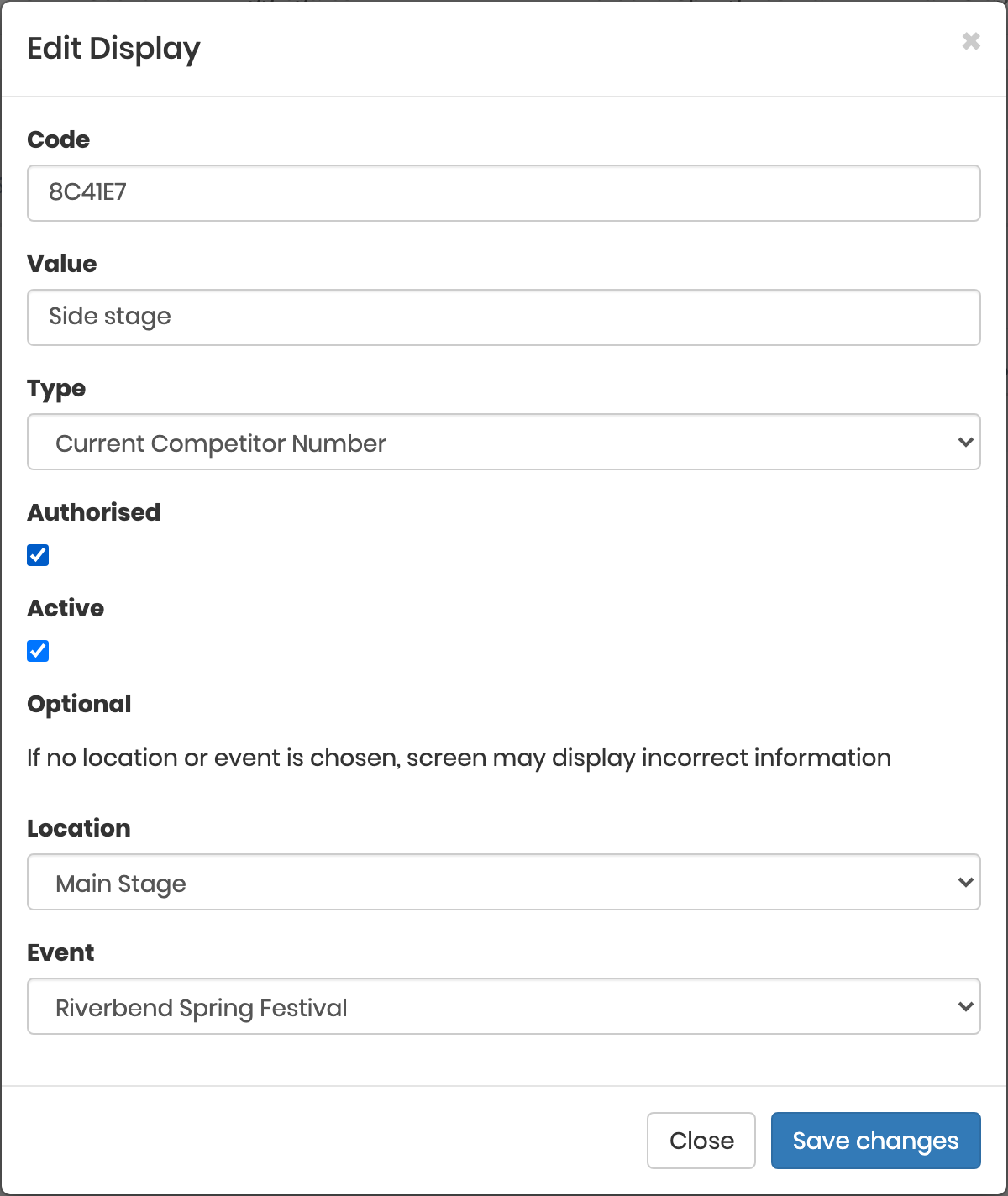
- Enter the code shown on the screen in Code.
- Enter a name for the display in Value, for example "Side stage".
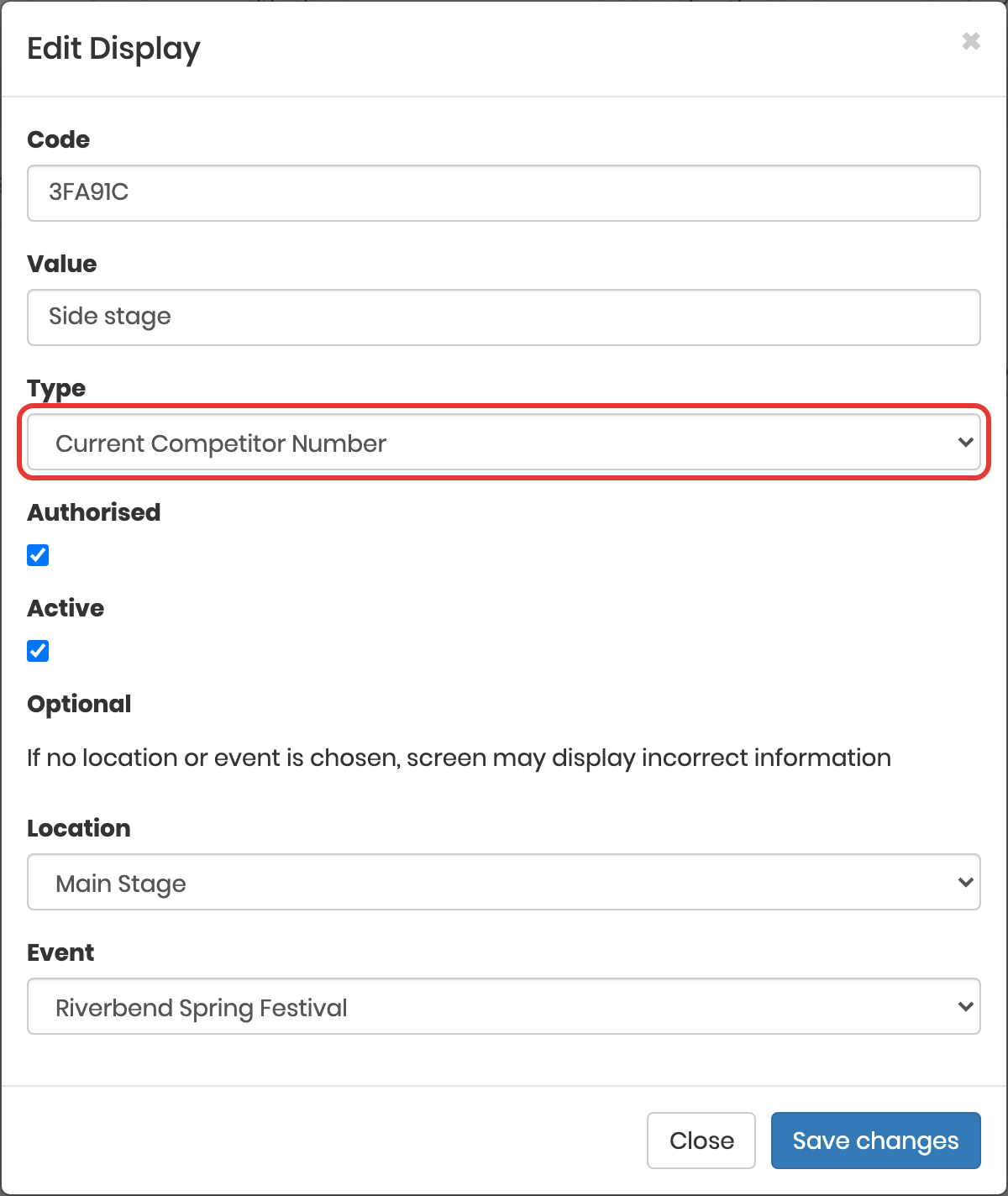
- Choose the Type of display (see below).
- Choose the Location and Event the display is for.
- Tick Active.
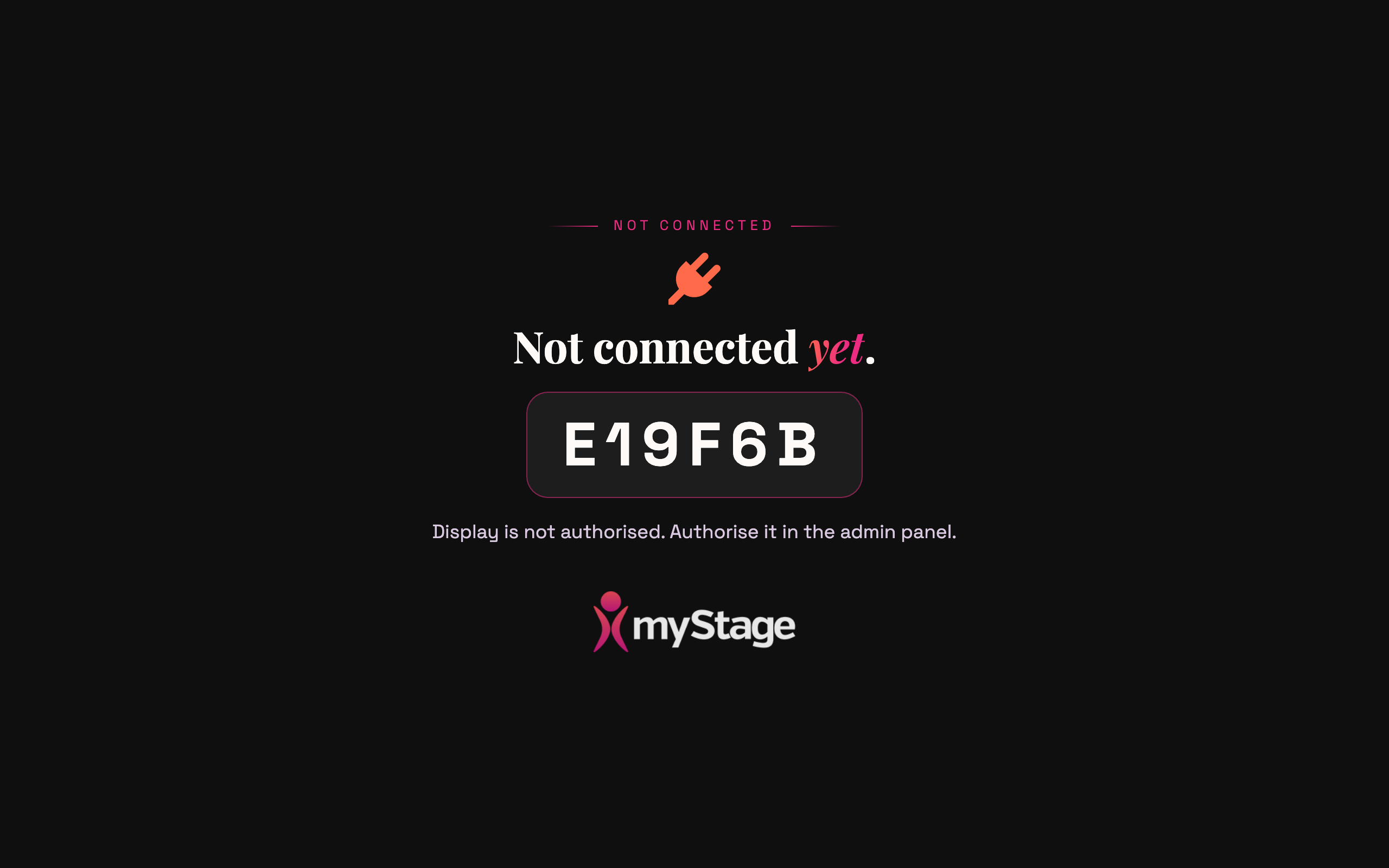
- Tick Authorised when you are ready for the display to show information.
- Press Save changes.
Until the display is authorised, the screen shows the message Display is not authorised. Authorise it in the admin panel.
Once it is authorised the screen changes by itself to show the display type you chose. If no type has been chosen, it shows the display name and your organisation logo.
Warning
Location and Event are optional, but if you don't choose them the display might show the wrong information. For example, if two venues are running at once it could show the number from the other stage.
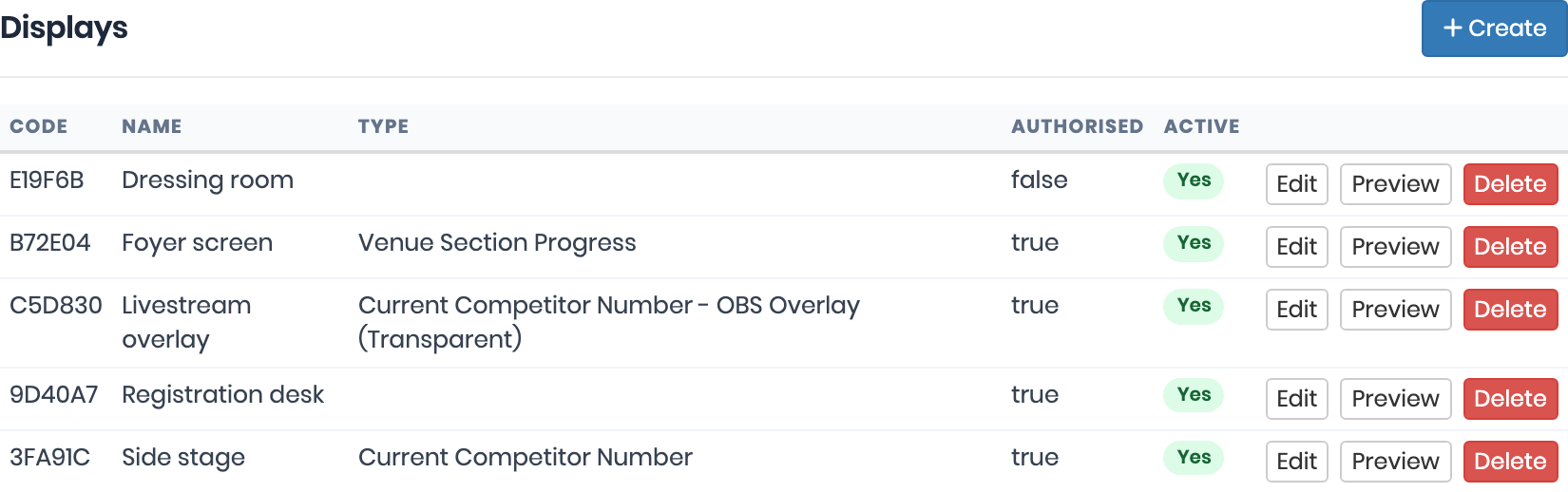
Your displays are listed on the Displays page, showing the code, name, type, and whether they are authorised and active. From here you can:
- Edit a display, for example to change its type
- Preview a display in a new browser tab, to check what it will show
- Delete a display
If the display loses connection
If the display loses its internet connection, a small warning icon shows at the bottom of the screen while it tries to reconnect. If it can't reconnect after about 5 minutes, the screen shows Signal lost. Reconnecting… until the connection comes back. You don't need to do anything, it will return to normal once it reconnects.
Display types
| Type | Shows |
|---|---|
| Current Competitor Number | The competitor number on stage, on a white background |
| Current Competitor Number - Dark Screen | The competitor number on stage, on a black background |
| Current Competitor Number - OBS Overlay (Transparent) | A see-through overlay for livestreams |
| Venue Section Progress | The progress of each section at the venue today |
| Venue Section Progress - Dark Screen | The same, on a black background |
Competitor Number display
The competitor number display is for use anywhere you want to show the current competitor number on stage. It could be used side stage, in dressing rooms, or in the auditorium.
To set up the display as a Competitor Number display, choose Current Competitor Number or Current Competitor Number - Dark Screen as the Type.
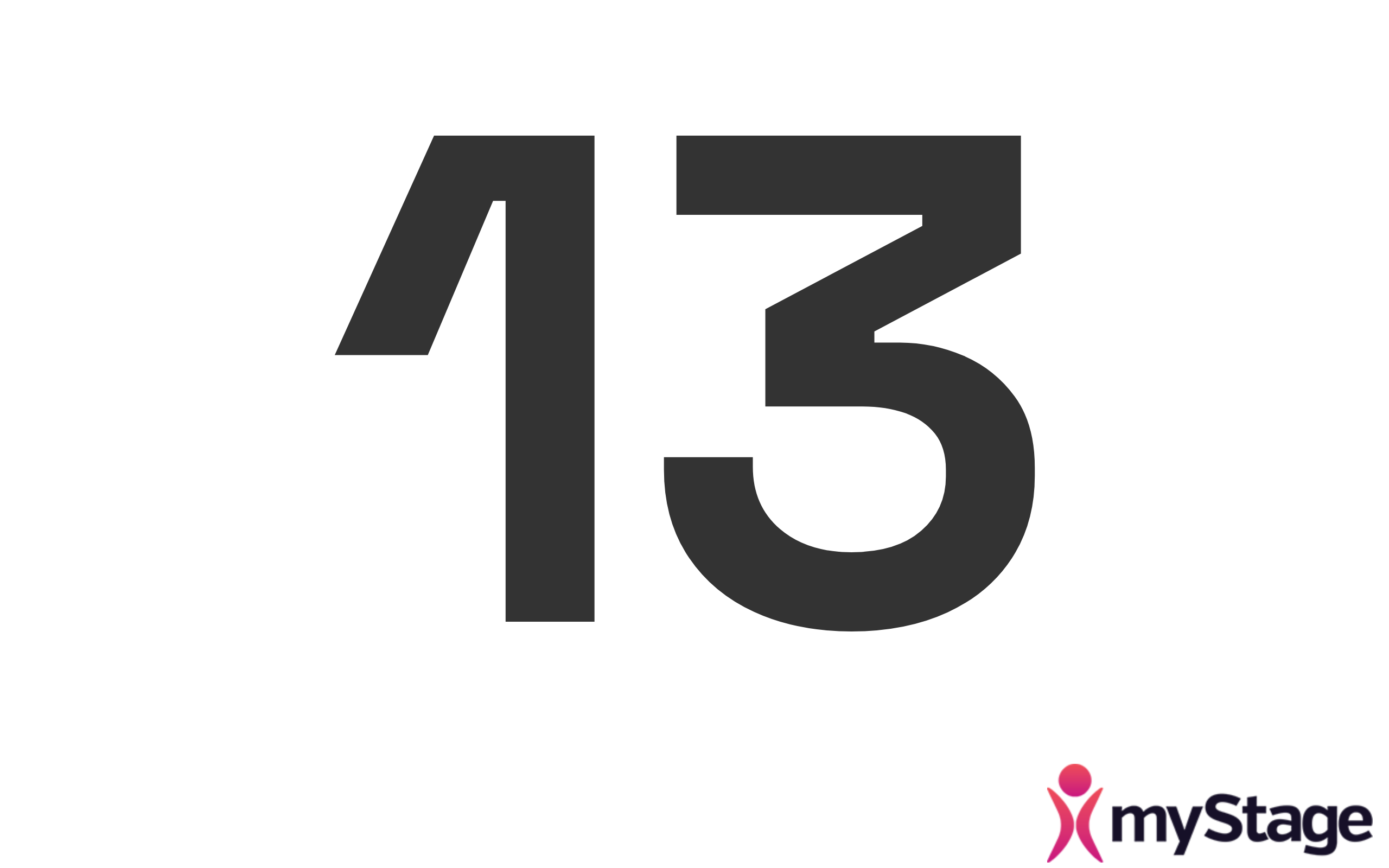
Once saved, the display will show the number of the competitor most recently marked Competing for the location and event.
Info
If no competitor has been marked as Competing in the last 10 minutes, the Current Competitor Number display shows the organisation logo instead. The dark screen shows a blank screen.
Livestream overlay (OBS)
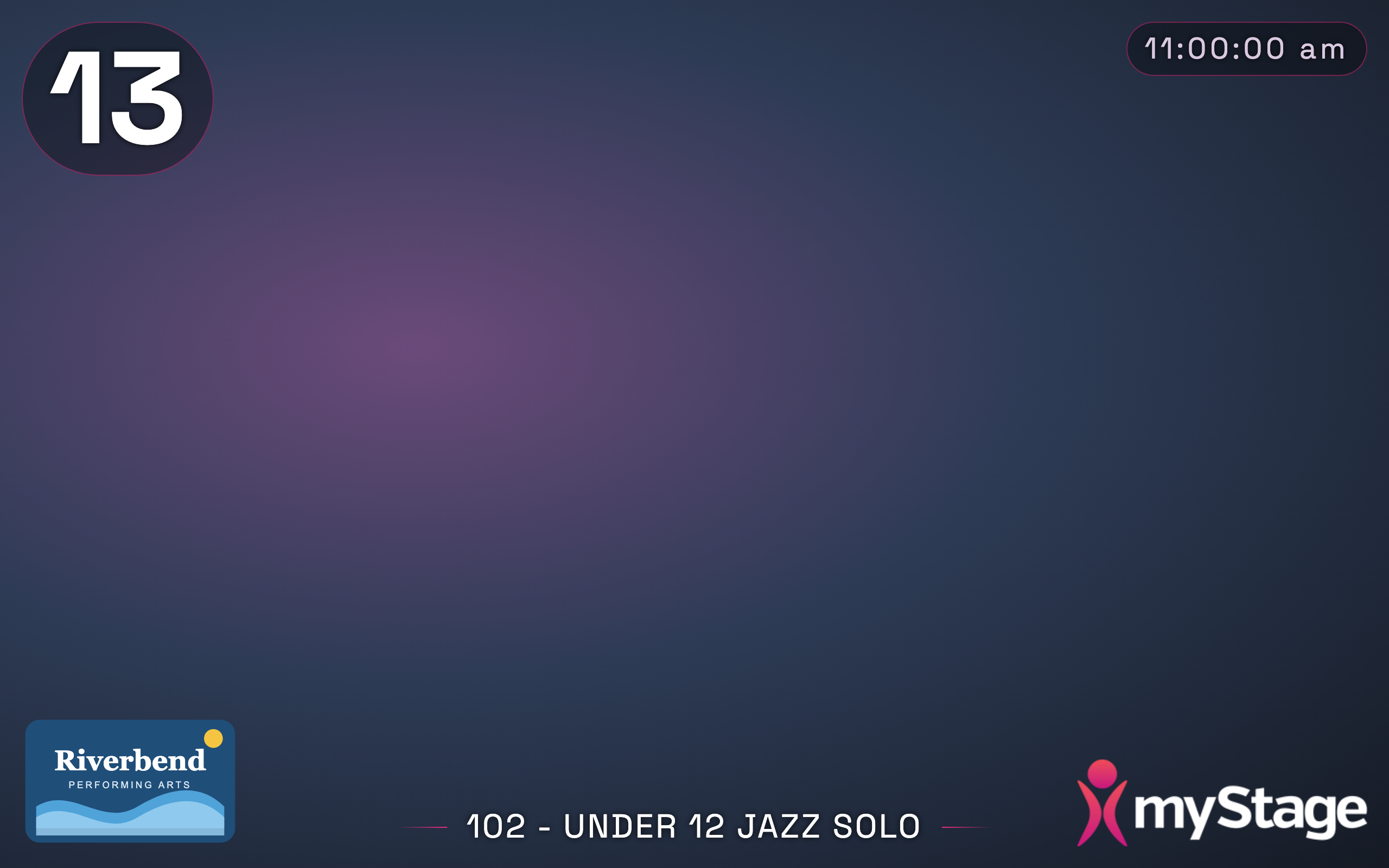
The Current Competitor Number - OBS Overlay (Transparent) type is designed to be added over a livestream camera feed, for example as a browser source in OBS Studio. The background is see-through, so only the information you choose is shown over the video.
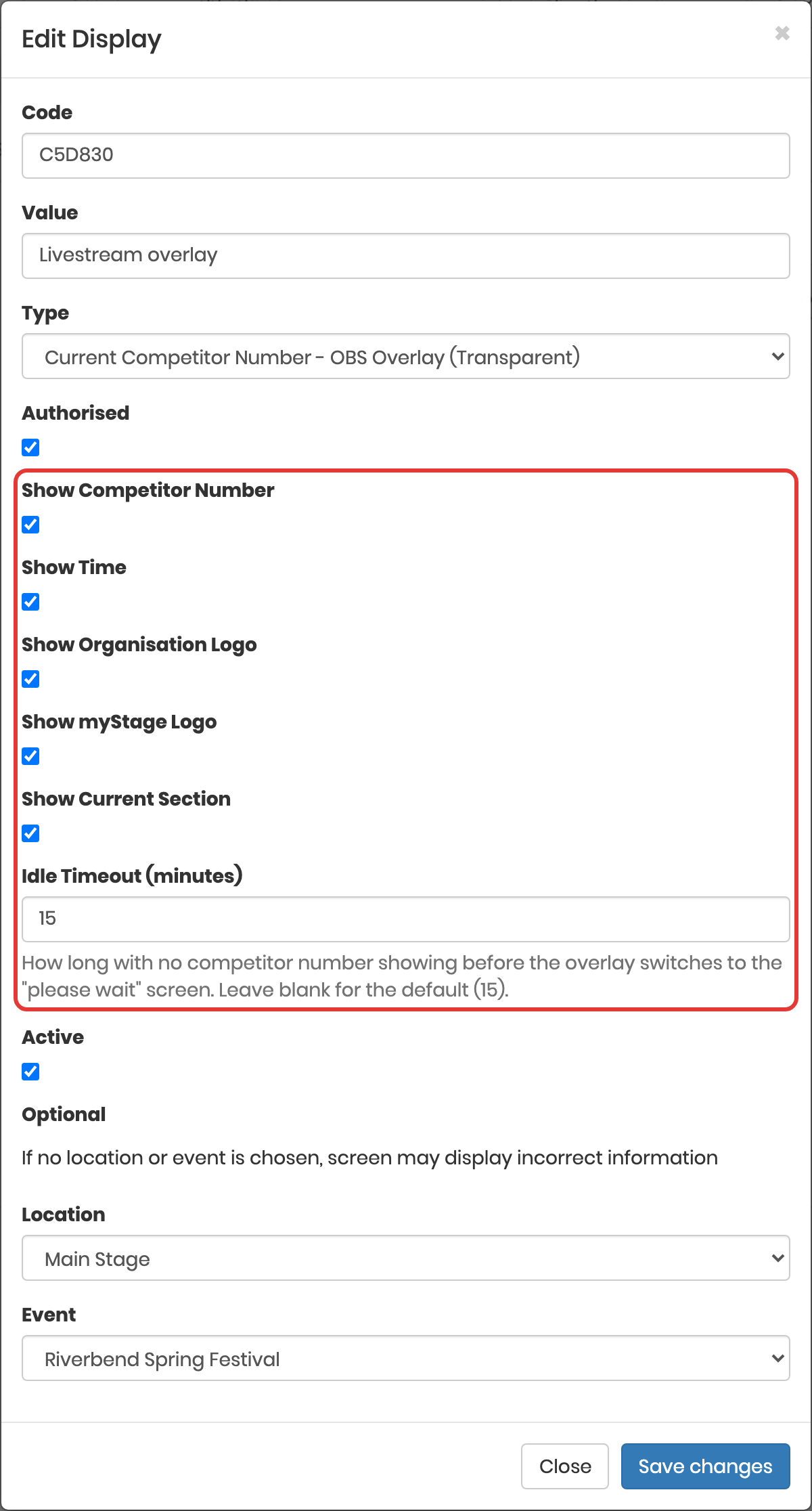
When you choose this type, extra options are shown:
| Option | What it does |
|---|---|
| Show Competitor Number | Shows the number of the competitor on stage |
| Show Time | Shows a clock |
| Show Organisation Logo | Shows your organisation logo |
| Show myStage Logo | Shows the myStage logo |
| Show Current Section | Shows the number and name of the current section |
| Idle Timeout (minutes) | How long with no competitor number showing before the overlay switches to the "please wait" screen. Leave blank for the default (15). |
To add the overlay to OBS:
- Set up the display as above, and note its code.
- In OBS, add a Browser source.
- Set the URL to
https://www.mystage.net.au/myStage/display, and set the width and height to match your stream. - The browser source will show the code for the display. Enter this code when you create the display in myStage, then authorise it.
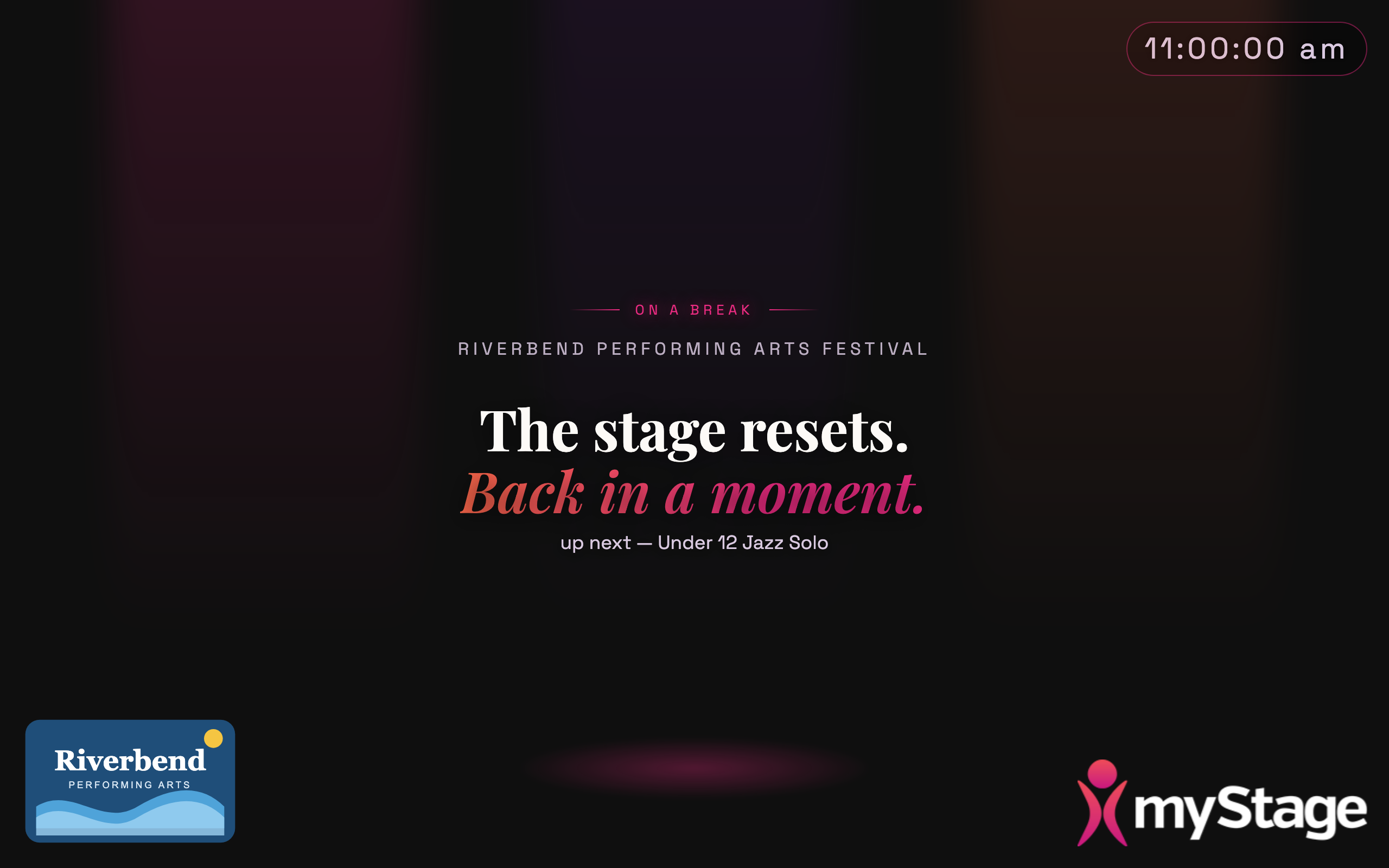
When nobody has been on stage for the idle timeout, the overlay changes to a full screen "please wait" scene, so viewers don't just see an empty stage. The message depends on the day's schedule:
- Starting soon – before the first section of the day, with the start time
- On a break – between sections, with the name of the next section
- Session complete – once all of the day's sections are complete
As soon as the next competitor is marked Competing, the overlay goes back to being see-through.
Venue progress display
The venue progress display shows all sections for the venue today and their progress. This is the same as what volunteers and administrators see on the home page on competition days. It also shows the number of the competitor On Stage.
To set it up, choose Venue Section Progress or Venue Section Progress - Dark Screen as the Type.
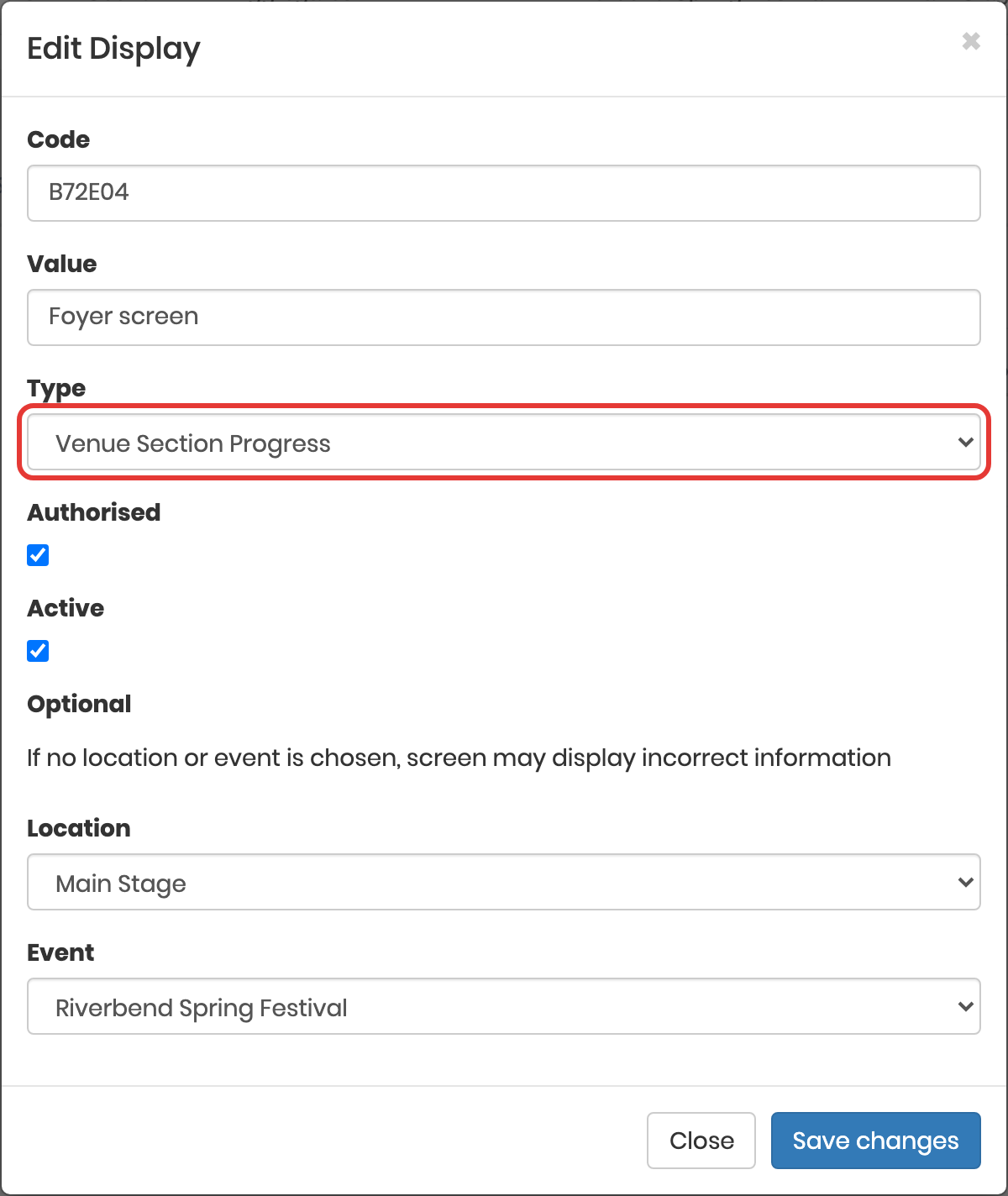
Once set up, the screen will show the progress for the venue and event for the current day. If nothing is scheduled it shows There are no sections scheduled for today.