Getting Started
When using myStage for competition day management, there are a number of different user types that might be used. These are setup by the competition, but could include:
- Registration / Check-in
- Stage Management
- Chairperson
- Timing
- Adjudicators
- Lighting / Sound Technicians
| Role | Tasks |
|---|---|
| Registration | Confirm the competitor(s) are on site and all information is correct |
| Stage management | Track the competitor: - Side stage/dressing room - they ready to perform - On Stage - Awaiting Results - performance complete - Complete - results have been recorded |
| Timing | Record timing information, can also record results |
| Results | Record scoring / results |
| Adjudicators | Show current state of section/item, including titles of performances |
| Lighting | Show lighting information to light + sound technicians |
| MC / Chair | Show information to announce competitors |
The instructions here will explain if certain tasks might only be available for certain users.
Login to myStage
To access myStage, follow this link: www.myStage.net.au
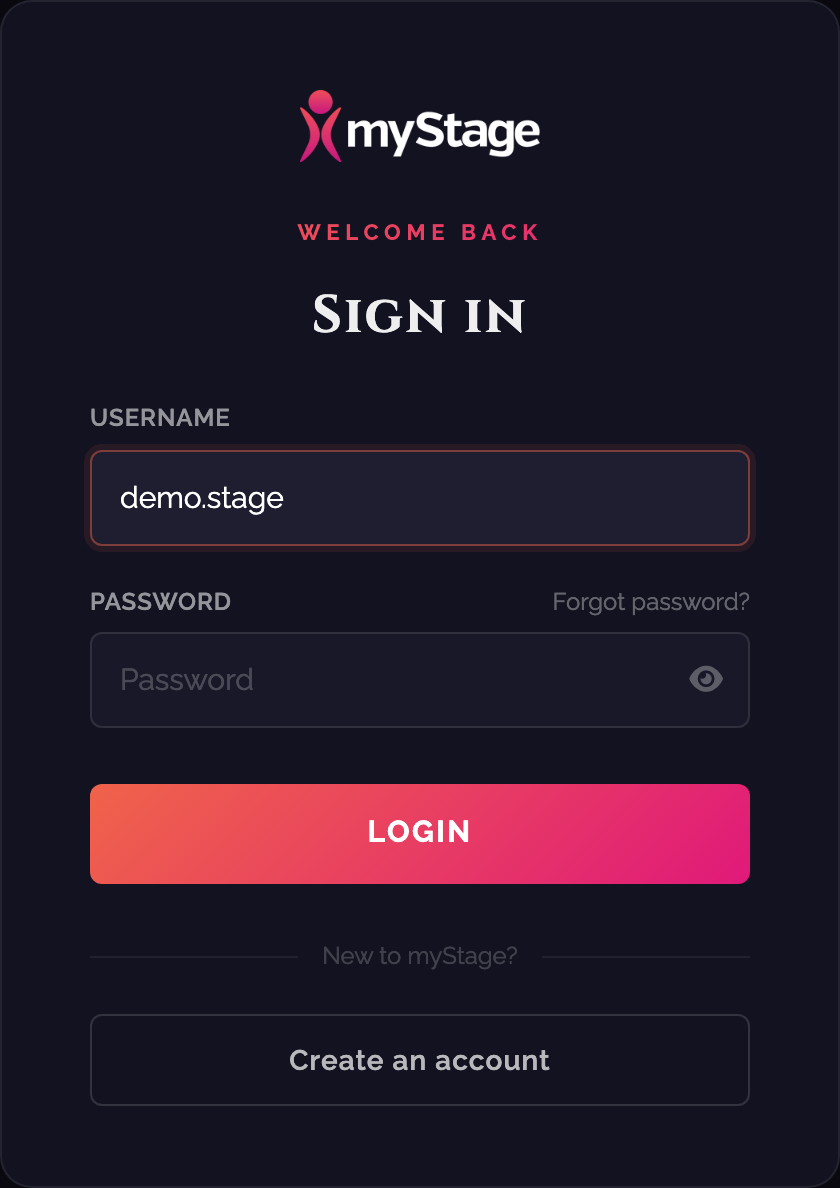
- On the home page click Sign In.
- Enter the username you have been given.
- Enter the password and click Login.
Tip
Competition administrators will have a set of user accounts for each competition, speak to them for details. If you see Invalid username or password, check the details with the competition administrator.
Note
If your account uses a myStage ID, you will see Redirecting to your organisation login... after entering your username, and you'll be taken to the myStage ID sign-in page. Sign in there with your myStage ID email address and password.
If you are logged in during the competition days, you should be able to see the Sections for the current day. At any stage you can log out of myStage by clicking on the profile icon at the top right and choosing Log out.

Tip
If you share a device with other volunteers, always log out at the end of your session so the next person signs in with their own account.
The Volunteer Portal
Some organisations also use the myStage Volunteer Portal (volunteer.mystage.net.au) to roster volunteers. This is a separate site where you can browse and apply for volunteer shifts and track your hours. It is not where you run the competition day.
- To sign in, click Sign In and use your myStage ID email address and password.
- If you have been invited to volunteer, use the registration link from the organisation, fill in your details and click Submit registration. Then follow the emailed link to choose a password and click Create account.
Setting the Event and Location
Each competition can be running multiple venues at the same time. When running the competition you will only want to see the information for the venue you are in.
To do this you can select the event and location in the top menu.

Tip
Even if there are not multiple venues running, setting the location and current event means when you view the competitors and sections they are automatically filtered to only those relevant to the event and location.
Lost?
If you ever get lost, you can go back to the home page by clicking the Home button or the myStage logo.
