Reporting
Reporting
myStage has a number of reports, such as the Program Book, entry exports and results. In some situations, when requested, a custom report may be arranged.
Reports are available to organisation administrators.
Running a report
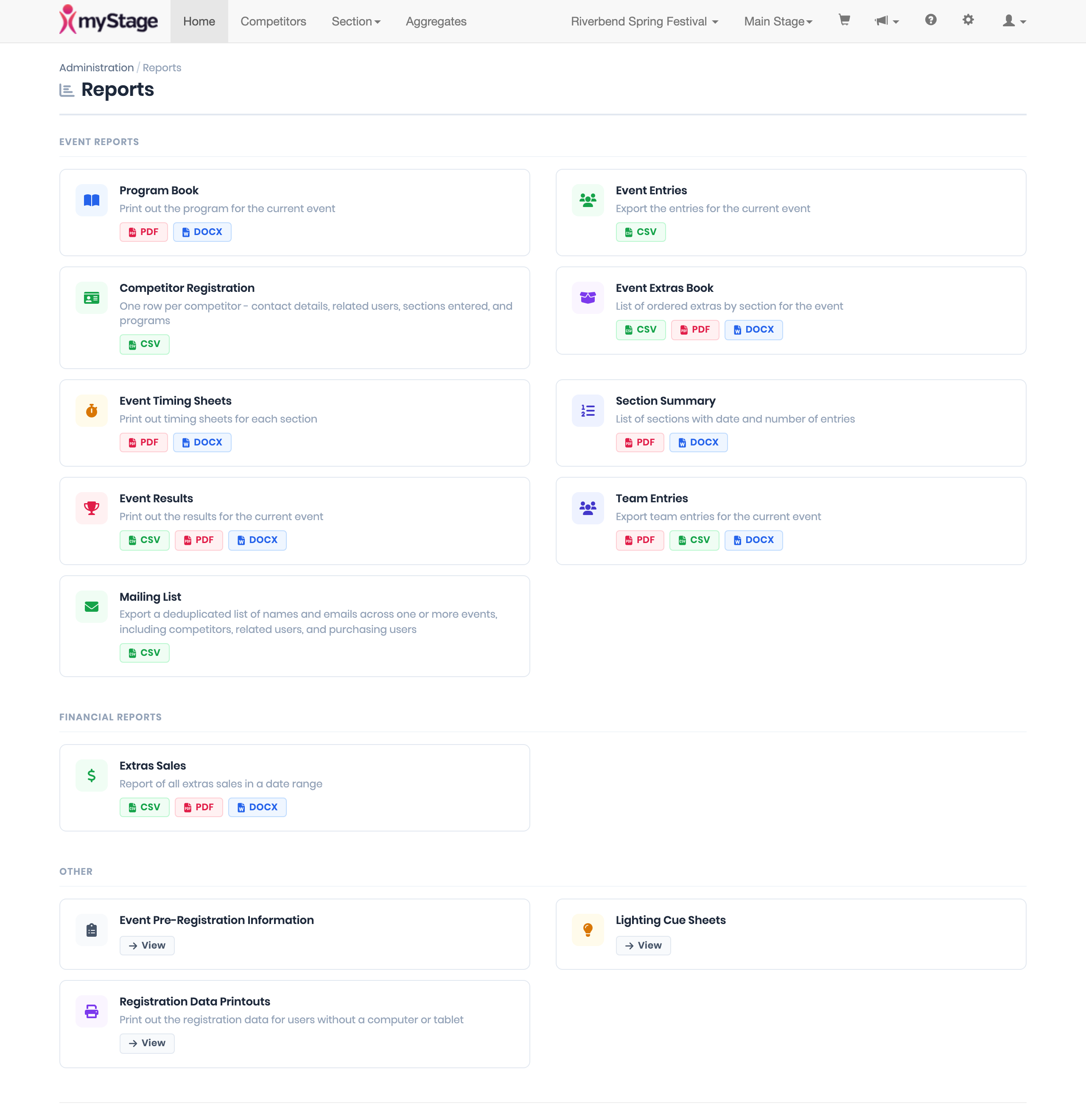
- Go to the administration screen and click Reports.
- Find the report you want. Each report shows the formats it can be produced in (for example PDF, DOCX or CSV).
- Click the format you want. Most reports then show a set of filters or options.
- Choose the Event (required for most reports) and any other options, then click Run Report (or Export CSV for exports).
While a report is being produced, a "Generating report…" message is shown. Large events can take a moment, so wait for the download to start before clicking again.
Tip
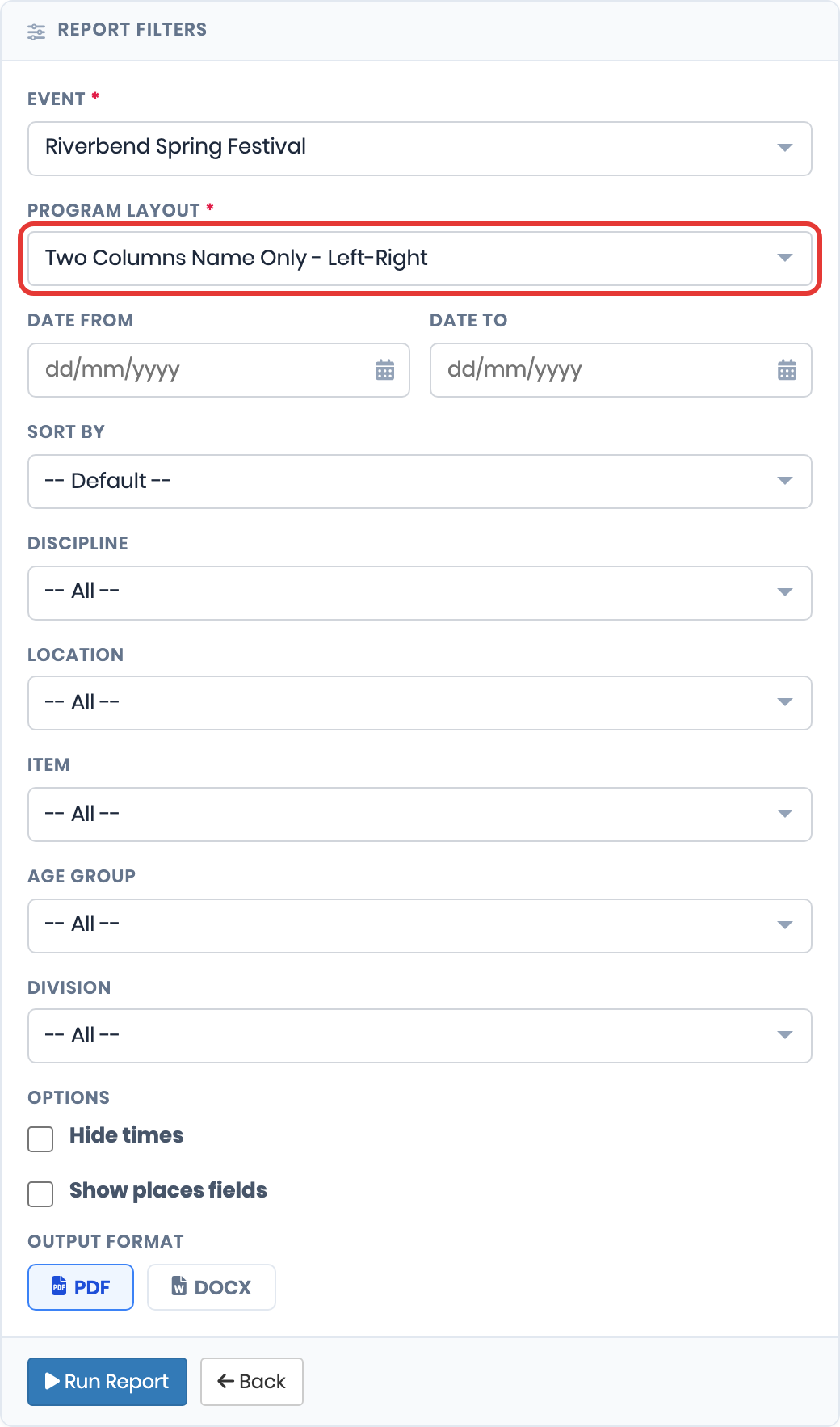
Most reports can be filtered by Date From / Date To, Discipline, Location, Item, Age Group and Division. Leave a filter on "-- All --" to include everything.
Note
CSV files open in Excel or any spreadsheet program. DOCX files open in Word, so you can adjust the layout before printing.
Event Reports
| Report | Formats | Purpose and options |
|---|---|---|
| Program Book | PDF, DOCX | The printed program for an event. Choose a Program Layout (see below), a date range, Sort By (Date or Location) and the usual filters. Options: Hide times and Show places fields. |
| Event Entries | CSV | One row per entry for the selected event. Options: Capitalise competitor names (names are exported exactly as entered unless this is ticked) and Include invoice and payment details (this can make the export much slower). |
| Competitor Registration | CSV | One row per competitor: contact details, club, related users (with relationship, email and phone), sections entered, the club/school on their entries, and a column for each of the event's extras (such as programs). Useful for registration desks and dance events. |
| Event Extras Book | PDF, DOCX, CSV | Extras ordered for an event, listed by section. Choose the Extra and the usual filters. |
| Event Timing Sheets | PDF, DOCX | Printable timing sheets for each section. |
| Section Summary | PDF, DOCX | A list of sections with their date and number of entries, with a total at the bottom. |
| Event Results | PDF, DOCX, CSV | The results for the selected event, using the usual filters. |
| Team Entries | PDF, DOCX, CSV | For each team, the number of competitors entered, grouped by age group and division, with a total. Waitlisted, withdrawn and non-attendance entries are not counted. |
| Mailing List | CSV | A list of names and email addresses across one or more events (see below). |
Program Book layouts
When you run the Program Book you choose one of these layouts:
- Single Column with Club&Coach
- Single Column with Suburb
- Single Column with Club
- Cali Teams - Single Column with Team Name
- Cali Teams - Single Column with Club
- Two Columns with Suburb - Left-Right / Left-Down
- Two Columns Name Only - Left-Right / Left-Down
- Two Columns with Club Only - Left-Right / Left-Down
When Show places fields is ticked, every section shows blank lines for 1st, 2nd, 3rd, HM and HC so they can be filled in by hand. These lines are shown for every section, regardless of how many entries it has.
Mailing List
- Click CSV on the Mailing List report.
- Tick the events you want to include. Use Select all or None to change the whole list.
- Click Export CSV.
The export includes the competitors, their active related users, and the person who paid for each entry. Each person appears once, even if they were in several events. The file has the columns First Name, Last Name, Email and Type (Competitor, Related User and/or Purchasing User).
Note
Only use the mailing list in line with your organisation's privacy policy and the permissions your members have given.
Financial Reports
| Report | Purpose |
|---|---|
| Extras Sales | All extras sales in a date range, across all events. |
Other Reports
| Report | Purpose and options |
|---|---|
| Event Pre-Registration Information | View the pre-registration information collected for an event. Filter by Discipline, Age Group and Division, and tick Show entries to list entries. View it on screen (HTML) or download it as PDF or DOCX. In the PDF and DOCX versions, the name of any uploaded file is shown. |
| Lighting Cue Sheets | Produce lighting cue sheets in bulk. Enter a Report Name (for example "Evening Show"), choose the event and filters, then run it as PDF or DOCX. |
| Registration Data Printouts | Print registration data forms for users without a computer or tablet. Choose the Role, the event and filters. |
Reports from other screens
Some reports are run from other parts of myStage:
- Print Report on the Sections tab of an event produces the Section Summary for that event.
- Print Results on a section's results page prints the results for that section.
- Adjudicator Time Check Sheet on a section's timing page prints a timing sheet for the adjudicator.
- Print on a critique produces a PDF of the critique. See Critiques.