How to setup for entries
This page explains how to set up your organisation and an event so that competitors can enter.
The quickest way to create an event
Use the event setup wizard. It creates the event, its items, age groups, divisions, performance types and sections in one go. The rest of this page explains how to set up or change each part individually, which you'll still need for settings the wizard doesn't cover.
The examples on this page use a fictional organisation. Your organisation's information will be different, but the steps are exactly the same.
Update your organisation information
- Log in to myStage with your administration username and password.
-
Go to the Administration dashboard by clicking the gear icon.

-
Click Organisation.
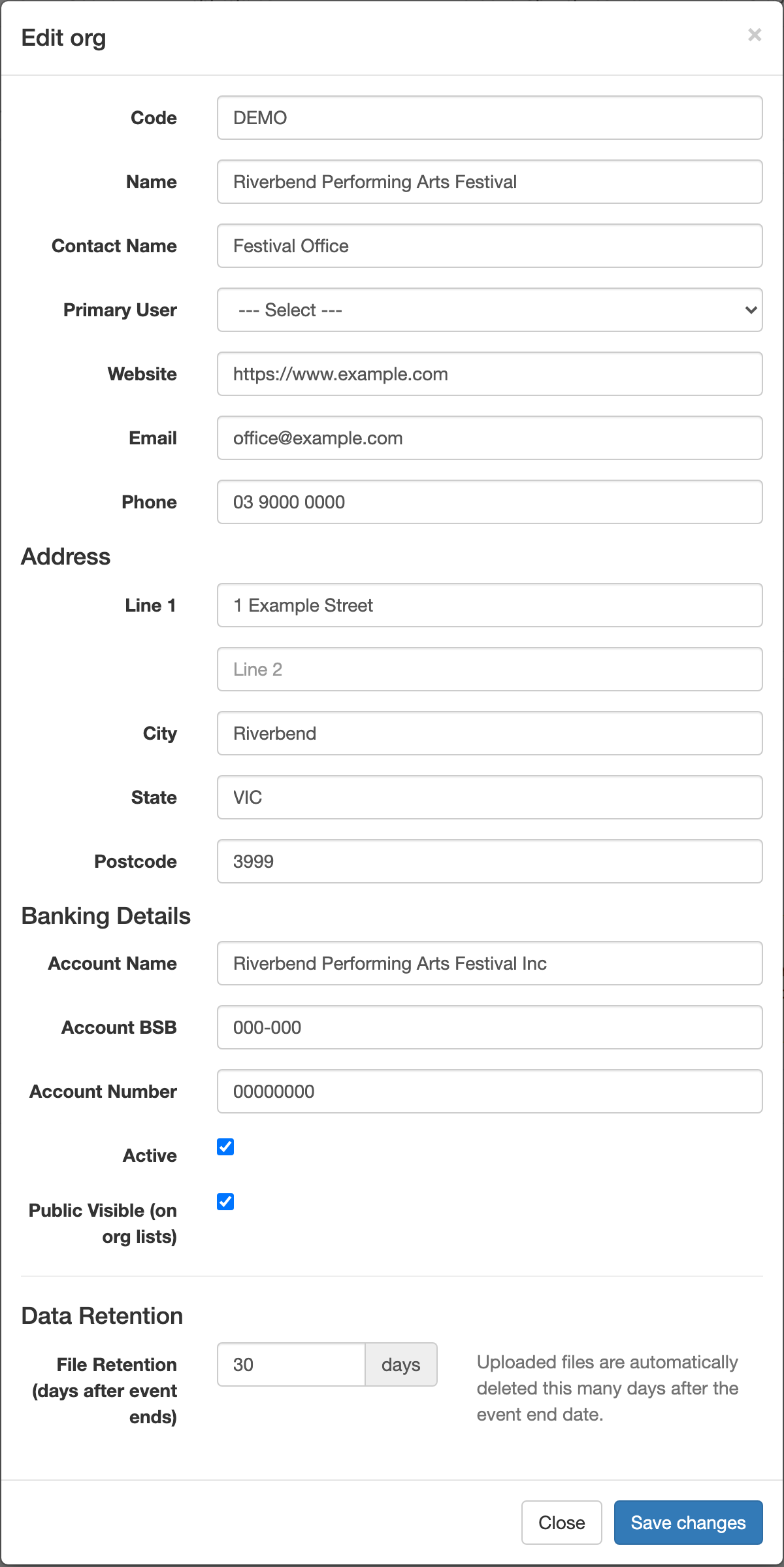
- Click Edit. The Edit org window has your organisation's details (Code, Name, Contact Name, Primary User, Website, Email, Phone), its Address, Banking Details (Account Name, Account BSB, Account Number), the Active and Public Visible options, and Data Retention. Phone and State are required.
- Click Save changes.
Note
An organisation code is usually recorded when your organisation is created in myStage. Your public page uses this code, for example https://mystage.net.au/myStage/DEMO.
Make sure your address and, most importantly, your bank details are correct and up to date.
Set your organisation's timezone
Event entry open and close times are interpreted in your organisation's timezone. If the timezone hasn't been set, the Administration dashboard shows a reminder in the setup checklist.
- On the Administration dashboard, click Set timezone. You can also set it from System Configuration under Timezone.
- Select your timezone, for example "Australia/Melbourne (AEDT/AEST)".
- Click Save Timezone.
Warning
If you change the timezone, any existing open and close times on your events are interpreted in the new timezone. Review your events and update the times if needed.
Set up locations
Locations are the venues where your events take place.
- From the Administration dashboard, click Reference Data.
- Click Locations in the list on the left.
- Click Create to add a new location, or Edit next to an existing one.
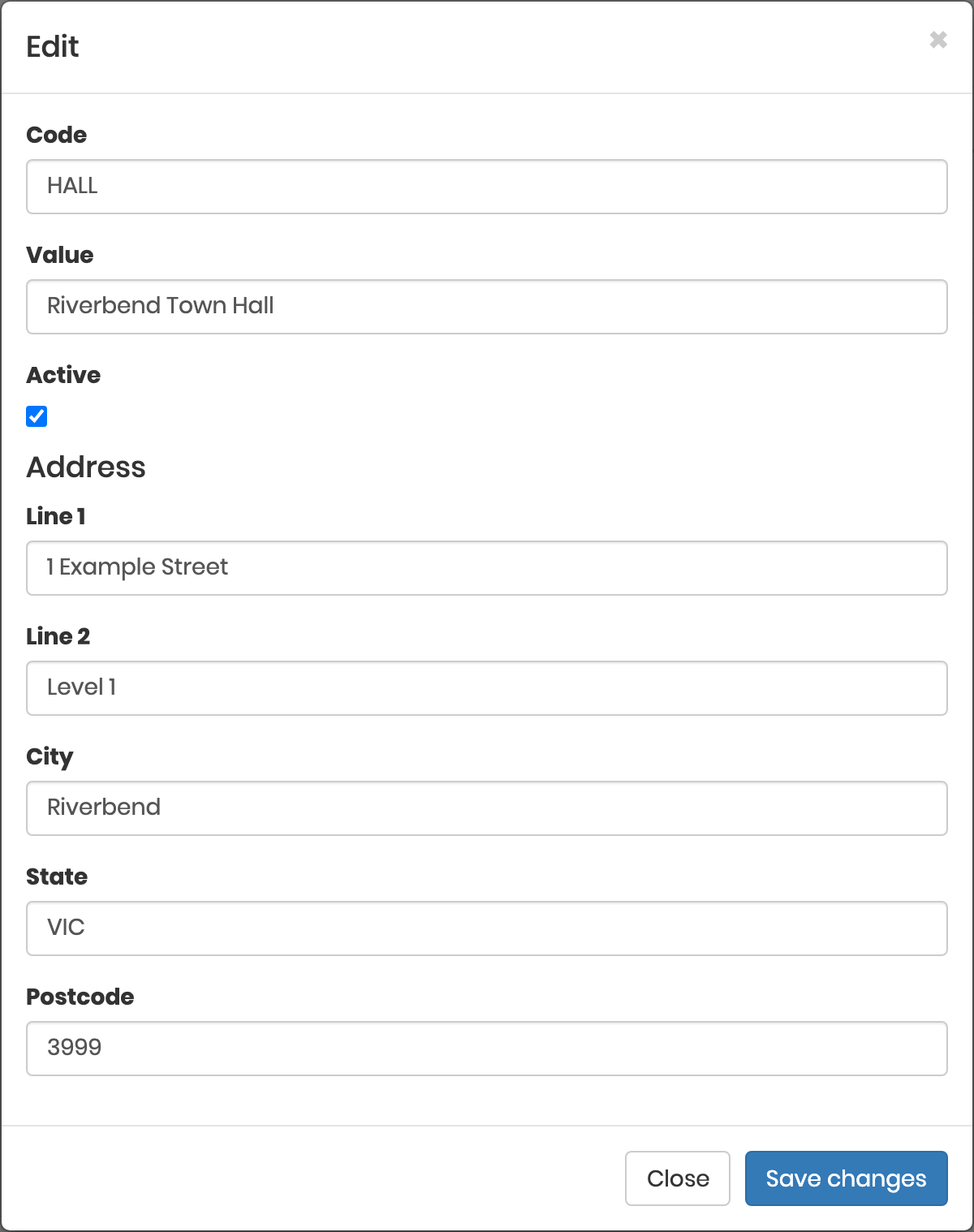
- Enter a Code (a short form of the name) and the Value (the name of the venue).
- Optionally, enter the venue's Address (Line 1, Line 2, City, State, Postcode).
- Click Save changes.
Tip
If you enter a full address (Line 1, City, State and Postcode), the public event page shows the venue's city and a map of the location.
Set-up or Update Entry Extras and the relevant Costs
From the admin panel -> Codesets -> Click on Entry Extras tab
You can update the existing ones by clicking - Options -> Edit or
Create a new entry extra by clicking on the 'New' button, then provide the name and the description of the entry extra eg DLP, Photography etc.
Question Type
Choose the relevant question type. There are only two (Section/Item or Invoice/Order). If the entry extras need to be purchased under every item, then choose Section/Item otherwise choose Invoice/Order).

Once you have created your event entry extra/s, you need to map each to the relevant (Item, Age, division or performance type), Save changes when done.
To Map it, select options alongside the entry extra, click on Edit Mapping ->'Add Codeset Mapping Group)
Different Entry fees for different Items
You can have different entry prices for different items/sections.
In myStage, a general entry price per section is set in the Event (Admin -> Codetsets -> Event -> Options -> Edit)

You can also set an entry price in different items or sections (Admin -> Codesets -> Items -> Option -> Edit)
If an entry price is set in the item, this price takes precedence over the entry price setup from the Event.
Price per item
You can set different prices for items by editing each item in codesets.

Alongside the item that the price need to be updated, click on Options, then select ‘Edit’.
Set the price under the ‘Entry Fee’ section and Save Changes

Price for performance types
Another place where an entry price can be set is on the performance type tab of myStage.
View the performance types codeset you wish to set custom prices on

In the performance types, you can set entry pricing based on the key categories, such Solos, Duos items or Teams.
So this means every section with that performance type, Solo for example, the price setup here applies to all of them. From the performance screen, for teams or duos, you can set an entry price per a competitor.


Setup Ages
Ages are age restrictions on a section, for example "Under 12".
- From the Administration dashboard, click Reference Data, then click Ages in the list on the left.
- Click Create to add a new age, or Edit next to an existing one.
- Enter the Code, the Value (the name shown to entrants), and the Minimum Age(years) and Maximum Age(years).
- Click Save changes.
If an age is no longer required, click Delete next to it.

Setup Age Groups
Age groups are named groups such as "Junior" or "Senior".
- In Reference Data, click Age Groups.
- Click Create to add a new age group, or Edit next to an existing one.
- Enter the Code, the Value, and the Minimum Age(years) and Maximum Age(years).
- Click Save changes.
If an age group is no longer required, click Delete next to it.

Age range on sections
Each section shows an Age Range, worked out from the minimum and maximum ages of the section's age and age group. It appears on the section's page and in the Sections tab of the event page. If a section has both an age and an age group, the range covers both, and an information icon shows each one separately. A blank minimum is treated as 0 and a blank maximum as 99.
The date used to calculate ages
By default a competitor's age is calculated either at the end of the year or at today's date, depending on your configuration. To use a specific date for an event, set Date for Age Calculation on the event. See Edit event settings.
Create or Edit a Division
- In Reference Data, click Divisions.
- Click Create to add a new division, or Edit next to an existing one.
- Enter the Code and Value.
- Click Save changes.


Create or update items list
- In Reference Data, click Items.
- Click Create to add a new item, or Edit next to an existing one.
- Enter the Code, Value and Discipline.
- Optionally, set an Entry Fee. If set, this price is used instead of the entry fee on the event.
- Click Save changes.


Map the items to Age and Division
Once your ages, age groups, divisions and items are set up, map each item to the age groups, ages, divisions and performance types it can be entered in.
- In Reference Data, click Items.
- Click Mapping next to the item.
- In each search box, type an asterisk (
*) to list everything in that category, or type part of a name to find it. - Tick the relevant values.
- Click Save changes.


Tip
The event setup wizard does this mapping for you when you add categories to an item in step 2.
Create the Event
The recommended way to create an event is the event setup wizard. From the Administration dashboard, click Events, then New Wizard.
You can also create an event manually:
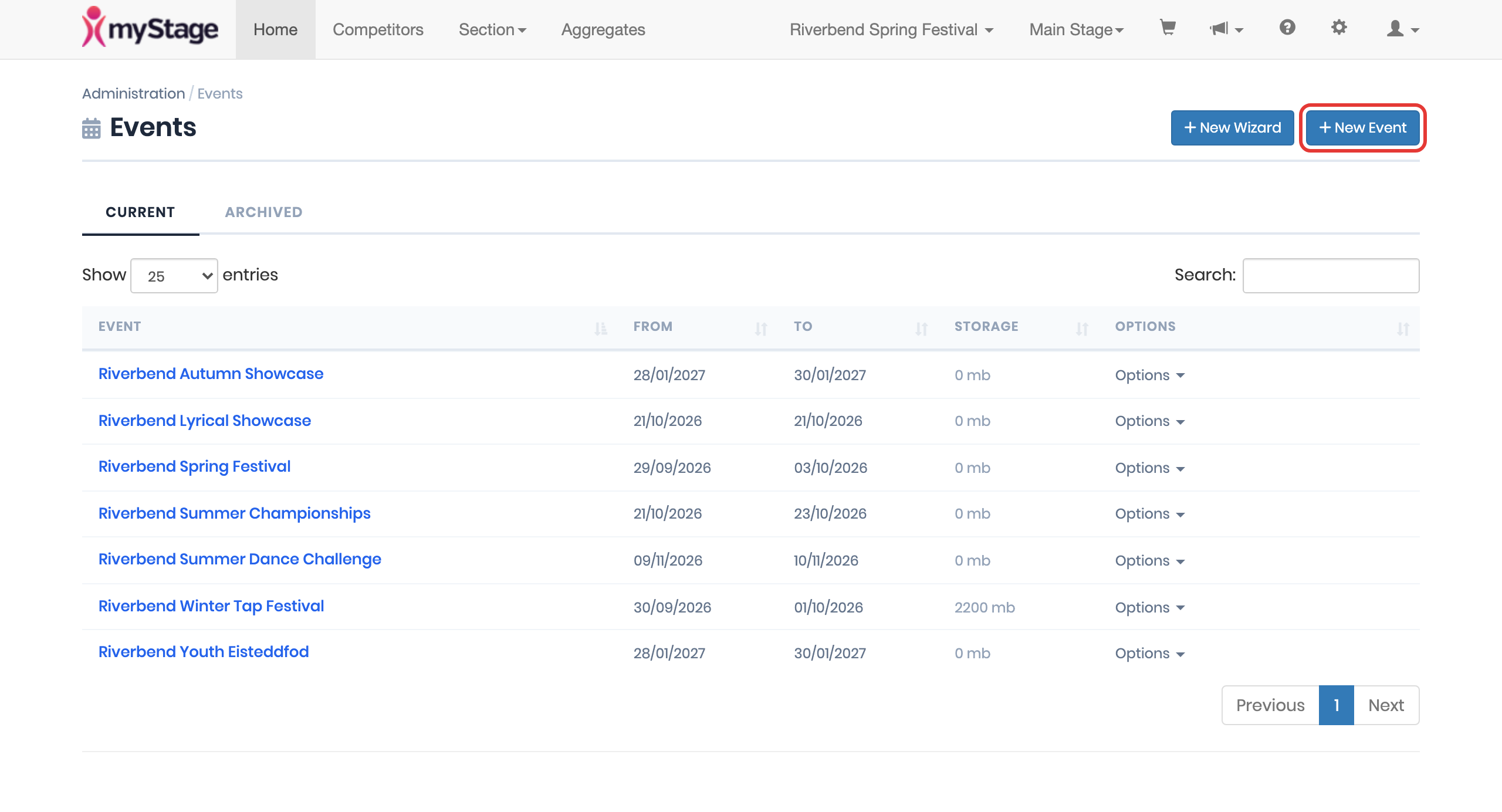
- From the Administration dashboard, click Events.
- Click New Event. A new event is created and its settings page opens.
- Fill in the settings described in Edit event settings.
- Click Save Changes.
Edit event settings
To change an existing event's settings:
- From the Administration dashboard, click Events.
- Click the event's name to open the event page.
- Click Edit Details.
- Update the settings and click Save Changes.
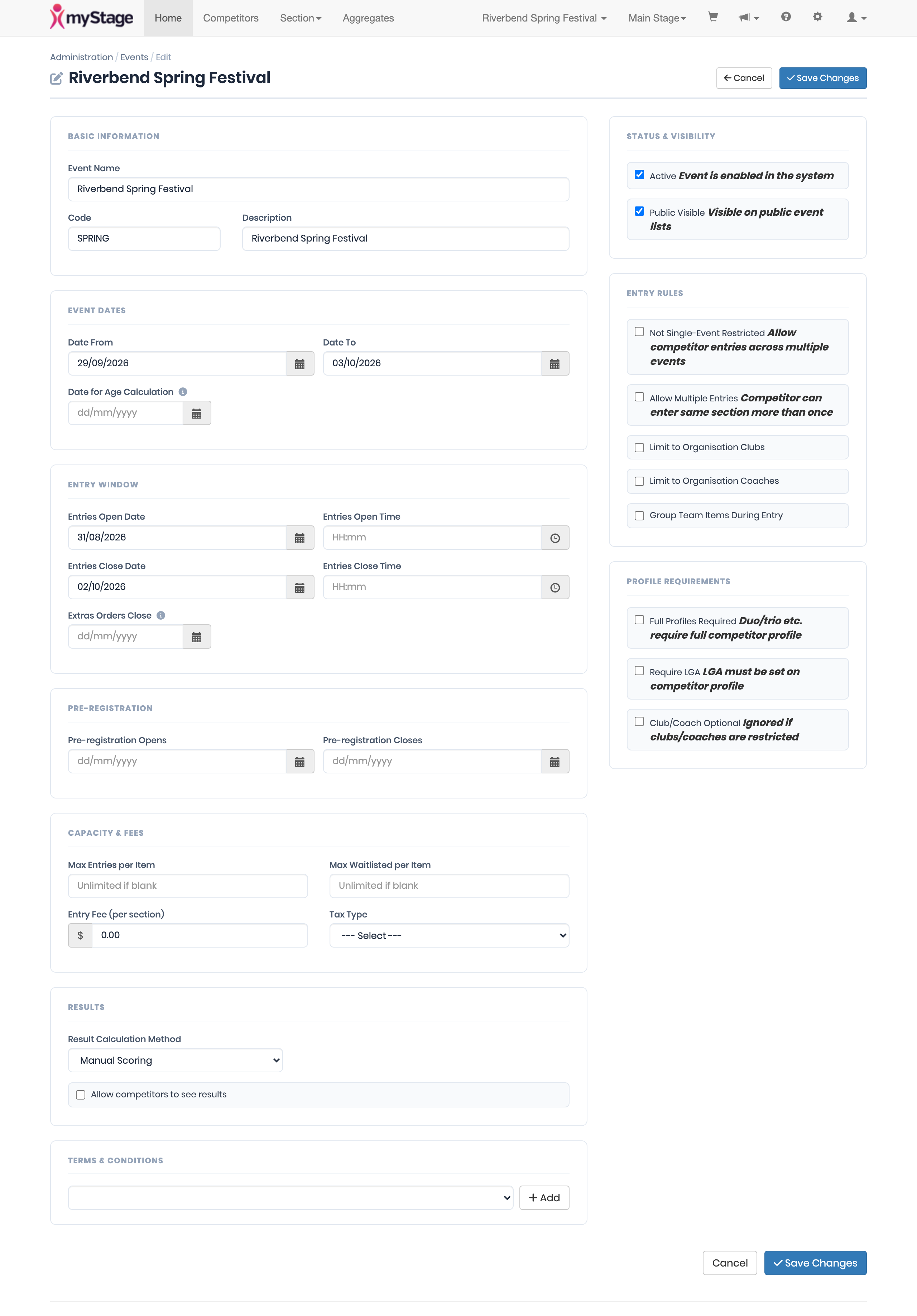
The settings are grouped into sections.
Basic Information
- Event Name – required.
- Code – a short code. It is also used in the event's public link.
- Description – a short description, up to 255 characters. For a longer description on the public page, use Edit Content Page.
Event Dates
- Date From and Date To – when the competition runs.
- Date for Age Calculation – the date competitors' ages are calculated at for this event. If blank, it is either the end of the year or today's date, depending on your configuration.
Entry Window
- Entries Open Date and Entries Open Time
- Entries Close Date and Entries Close Time
- Extras Orders Close – if blank, the same as the entries close date and time.
Times are in 24-hour format (HH:mm) and are interpreted in your organisation's timezone.
Pre-registration
- Pre-registration Opens and Pre-registration Closes – fixed dates for when competitors can submit their pre-registration data (for example music uploads). Pre-registration stays open until the end of the closing date.
Note
Older events may use a number of days before the section (or event) date instead of fixed dates. A fixed date, if set, always takes precedence over the number of days. The "days before" settings are no longer shown on the edit page.
Capacity & Fees
- Max Entries per Item and Max Waitlisted per Item – unlimited if blank.
- Entry Fee (per section) – the default price per section. A price set on an item, age, division or performance type takes precedence. See Different Entry fees for different Items.
- Tax Type
Results
- Result Calculation Method
- Allow competitors to see results
Terms & Conditions
Select terms and conditions from the list and click Add. Click the × next to one to remove it. See Terms and Conditions to upload them.
Status & Visibility
- Active – the event is enabled in the system.
- Public Visible – the event appears on public event lists. You can also switch this with the Publish button on the event page.
Entry Rules
- Not Single-Event Restricted – allow competitor entries across multiple events.
- Allow Multiple Entries – a competitor can enter the same section more than once.
- Limit to Organisation Clubs
- Limit to Organisation Coaches
- Group Team Items During Entry
Profile Requirements
- Full Profiles Required – additional competitors in a duo, trio and so on need a full competitor profile.
- Require LGA – the LGA must be set on the competitor's profile.
- Club/Coach Optional – ignored if clubs or coaches are restricted.
Copy an event
- Open the event page and click Actions > Copy Event.
- Update the name (it defaults to the original name followed by " - Copy") and enter the new dates.
- Click Save Copy.
Note
Copying an event doesn't copy its dates. The event dates, entries open and close dates and times, extras close date, pre-registration dates and date for age calculation are all left blank, so you must enter them for the new event.
You can also copy an event with the wizard by choosing Copy from Existing Event. See Start the wizard.
Map the Items and Locations to the Event
Once the event has been created, map the locations and items to it.
- Open the event page.
- Click Actions > Edit Mapping (or Edit Mapping in the Event Details panel).
- Under Locations, select where the event takes place.
- Under Items, select the items for this event.
- Click Save changes.
In each search box, type an asterisk (*) to list everything, or type part of a name.

Create Sections for the competition
When the items are mapped to the event, create the sections.
- Open the event page.
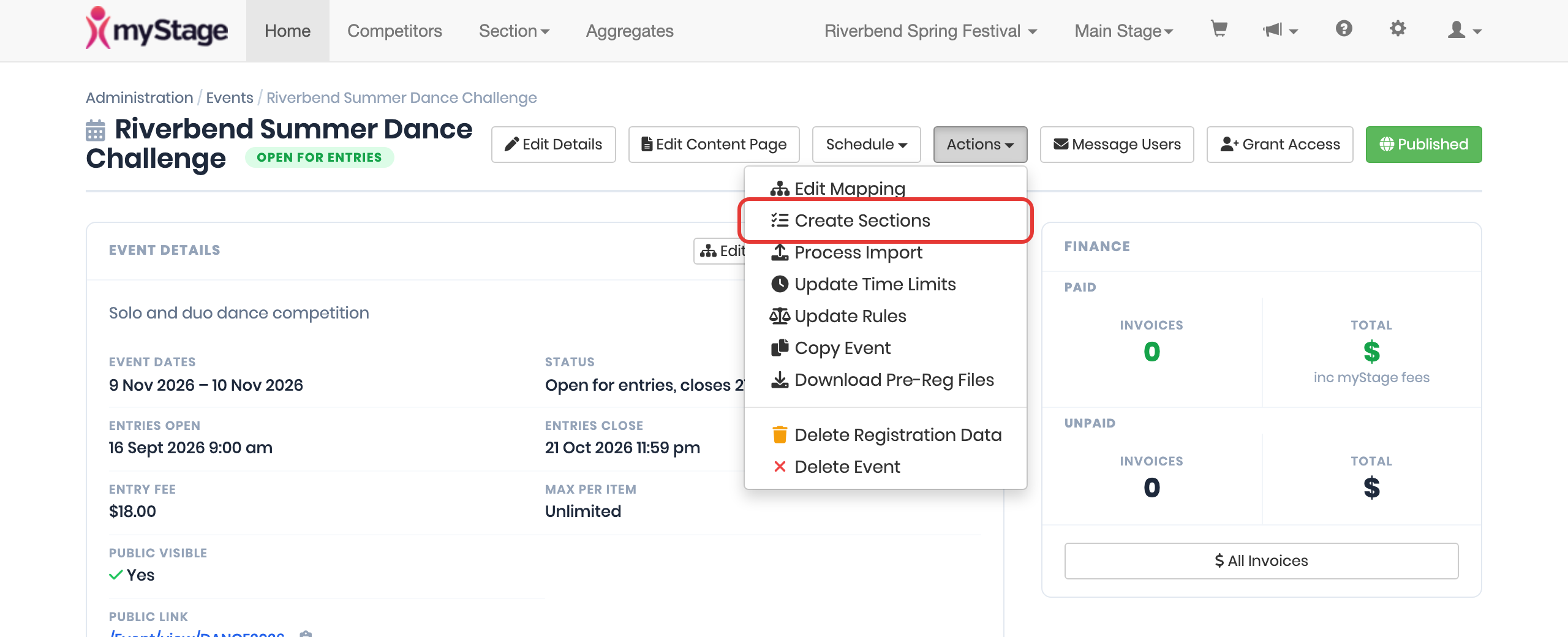
- Click Actions > Create Sections (or Create Sections in the Event Details panel).
- Check the list of sections, and tick the ones to create.
- Click Save.

Add instructions to a section
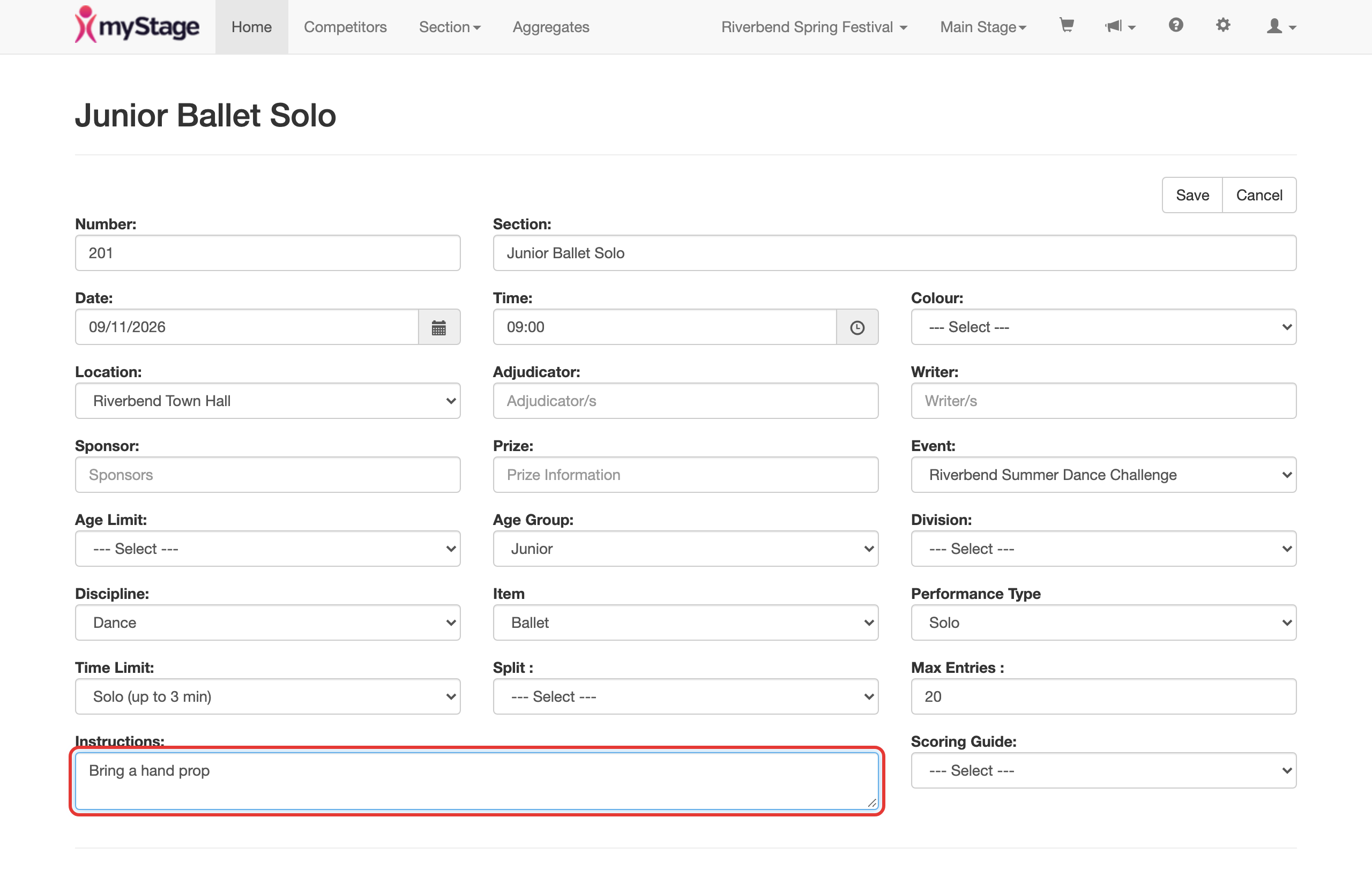
You can give a section special instructions, for example what to bring or a costume requirement. Entrants see a note that the section has special instructions when they choose sections to enter, and the instructions are shown on their entry.
- Open the section (for example, click it in the Sections tab of the event page).
- Click Edit.
- Enter the text in Instructions.
- Click Save.
The public event page
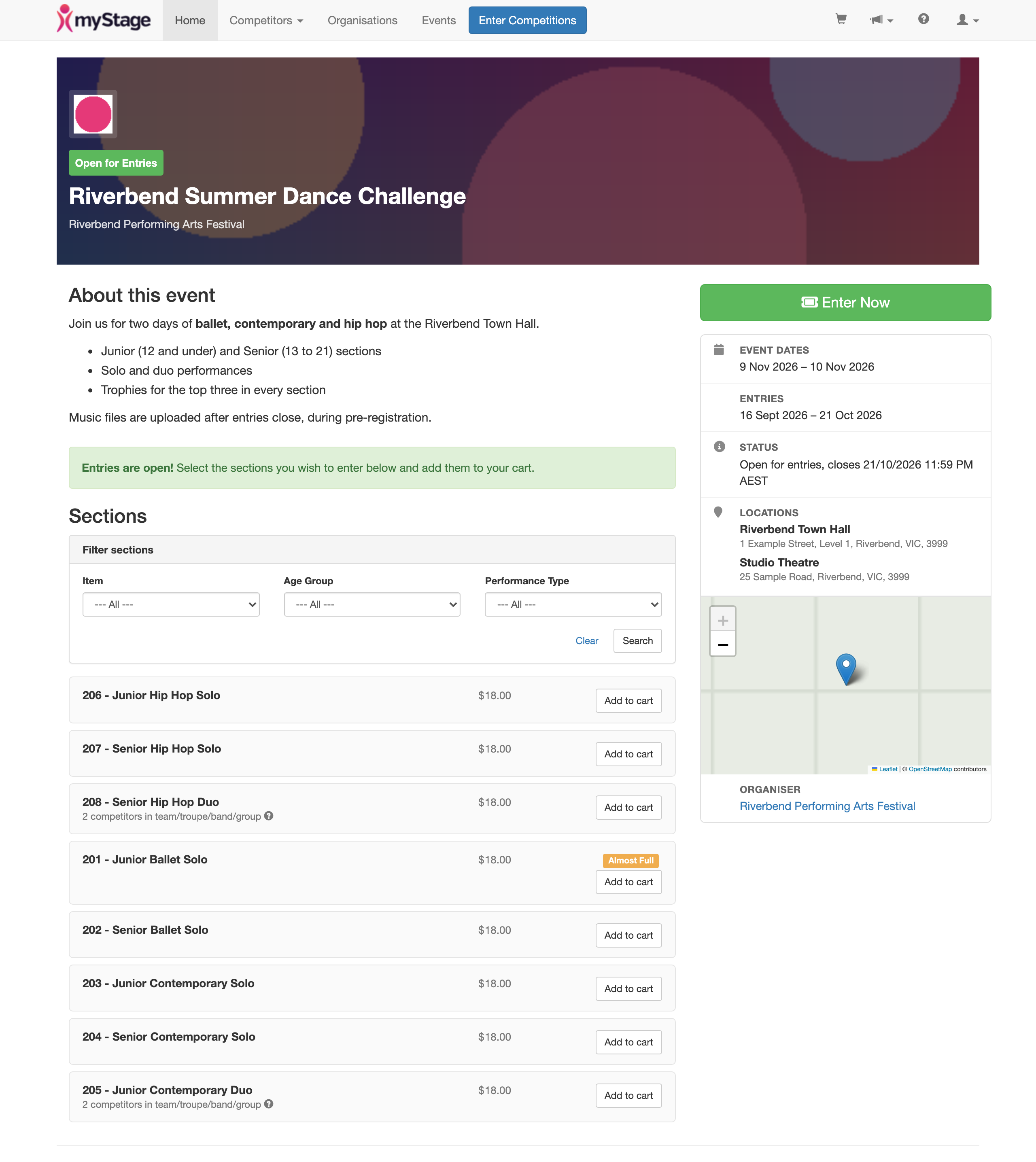
Each event has its own public page. This is what entrants see, and where they enter.
Find the link
On the event page, the Event Details panel shows the Public Link, for example /Event/view/SPRING_SOLOS_2026. Click the clipboard icon to copy the full link.
Your organisation also has a public page listing all its public events, for example https://mystage.net.au/myStage/DEMO. Each event shows its dates and whether it is Open, Upcoming or Closed, with an Enter Here button while entries are open.
Public events also appear on the myStage home page under Events, marked Open or Opening Soon.
What entrants see
The public event page shows:
- the event name and cover photo, with a status of Open for Entries, Upcoming or Closed
- About this event – your public description (or the short description if you haven't added one)
- an Enter Now button while entries are open, and View Schedule / Program once the schedule is released
- the event dates, entry dates, status, locations and a map for locations with a full address, and your organisation as the organiser
- while entries are open, the list of sections with filters and a button to add each section to the cart. Full sections are marked Full, and nearly full ones Almost Full.
Before entries open, the page shows Entries not yet open with the opening date and time.
Control what entrants see
- Public visibility – click Publish on the event page to make the event appear on public event lists. The button changes to Published; click it again to hide the event. This is the same as the Public Visible setting.
- When entries open and close – set by the entry window dates and times in Edit event settings. Sections are only listed while entries are open.
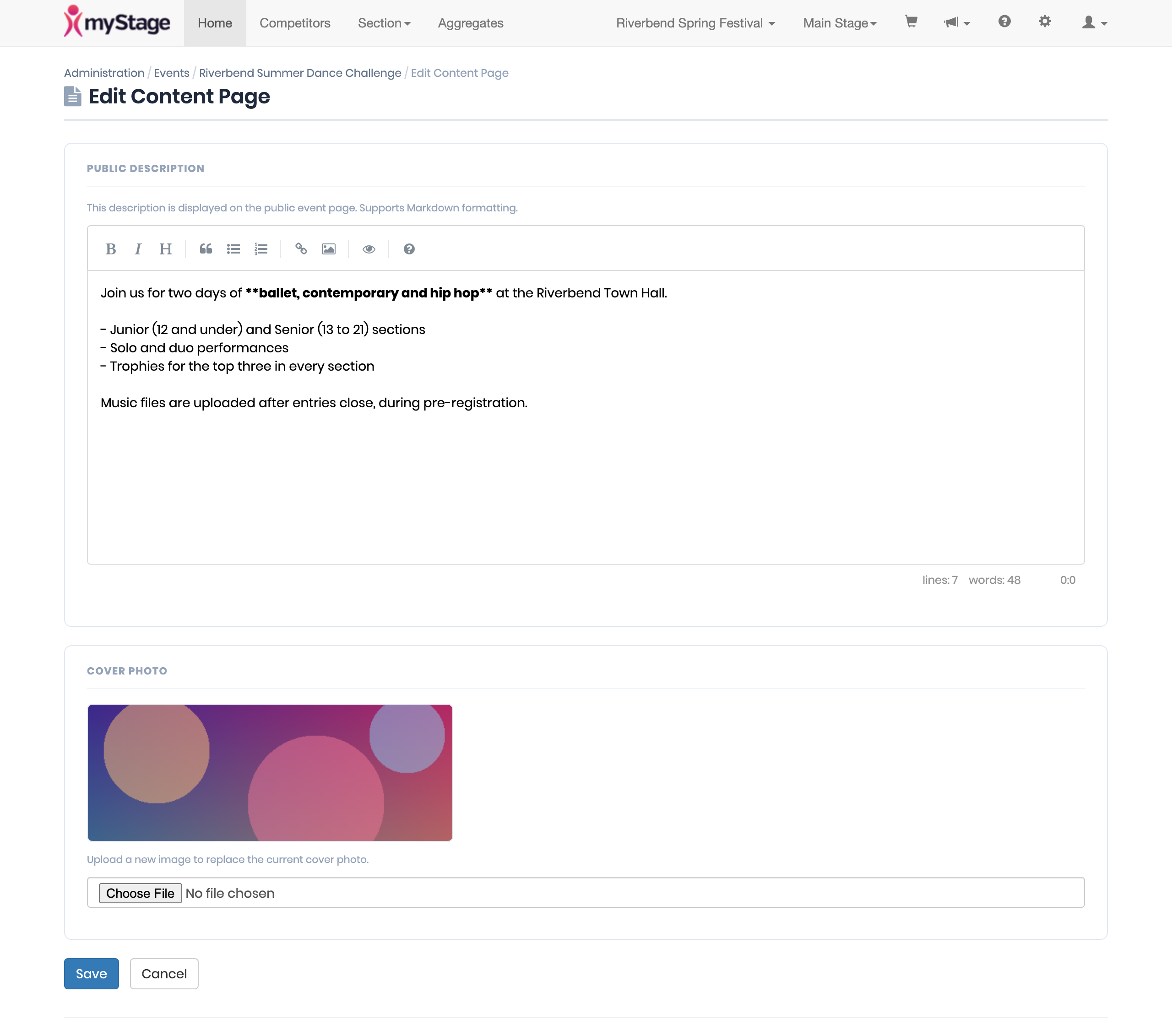
- Cover photo and public description – click Edit Content Page on the event page. Enter the Public Description (you can format it with Markdown, using the editor toolbar), choose a Cover Photo image, and click Save. To replace the cover photo, upload a new image.
Preview before entries open
Before entries open, a Preview button on the event page shows you the public page as entrants will see it, including the sections. A banner reminds you it is an admin preview.
Terms and Conditions
Some terms and conditions are shared and are visible for all events. If you have terms and conditions unique to your competition, you can upload your own and add them to your event.
- From the Administration dashboard, click Reference Data.
- Click Terms & Conditions.
- Click Create to upload new terms and conditions, or Edit next to existing ones.
- Choose the file with your terms and conditions to upload.
- Click Save changes.
- Add the terms and conditions to your event in Edit event settings.

