Sharing Competitor profile
Sharing User profile – Duo entries.
In myStage, a parent or a coach can share a competitor’s profile with another user, either due to duo entries or a coach is given access for the purpose of providing pre-registration information.
When you share a profile, you choose how much the other person can see and do. See Access levels below.
To share a competitor profile with another user in myStage, follow these steps:
Login to myStage with your parent/coach username and password

On the left hand side menu, click on ‘Competitors’ tab

Select the competitor you want to share profile information for.

Click on Related Users menu, located on the left hand side menu of the competitor profile page

Click on the ‘New’ button to invite the user/parent/coach. Note: make sure you have their correct
email address they use to login to myStage

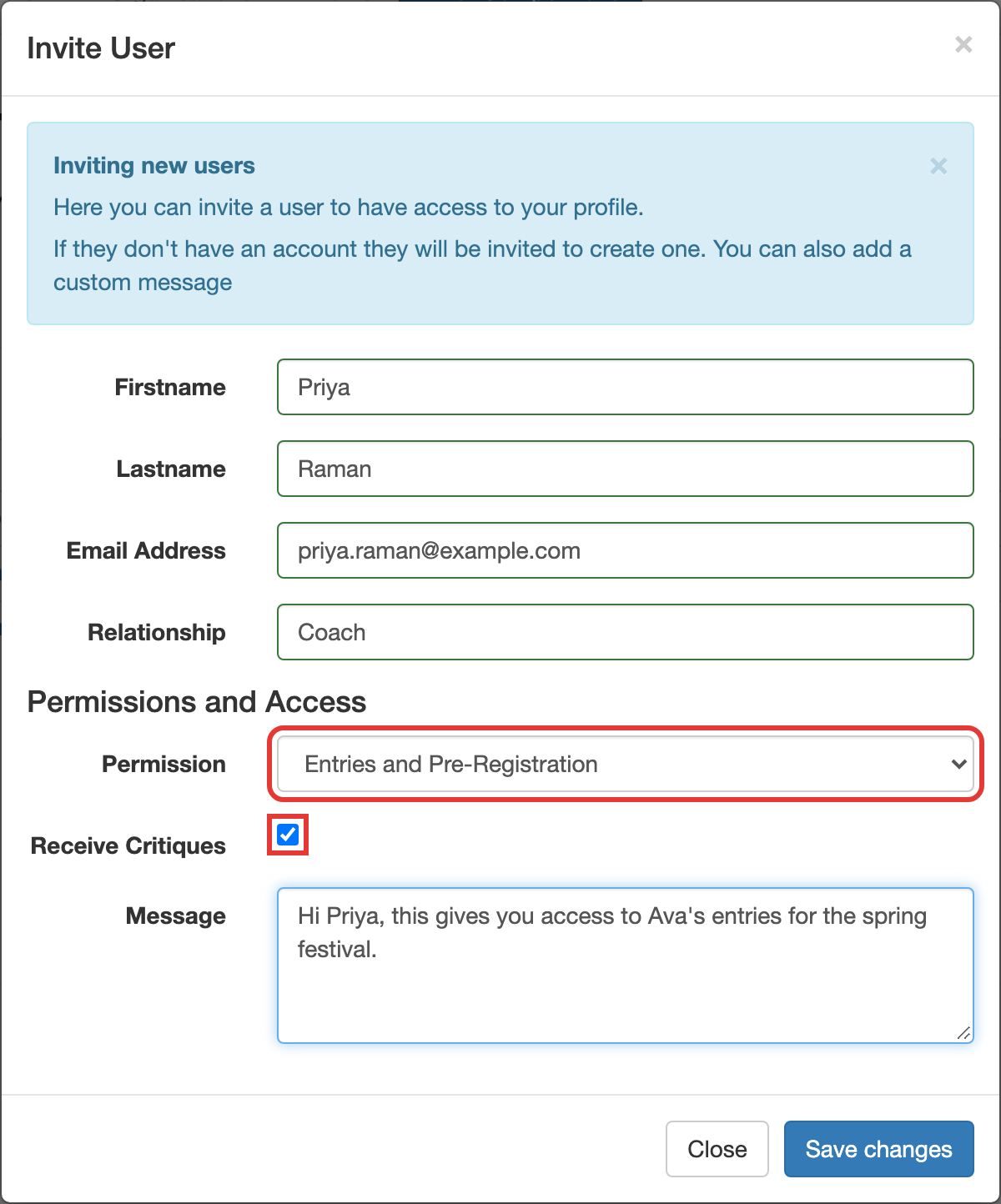
In the Invite User dialog, enter the details:
| Field | Description |
|---|---|
| Firstname / Lastname | The person's name |
| Email Address | The email address they use to log in to myStage. Please make sure this is accurate |
| Relationship | Who this person is, e.g. Coach, Parent |
| Permission | How much of the profile they can access. See Access levels |
| Receive Critiques | Tick if this person should receive the competitor's critiques |
| Message | An optional message to include in the invite |
Click Save Changes.
What happens next
myStage send an invite to the user to advise them of the access and gives them a link to login to myStage account to see the information. If the email matches an existing myStage user, they are added straight away. If they don't have an account, they will be invited to create one.
Access levels
Each person you share a profile with has an access level. The options in the Permission list are:
| Access level | What they can do |
|---|---|
| No Access | Cannot open the competitor's profile at all |
| Basic - Profile Only | Can enter the competitor into competitions, and see shared duo/trio entries. Cannot see the competitor's individual entries or profile details |
| Entries and Pre-Registration | Can see all of the competitor's entries, pre-register, and see the profile details, but cannot edit the profile |
| Full Access - Full Profile | Full edit access to the competitor's profile, including inviting other users and changing their access |
Note
When you are changing an existing user's access, the list shows slightly different names: Basic Profile - Shared Entries Only and Basic Profile, Entries and Pre-Registration. These are the same as Basic - Profile Only and Entries and Pre-Registration.
Note
People who were given access before these access levels were added have Full access.
Only people with Full Access - Full Profile can edit the competitor's details. If someone without edit access tries to edit the competitor, they will see a No edit permission message.
Changing someone's access
You need Full Access - Full Profile to change other people's access.
- Open the competitor's profile and click Related Users.
- Click the access level shown in the Access Levels column beside the person.
- Choose the new access level and save it.
- To change whether they receive critiques, click Yes or No in the Receive Crits column.

Note
Setting someone to No Access also turns off Receive Crits for them.
Removing someone's access
- Open the competitor's profile and click Related Users.
- Click Options beside the person, then Remove.
Once removed, the person no longer appears in the Related Users list and can no longer see the competitor.
If you no longer want to see a competitor on your own profile, go to your Competitors list. Click Remove to remove your access to the competitor, or Archive to move them to your archived competitors.