Entry System Overview
The myStage Entry system accessible from the myStage home page allows competitors, coaches or parents to view and enter into open competitions. The following are the basics of how the Entry system works and how to enter into open competitions. Also explained are the functionality of a competitor, parent or coach profile.
 Figure 1
Parents or Coaches may enter their competitors to any open Competition of their choice by clicking ‘Enter Now’ as in the figure 1 above or simply by clicking Enter Competitions, once logged into myStage, this is available from the profile page.
 Open Entries Link
Note
Any competitor or parent who does not have an account in myStage would need to follow the signup process by simply clicking ‘Sign-up’ from myStage home page
Creating an account
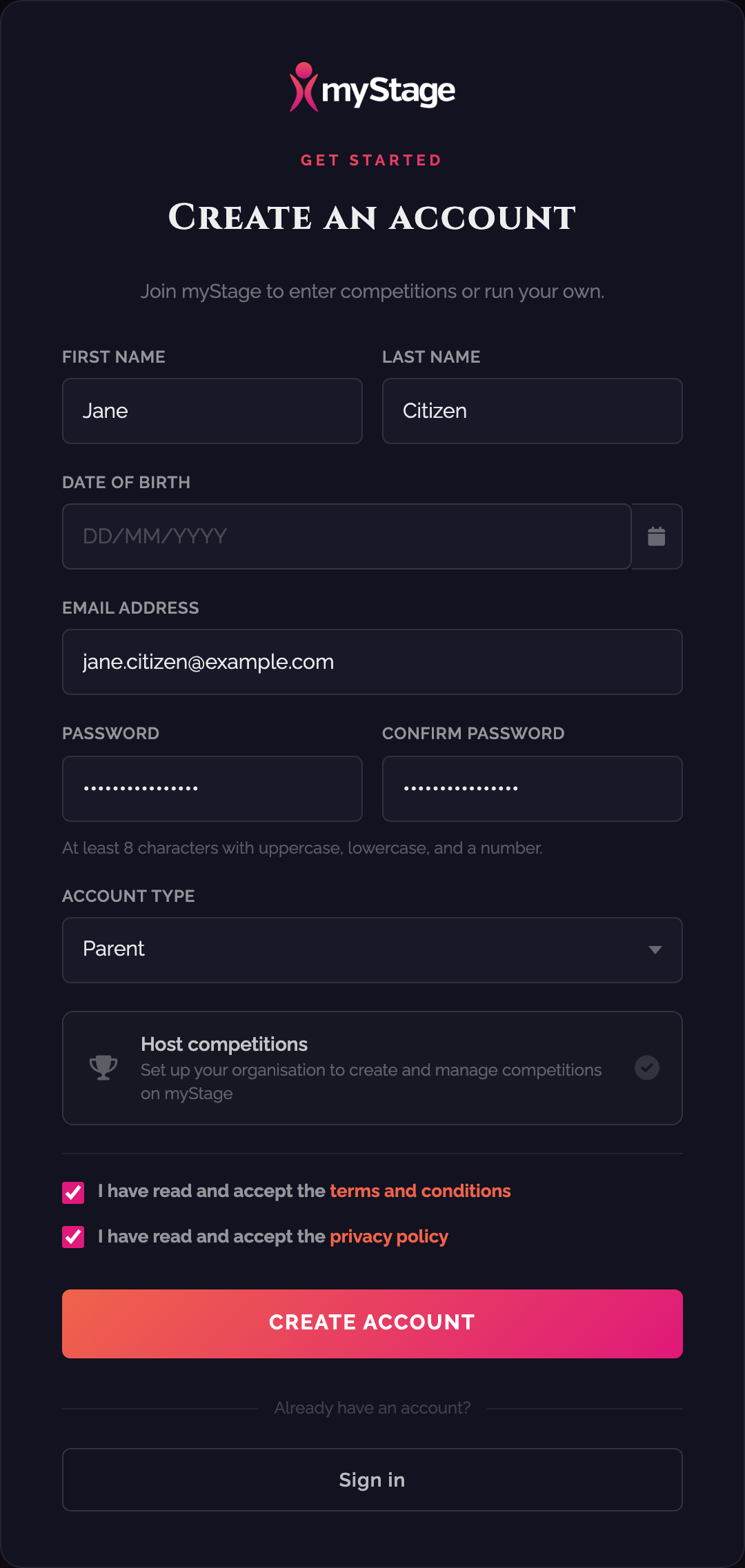
If you don't have a myStage account already, you need to create one before you can enter competitions.
- From the myStage home page, click Register at the top right (or Create an account on the Sign in page).

- On the Create an account page, enter your first name, last name, date of birth and email address. Your email address will be your username.
- Enter a password and enter it again in Confirm password. Passwords must be at least 8 characters long and contain at least one uppercase letter, one lowercase letter and one number.
- Choose your Account type, for example Competitor, Parent, Coach or Teacher.
- Tick the boxes to accept the terms and conditions and the privacy policy, then click Create account.
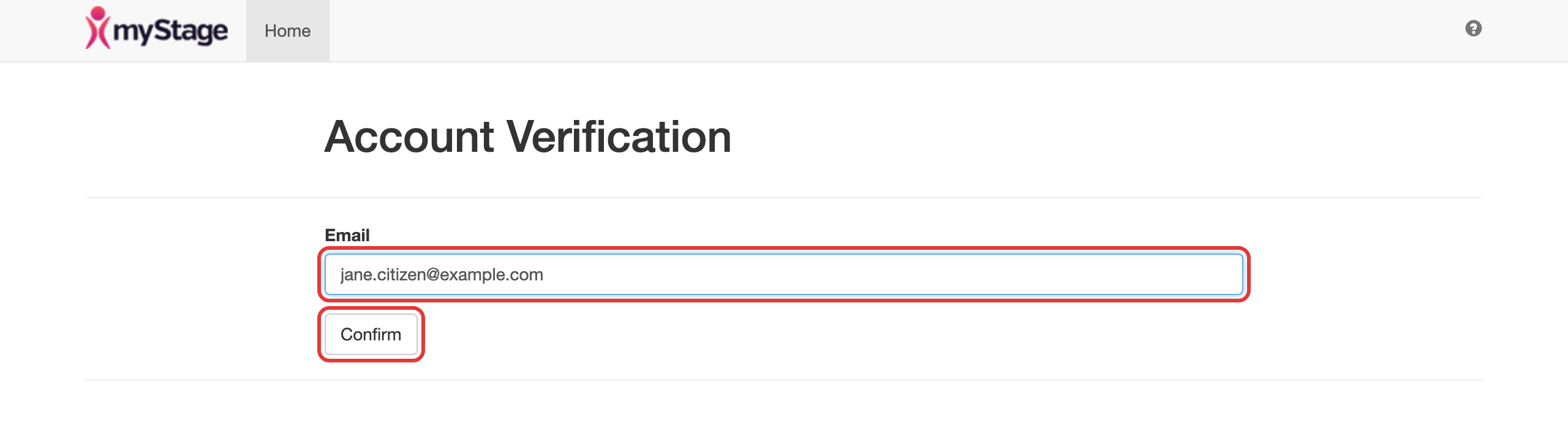
- You will see an Account created message. Check your email for a message titled myStage Account Verification and click the link in it.

- On the Account Verification page, enter your email address and click Confirm.
- When you see Account verification successful, click Click here to login and sign in with your email address and password.
Note
You can't sign in until you have verified your account. If the link in the email has expired, the verification page shows Click here to request a new token, which sends you a new email.
Tip
If you already have an account with the email address you enter, myStage won't create a second account. Instead it emails you a link to set a new password for your existing account.
Tip
If you want to run your own competitions, click the Host competitions card on the Create an account page and enter your organisation name. You can ignore this if you are only entering competitions.
Signing in
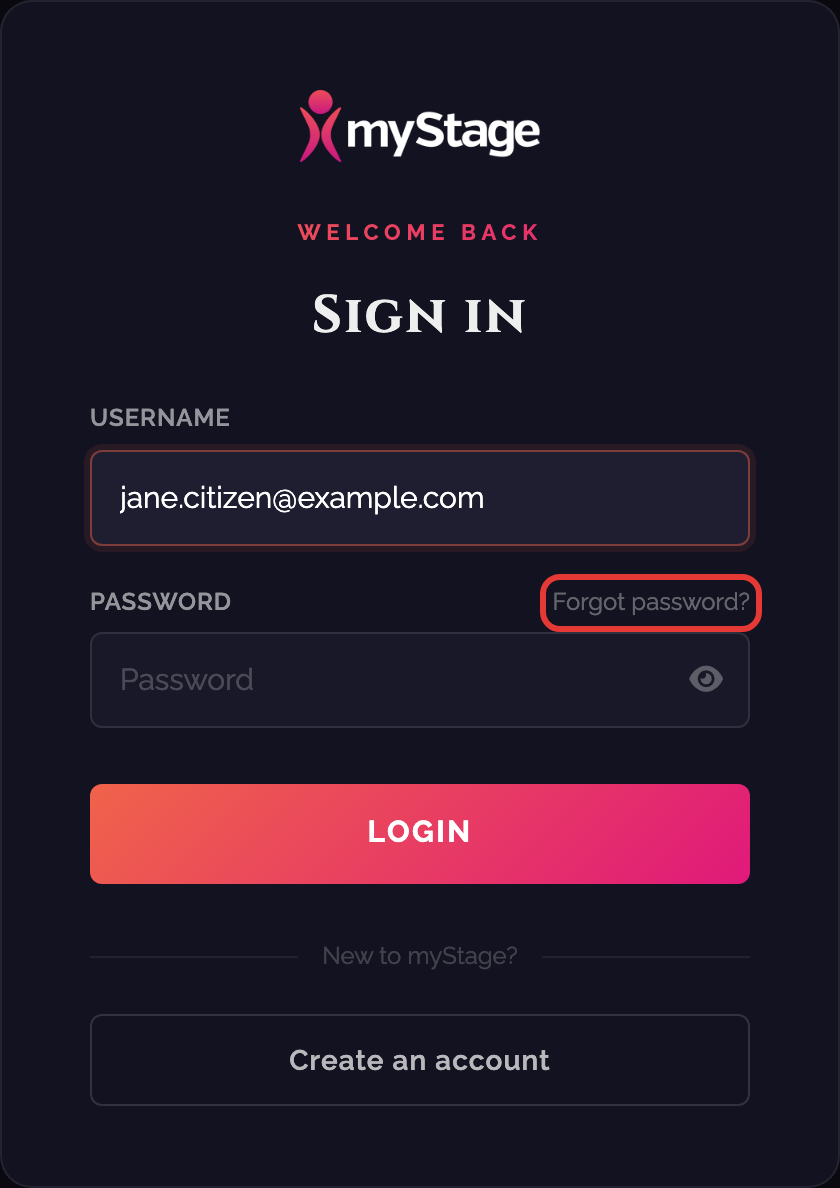
- Click Sign In at the top right of the myStage home page.
- Enter your username (your email address). When you move out of the field, myStage checks your account.
- Enter your password and click Login. You can click the eye icon to show the password as you type.
If your details are wrong you will see Invalid username or password.
After signing in, parents, coaches and competitors are taken to their profile. Organisation administrators go to the Admin dashboard.
Signing in with a myStage ID
myStage is moving to a new sign-in service called myStage ID. If your account already uses a myStage ID, the Sign in page shows Redirecting to your organisation login... after you enter your username, and takes you to the myStage ID sign-in page with your email address already filled in. Enter your myStage ID password there to continue.
Note
A myStage ID may have been created when you signed up on another myStage site, such as the Volunteer Portal. The same email address and password work across these sites.
If you sign in with a myStage ID that has the same email address as an existing myStage account, you will see a Link your myStage ID page:
- Click Yes, link them if it is your account. From then on you sign in to that account with your myStage ID.
- Click No, these are different accounts if it isn't. You will be signed out and returned to the Sign in page.
Forgotten your password
- On the Sign in page, click Forgot password?
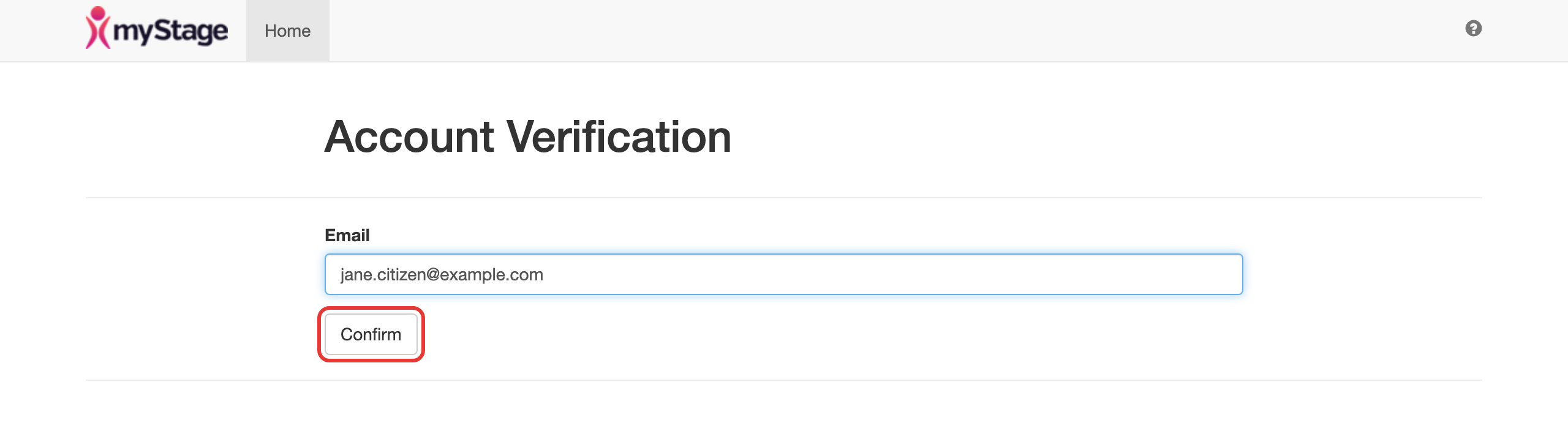
- On the Account Verification page, enter your email address and click Confirm.
- You will see Email sent. Check your email for a message titled myStage Password Reset and click the link in it.
- On the Reset your password page, enter your new password twice and click Reset.
- When you see Password reset successful, sign in with your new password.
Note
For security, myStage shows Email sent even if the email address doesn't match an account. If no email arrives, check your junk folder and that you used the right address.
If you sign in with a myStage ID, use the Forgot Password? link on the myStage ID sign-in page instead.
Your user Profile
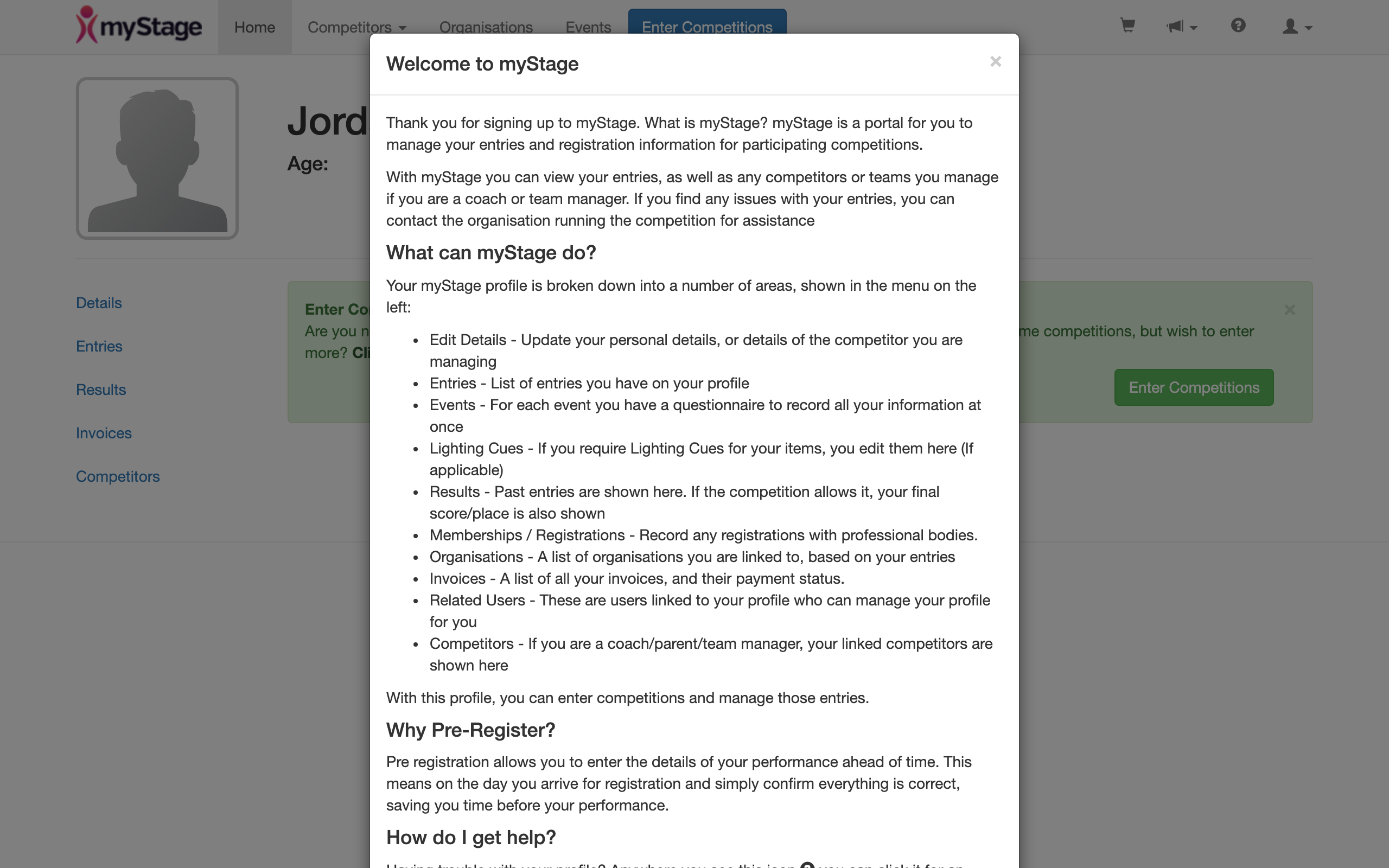
The first time you sign in, you will see a Welcome to myStage message. It explains the features of your profile and where to get help. When you have read it, close the message.
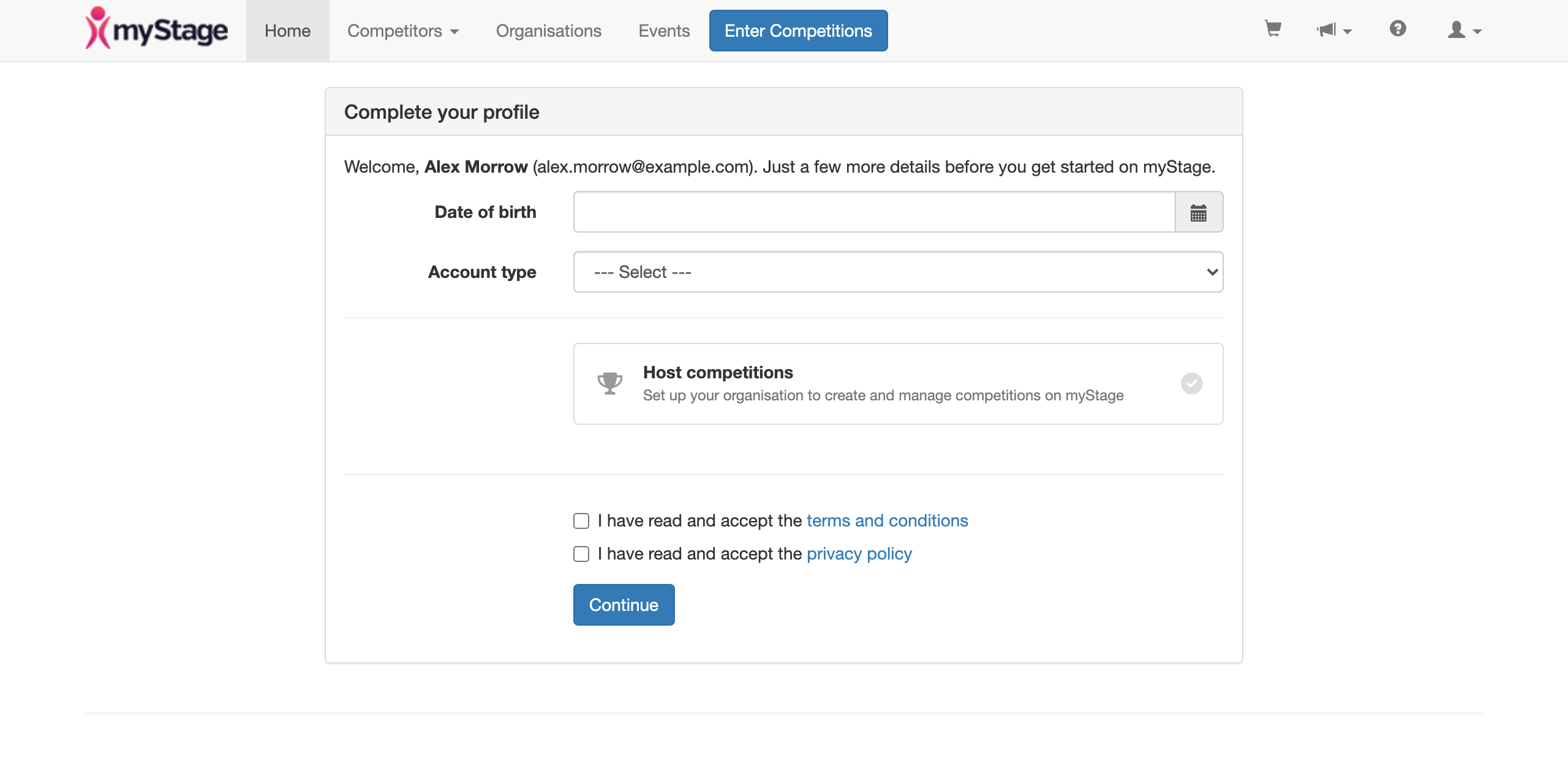
If you created your account with a myStage ID, you are first asked to Complete your profile. Enter your date of birth, choose your Account type, tick the boxes to accept the terms and conditions and the privacy policy, then click Continue.
You can edit your profile details and those of the competitors you are attached to. Make sure the date of birth is accurate for each competitor, and keep other information such as your address, phone number, coach and club details as current as possible.

Once you have updated your details, explore your other profile features.

| Function/Link | Explanation/Meaning |
|---|---|
| Home | Your profile home page when you click ‘home’ button or the little stick person from anywhere within myStage site, you are taken back to your profile home page |
| Competitors | You can access your list of competitors you manage as a parent or a coach, by click on competitors link |
| Organisations | This is a list of organisations you are linked with through entries. |
| Details | This is where you update and keep your personal details up to date, and/or details of the competitors you are managing |
| Entries | List of entries you have on your profile |
| Lighting Cues | If you require Lighting Cues for your items, you edit them here |
| Results | Past entries are shown here. If the competition allows it, your final score/place is also shown |
| Related Users | These are users linked to your profile who can manage your profile for you |
| Competitors | If you are a coach/parent/team manager, your linked competitors are shown here, and you can add competitors and update their profiles. |
| Competitions / Events | A list of the competitions you have entered, with any questions you need to answer for each event |
| Memberships/Registrations | Record any registrations you have with professional bodies |
| Events | A list of all competitions you can enter whether they are open for entries or not |
 |
Shopping Cart, if there are any items in the cart |
 |
Click here for help information, including contacting support. |
 |
To sign out of myStage, click the profile icon and click Log out. |
| Change Password | In the profile icon menu. Changes the password you use on the myStage Sign in page. |
| myStage ID Account & Security | In the profile icon menu, only shown if you sign in with a myStage ID. Manage your myStage ID password and security settings. |