Results and Crits
After a competition, you can find your results and your critiques (crits) from your myStage profile.
Note
Results and crits are only shown once the organisation running the competition has released the results for the section. If you can't see them yet, check back later. Some organisations also choose not to show scores or places to competitors.
Finding your results
Results are listed on the profile of each competitor, and include every entry that has been performed.
- Sign in to myStage. You will be taken to your profile.
- Click Competitors in the menu on the left-hand side and open the competitor. If your account is a competitor's own account, you are already on their profile.
- Click Results in the menu on the left-hand side.
- Each performed entry is listed with the date, competition, section and status. If the competition allows it, your final place and score are shown on the right.
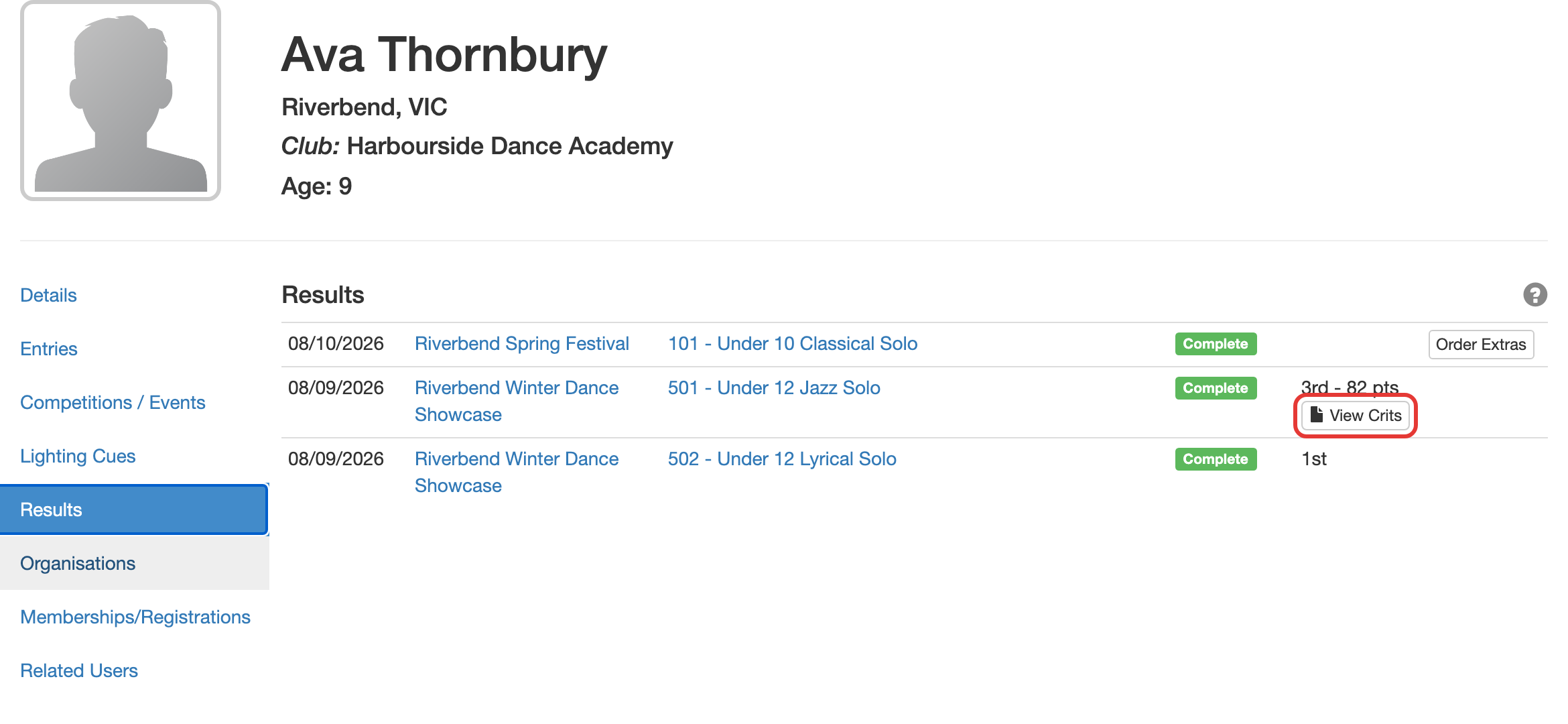
If you manage more than one competitor (for example as a parent, coach or teacher), open each competitor to see their results.
Finding your crits
A critique (crit) is the written feedback, and optionally the scores, that an adjudicator gives for a performance.
- Open the competitor's Results as above.
- Click View Crits below the place for the entry. The button also shows when you open the entry from the Results or Entries lists.
- The critique shows the adjudicator, scores for each criterion, the total and the adjudicator's notes. If the adjudicator uploaded a file, click Download to save it.
- Click Print to get a PDF copy of the critique.
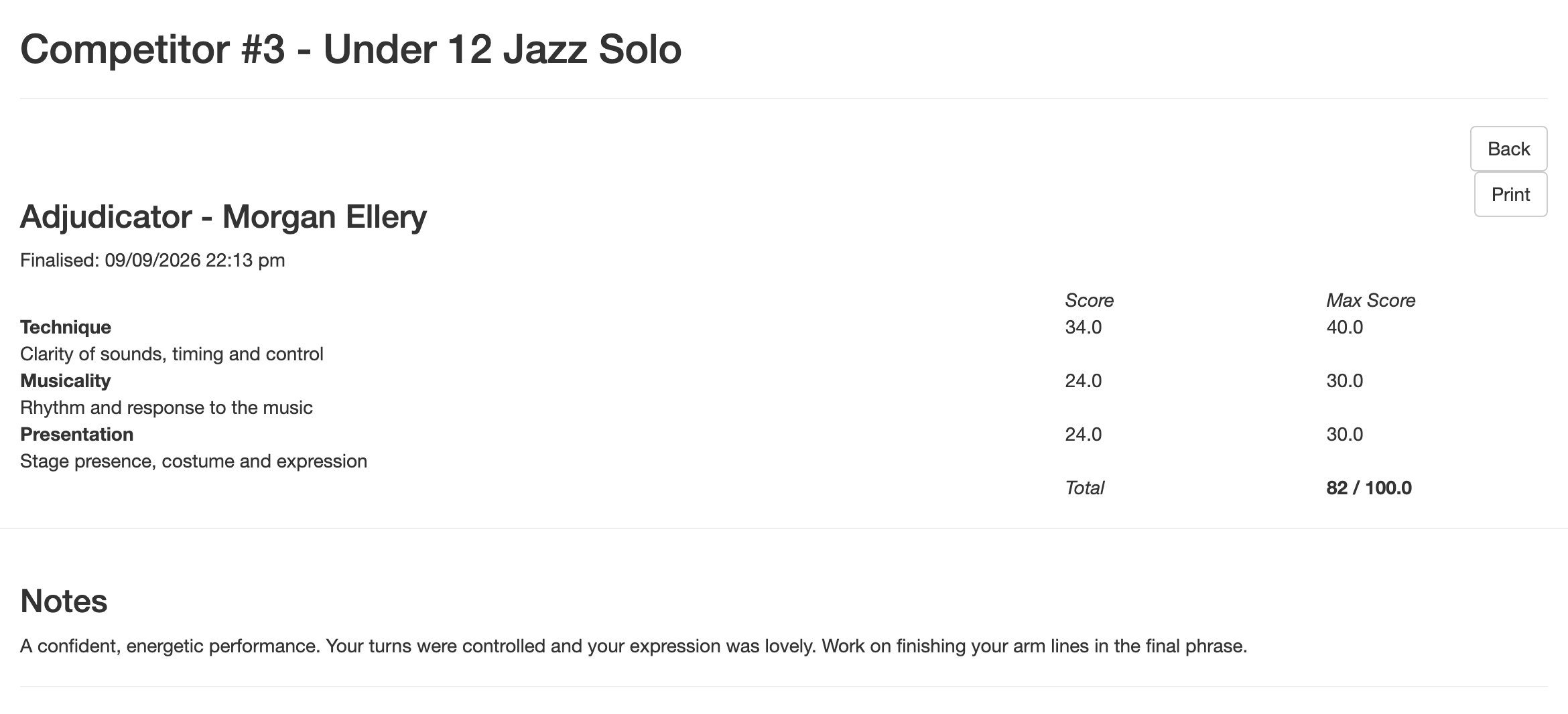
Note
The View Crits button only appears after results for the section have been released, and only for entries that have a finalised critique. Some sections are comment only, so they don't show scores.
Crits by email
When the results for a section are released, myStage also emails the finalised critiques for that section. Each email has the critique attached as a PDF, plus the uploaded critique file if there is one.
Critiques are sent to:
- the competitor's own myStage account, or the competitor's email address if they don't have an account; and
- related users (such as parents and teachers) who have Receive Crits set to Yes for the competitor.
Whether a related user receives crits is set on the competitor's profile. Open the competitor, click Related Users and look at the Receive Crits column. Click Yes or No to change it. See Sharing Competitor profile.

Tip
If you can't find a crit, check your junk folder for the email, then contact the organisation that ran the competition. Only they can release results or finalise a critique.