Setting up your organisation
To run competitions on myStage you need an organisation. You can create one yourself, either when you sign up or later from your profile menu. Once it is created, the admin dashboard shows an Account Setup checklist to help you finish setting it up.
Sign up to host competitions
If you don't have a myStage account yet, you can create your account and your organisation at the same time.
1 . On the myStage home page, click Get Started in the Run a competition panel. You can also click Create an account on the login page.
2 . Fill out your details: First name, Last name, Date of birth, Email address, Password and Confirm password.
Note
Passwords must be at least 8 characters long, and contain at least one uppercase letter, one lowercase letter and one number.
3 . Choose an Account type.
4 . Click the Host competitions option, then enter your Organisation name (e.g. Bayside Dance Academy).
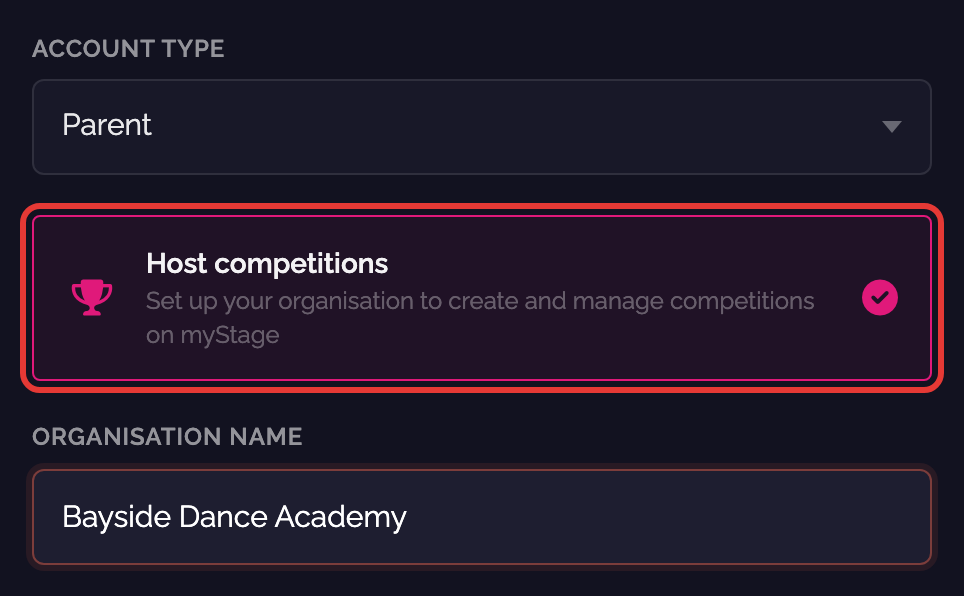
5 . Accept the terms and conditions and the privacy policy, then click Create account.
6 . Check your email and follow the instructions to verify your account.
7 . Log in. Because you are now the administrator of your new organisation, you are taken straight to the admin dashboard.
Create an organisation from an existing account
If you already have a myStage account (for example, as a parent), you can create an organisation from your profile menu.
1 . Log in, and click your name in the menu bar.
2 . Click Create Organisation.
3 . Enter the Organisation Name and click Create.
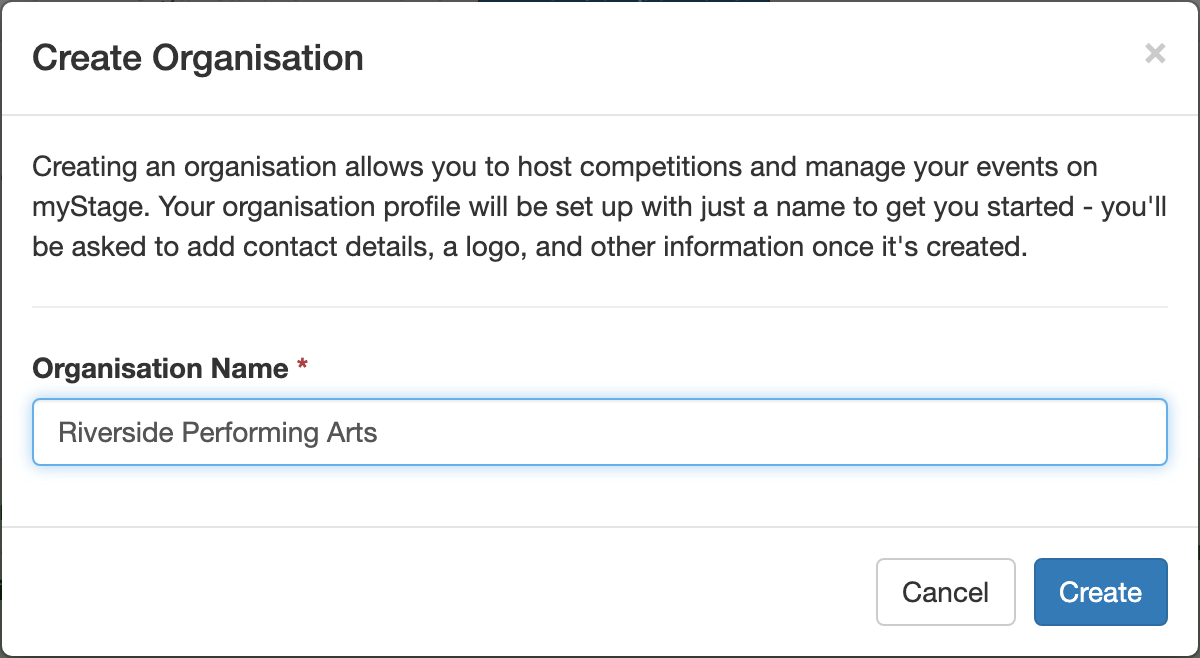
You are taken to your new organisation's page, where you can add your contact details, logo and other information.
Note
Creating an organisation makes your account an administrator account for that organisation.
When your organisation is created, myStage sets up some starting data for you:
- Places: 1st, 2nd, 3rd, Highly Commended, Honourable Mention and Special Mention
- Roles: Registration, Stage Manager, Adjudicator, Chairperson and Administrator
You can change these in Reference Data. See System Overview.
Welcome banner
The first time you open the admin dashboard, a Welcome to myStage banner is shown. It has links to the help page, this documentation, and the contact page if you'd like onboarding support.
Click Dismiss to hide the banner. Once dismissed, it is hidden for everyone in your organisation.
Account Setup checklist
The Account Setup checklist is shown at the top of the admin dashboard until every item is complete. It shows how many items are complete, and has a button next to each item that still needs doing.
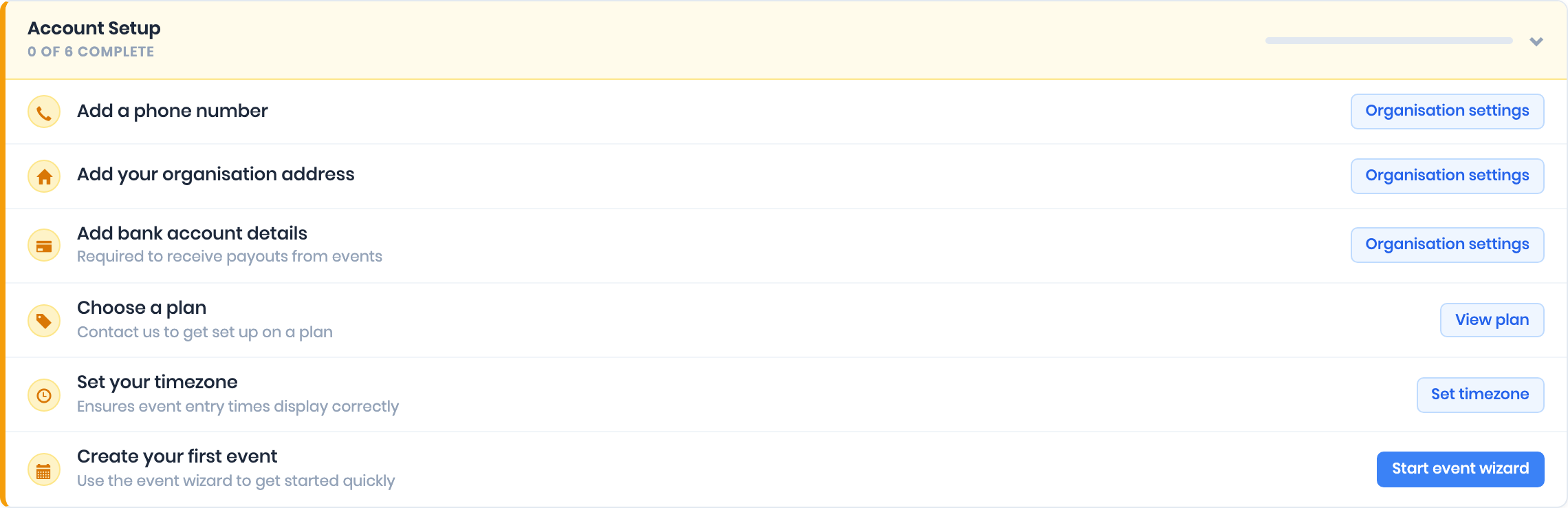
Click the checklist heading to collapse or expand it.
| Item | What it checks | Button |
|---|---|---|
| Add a phone number | Your organisation has a phone number | Organisation settings |
| Add your organisation address | Your address has line 1, city, state and postcode | Organisation settings |
| Add bank account details | Account name, BSB and account number are all entered | Organisation settings |
| Choose a plan | Your organisation has a current plan | View plan |
| Set your timezone | A timezone is set for your organisation | Set timezone |
| Create your first event | Your organisation has an event that hasn't finished yet | Start event wizard |
When all items are complete, the checklist is no longer shown.
Organisation details
Your organisation page shows your logo, organisation details and banking details. To open it, click Organisation in the Competition menu on the admin dashboard, or click Organisation settings on the checklist.
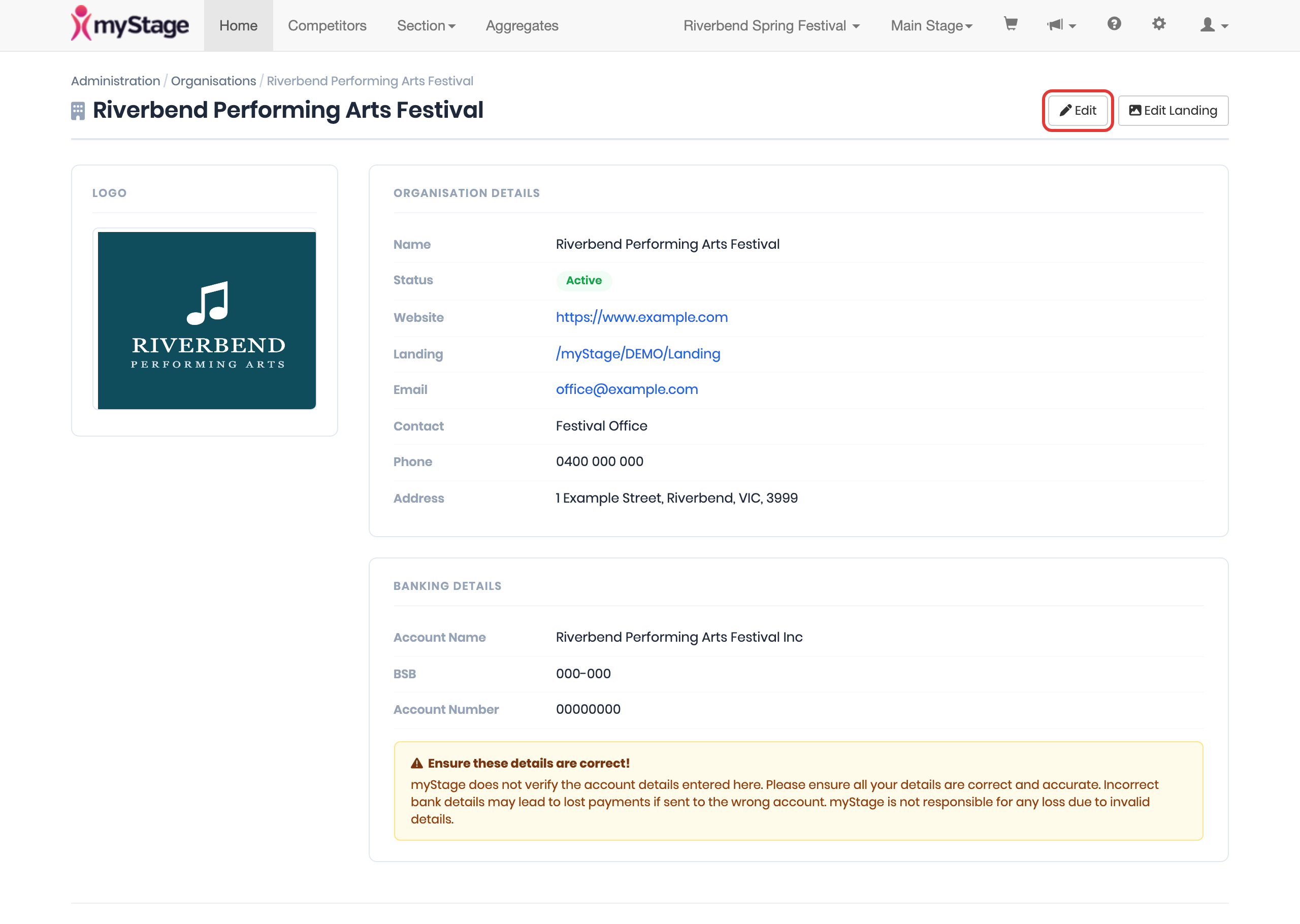
To change your details:
1 . Click Edit.
2 . Update your details. Phone and State are required.
| Field | Description |
|---|---|
| Code | Short code for your organisation. It is used in your landing page address |
| Name | Your organisation name |
| Contact Name | Main contact person |
| Primary User | The main administrator account for your organisation |
| Website | Your website address |
| Contact email address | |
| Phone | Contact phone number |
| Address | Line 1, Line 2, City, State and Postcode |
| Banking Details | Account Name, Account BSB and Account Number |
| Active | Whether the organisation is active |
| Public Visible (on org lists) | Show your organisation on public organisation lists |
| File Retention (days after event ends) | Uploaded files, such as music, are automatically deleted this many days after the event end date |
3 . Click Save changes.
Check your bank details
myStage does not verify the account details you enter. Incorrect bank details may lead to lost payments if they are sent to the wrong account.
Logo
To change your logo, click the logo image (or the camera icon) on the organisation page, choose an image, crop it and click Crop.
Landing page
The organisation page shows a link to your landing page. Click Edit Landing to change what is shown on it.
Timezone
Event entry open and close times are interpreted in your organisation's timezone. Set it before you open an event for entries.
To set it from the dashboard:
1 . On the Account Setup checklist, click Set timezone.
2 . Choose your Timezone and click Save Timezone.
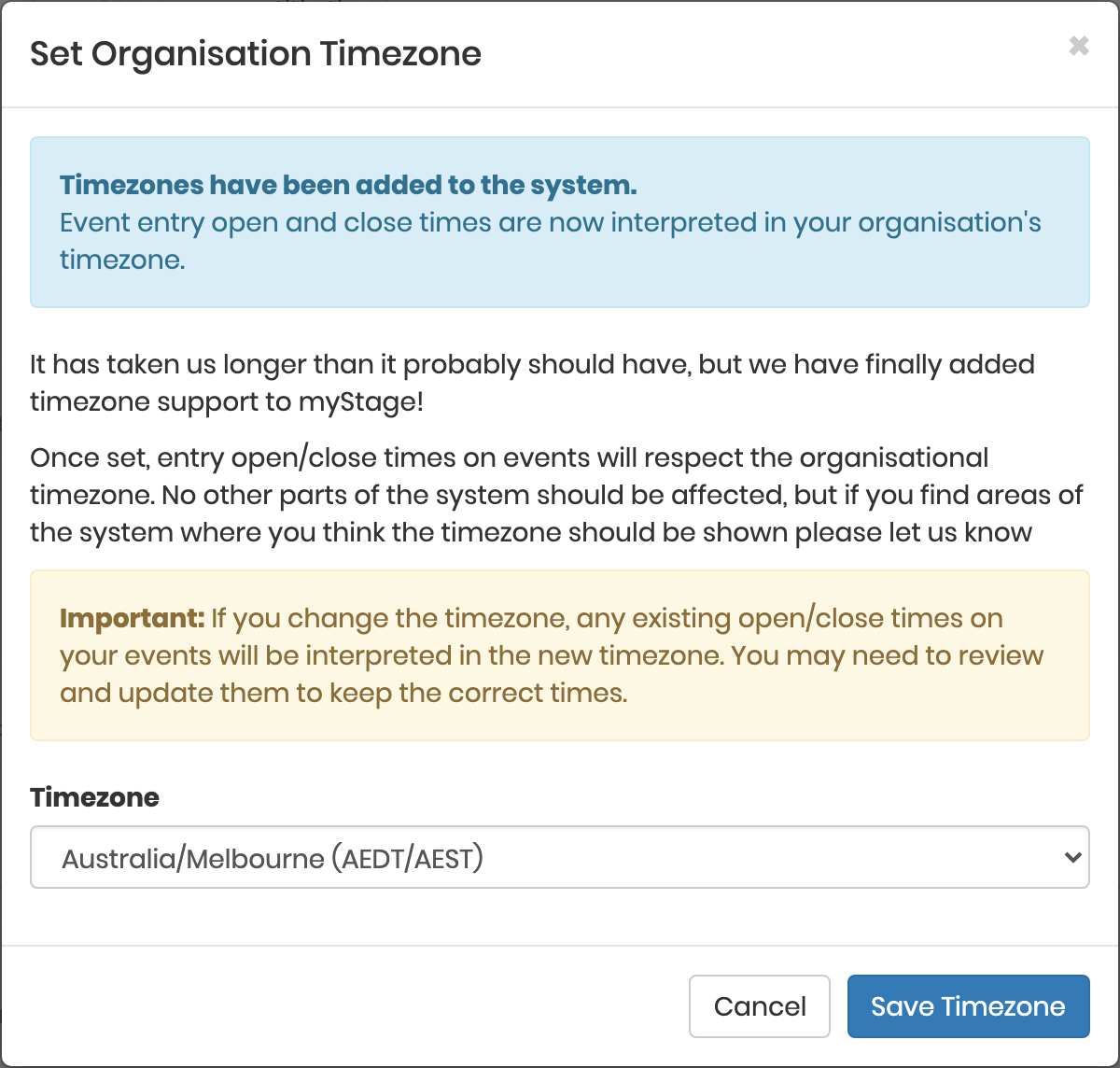
You can change it later under System Configuration > Organisation > Timezone. Click Save Changes when you are done.
Warning
If you change the timezone, existing entry open and close times on your events are interpreted in the new timezone. Review your events and update the times if needed.
Plan and storage
Your plan sets your hosting plan and storage allowance. Plans are set up by the myStage team. If the checklist shows Choose a plan, contact the myStage team to get set up on a plan.
To see your plan, click View plan on the checklist, or open Finance from the Configuration menu and click Current Hosting Plan.
The plan page shows:
- Plan Details: auto renewal, start and end dates, billing period, payment method, your Hosting Plan (entry range and monthly fee) and your Storage Plan (storage allowance in GB and monthly fee)
- Last 12 Months: the number of entries, and the storage uploaded (including files that have since been deleted)
The Storage section of the Finance page shows how much of your storage allowance you have used. Storage is used by files competitors upload, such as music.
Tip
If you are running low on storage, reduce the File Retention days on your organisation, or contact us about a larger storage plan.
Switching organisations
If you manage more than one organisation, the admin dashboard shows an Organisations menu. Click Switch Organisation, then click Switch to next to the organisation you want to manage.