Home Page
When you log in to myStage as an administrator, you are taken straight to the admin dashboard. Other users are taken to the home page or their profile.

The home page shows the current date by default, and all sections and competitors for that date. The information shown is filtered by the All Events and All Locations you see in the menu bar up the top.
When running events, users would choose the event and location so that only the information they need for the day is shown.
If the user is an administrator, a gear icon will be shown in the menu bar, and a link to Admin will be shown in the user profile dropdown. Click either to return to the admin dashboard.

Administration Dashboard
The admin dashboard gives you a summary of your events and links to all the administration areas.
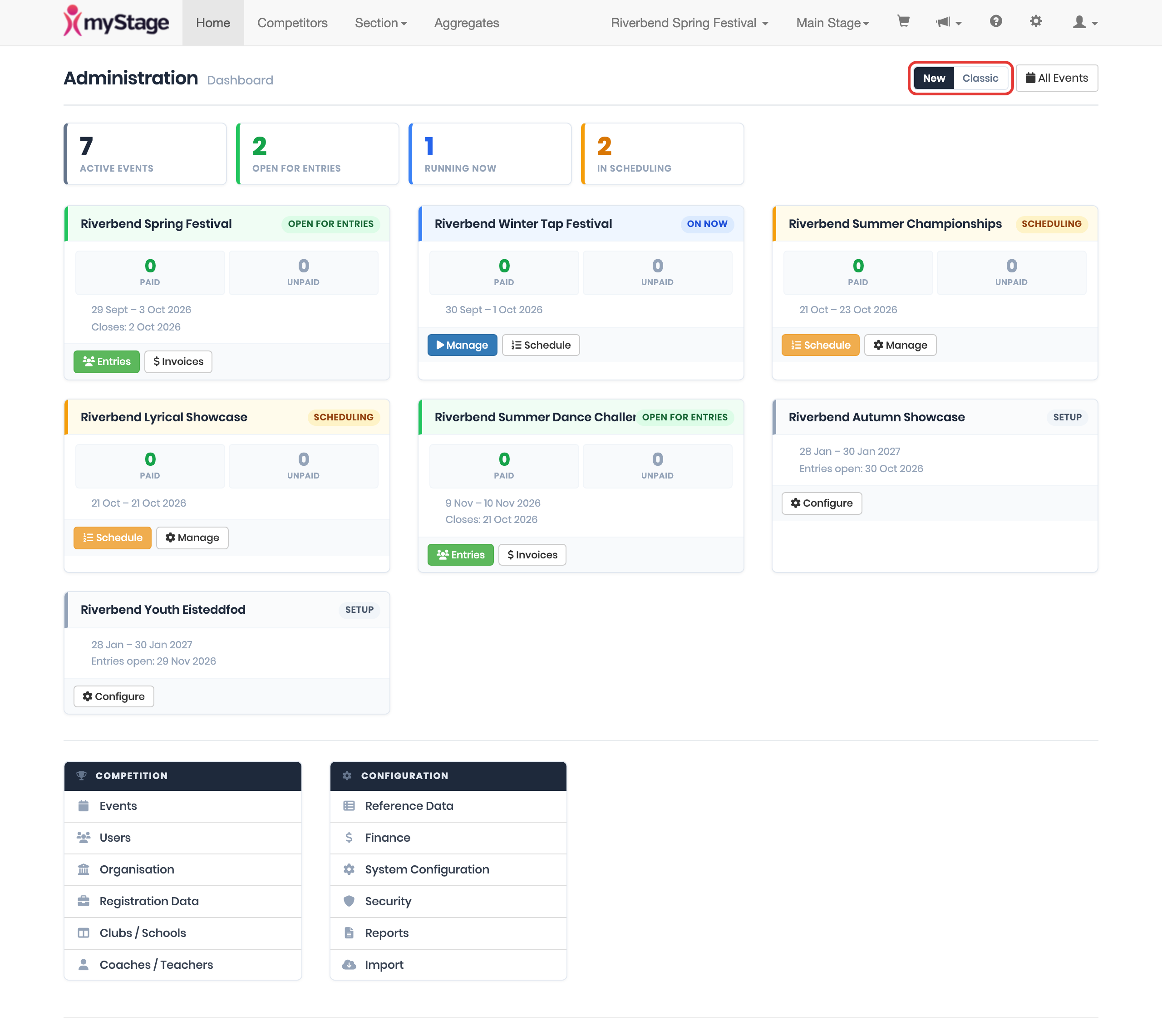
From top to bottom, the dashboard shows:
- The Account Setup checklist and welcome banner, while your organisation is still being set up. See Setting up your organisation.
- A row of summary tiles for your events.
- A card for each active event, sorted by start date.
- The Competition and Configuration menus.
Click All Events in the top right to see the full list of events.
New and Classic views
The dashboard was redesigned in April 2026. Use the New / Classic toggle at the top of the dashboard to switch between the new layout and the original layout. Your choice is saved to your account, and also changes the layout of some other admin pages, such as System Configuration and Organisation.
The first time you see the new dashboard, a short guided tour points out the toggle and the menus. The tour is only shown once on each browser.
Summary tiles
| Tile | Shows |
|---|---|
| Active Events | Events that haven't finished yet and start within the next year |
| Open for Entries | Events currently taking entries |
| Running Now | Events that are on now |
| In Scheduling | Events where entries have closed, but the event hasn't started yet |
Event cards
Each active event has a card showing its name, dates and a badge for where it is up to. Click the event name to open the event.
| Badge | Card shows | Buttons |
|---|---|---|
| Setup | Event dates, and when entries open | Configure |
| Open for Entries | Paid and unpaid counts, event dates, and when entries close | Entries, Invoices |
| Scheduling | Paid and unpaid counts, and event dates | Schedule, Manage |
| On Now | Paid and unpaid counts, and event dates | Manage, Schedule |
If there are no active events, the dashboard shows No active events with a Go to Events button. To create an event, see Event setup wizard.
Menus
The Competition menu:
| Area | Summary |
|---|---|
| Events | Each competition is setup as an event, with start/end dates and other information |
| Users | User management, both administrators and volunteers |
| Organisation | Information for your current organisation |
| Registration Data | Information to be collected from competitors; per event or entry |
| Clubs / Schools | List of approved clubs and schools for your competition |
| Coaches / Teachers | List of approved coaches or teachers for your competition |
The Configuration menu:
| Area | Summary |
|---|---|
| Reference Data | Lists used across the system: ages, divisions, items, locations etc. (previously called Codesets) |
| Finance | Invoices, Refunds and Disbursement information, plus your plan and storage |
| System Configuration | Some global configuration options for your organisation |
| Security | Configuration of registration data and entry status permissions |
| Reports | Generate a number of reports an export information from myStage |
| Import | System for importing a number of different file formats |
If you manage more than one organisation, an Organisations menu is also shown, with a Switch Organisation link. See Switching organisations.
Reference Data
Reference Data (previously called Codesets) lets you set up a number of lists, for competition management or user profile information. Choose a list from the menu on the left.
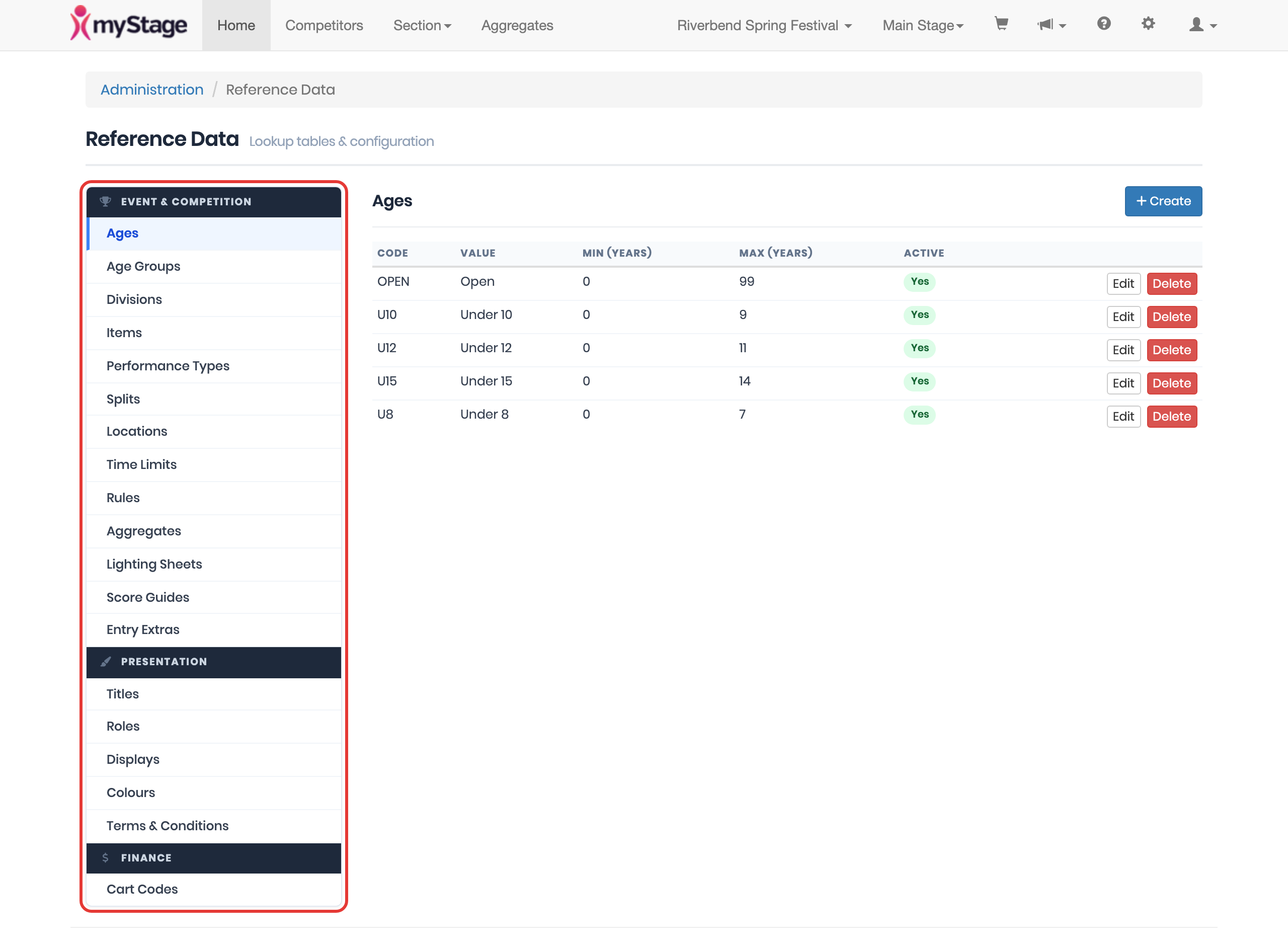
Event & Competition
| List | Summary |
|---|---|
| Ages | Age ranges for entries. eg. 16 Years, Under 10 |
| Age Groups | Grouped ages: Junior, Senior etc. |
| Divisions | Performance Divisions |
| Items | Performance Items |
| Performance Types | Performance Types: Solo, Duo, Trio, Group, Band etc. |
| Splits | Section split options. (Used to restrict from aggregates) |
| Locations | List of venues your events are running at |
| Time Limits | Time ranges for performances. For both rule management and time keeping/scheduling |
| Rules | Rules that can be mapped to sections |
| Aggregates | Configuration for which sections should be included in aggregates |
| Lighting Sheets | System lighting sheet field configuration |
| Score Guides | Scoring breakdown if recording critiques within myStage |
| Entry Extras | Extras that can be added during entry. DVDs, Smoke, Programs, Merchandise etc |
Presentation
| List | Summary |
|---|---|
| Titles | Name titles/prefixes (Mr, Mrs etc.) |
| Roles | System roles for users (Registration, Stage Manager, Adjudicator etc.) |
| Displays | Screens for showing information during your event |
| Colours | For colour coding sections. (Useful for sticker/paperwork management) |
| Terms & Conditions | Setup of terms and conditions required to enter competitions |
Note
Events are no longer listed in Reference Data. Open them from Events in the Competition menu.
Finance
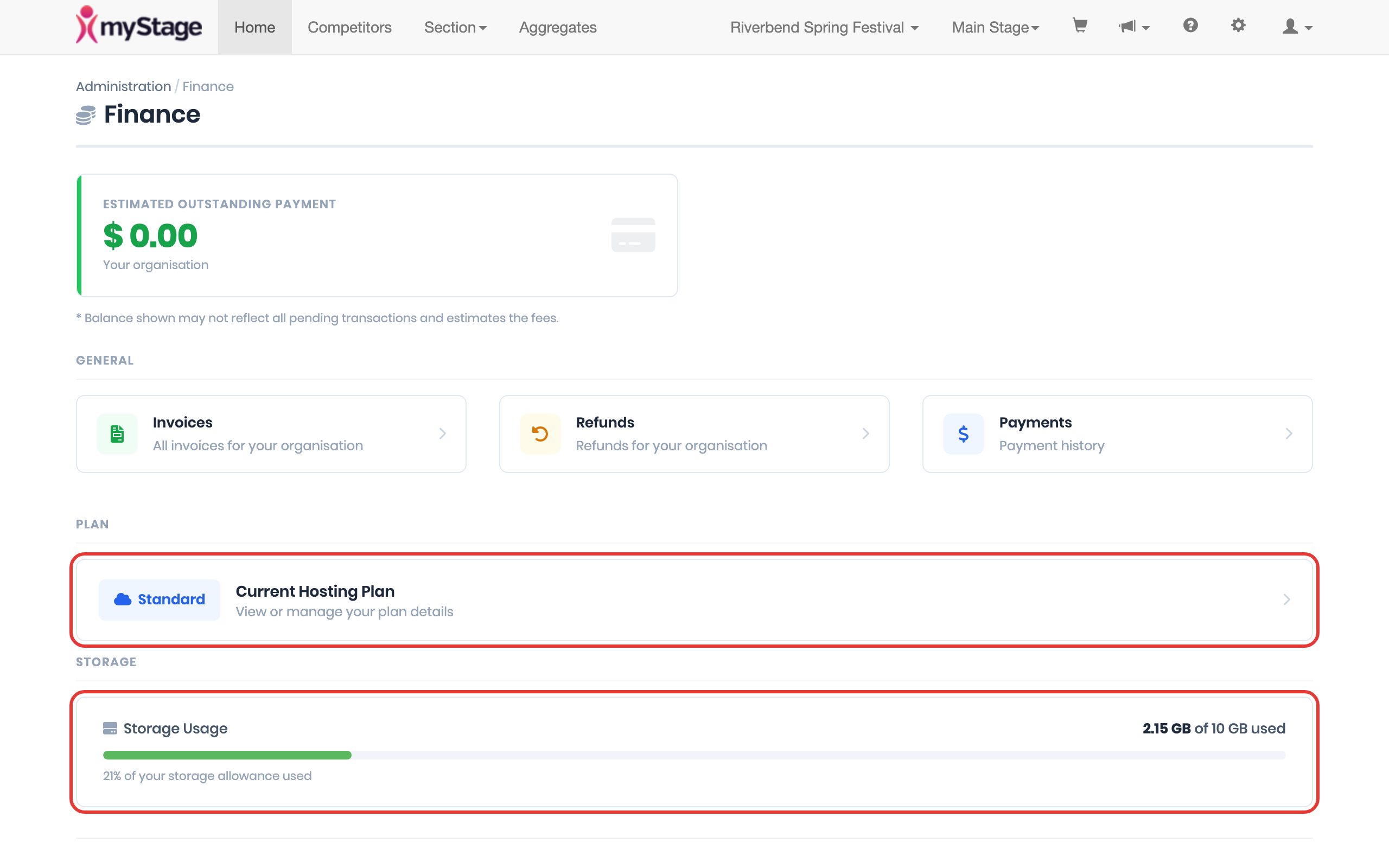
The finance area of the administrator panel shows invoices, refunds and disbursement payments.
The Plan section links to your current hosting plan, and the Storage section shows the storage your competitors have used while uploading registration data, such as music or DLP files. See Plan and storage.
Configuration
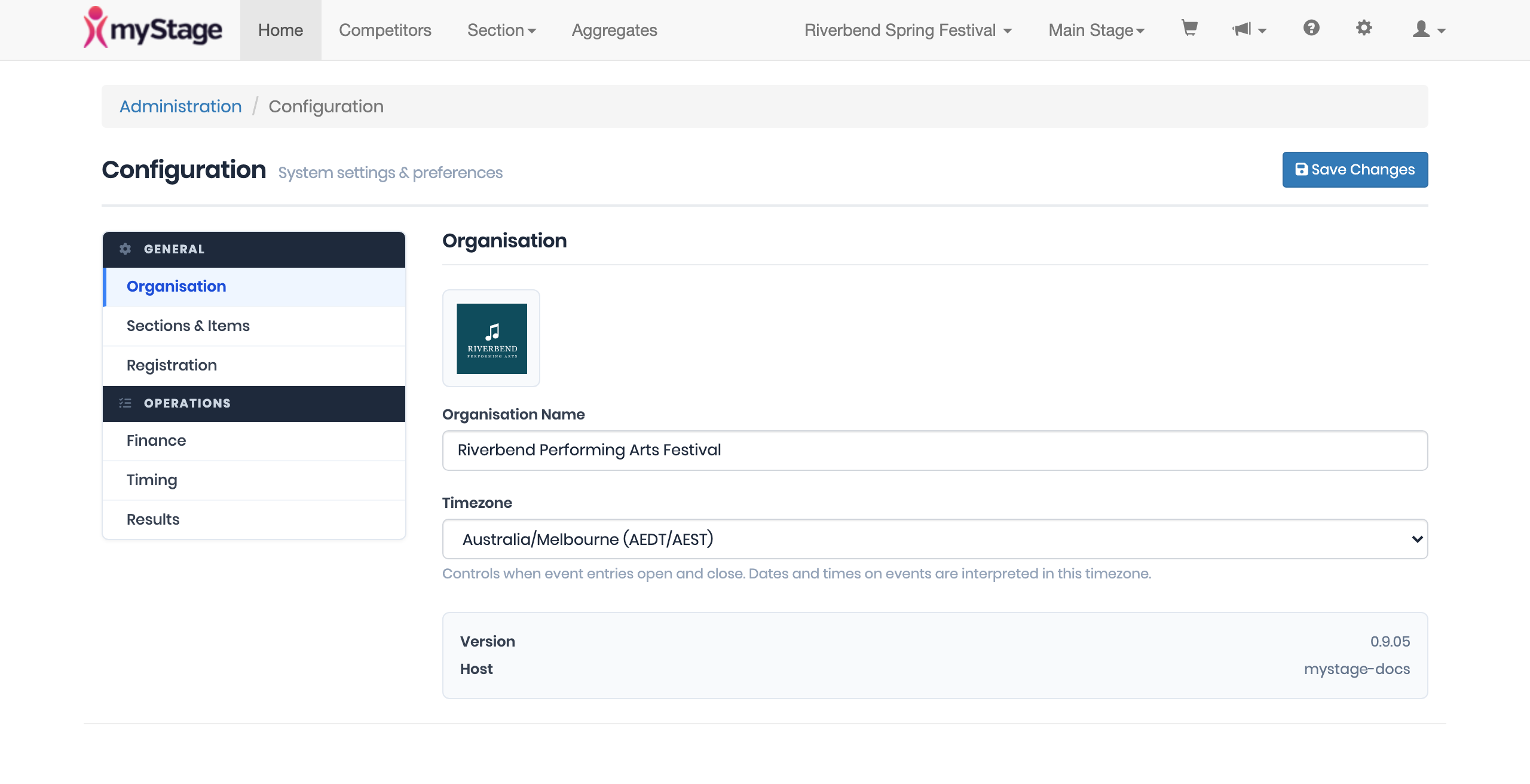
System Configuration has a number of options to customise some areas of the system. These are global settings for your organisation. More settings are available on events.
Choose a group from the menu on the left, make your changes, then click Save Changes.
| Group | Settings |
|---|---|
| Organisation | Organisation Name and Timezone. The timezone controls when event entries open and close |
| Sections & Items | Show Section Number, Calculate age at end of year |
| Registration | Status is clickable, Show event registration question on registration day, Allow registration skip, and how many days in advance pre-registration and registration are allowed |
| Finance | Finance settings for your organisation |
| Timing | Number of Timers, Timing entered with results, Section start and end times mandatory, Record number of performers with timing |
| Results | Places awarded in aggregates, place-only results, optional scores, releasing the running order with the schedule, and Copy to Clipboard options for results |
Events

Each competition you run is setup as an event. This has a start/end date, and also has a number of options required for the entry process.
Registration Data

Registration data is used in the system to add a way to customise questions that competitors are asked during registration/pre-registration, and only show questions relevant to that section.
Organisation
The organisation page holds your organisation details, as well as banking details so we can disburse entry money to you. See Setting up your organisation.
Clubs/Schools
Events can be restricted to approved clubs or schools. Set your approved list up here.
Coaches / Teachers
Events can be restricted to approved coaches or teachers. Set your approved list up here.