Critiques
Critiques
A critique is the written feedback (and, optionally, the scores) an adjudicator gives for a performance. myStage lets adjudicators or writers enter critiques on a tablet or computer during the competition. Once results are released, competitors can view and print their critiques from their profile, and they are also sent by email.
This page covers:
- Setting up score guides (organisation admin)
- Linking a score guide to sections and choosing how results are calculated (organisation admin)
- Entering a critique (adjudicator or writer)
- Using critiques for results
- What competitors see
Setting up score guides
A score guide sets out what the adjudicator scores (for example Technique out of 40, Performance out of 30) and what else appears on the critique.
- Go to the administration screen and click Reference Data.
- Under Event & Competition, click Score Guides.
- Click Create to add a new score guide, or Edit next to an existing one.
- Enter a Code and Name, and tick Active.
- Click Add Score Criterion for each thing to be scored. Enter a Name, the Max Score and a Description that the adjudicator will see.
- To break the criteria into headings, click Add Score Group and enter the group name. Drag the rows (using the handle on the left) to put them in order.
- Save the score guide.
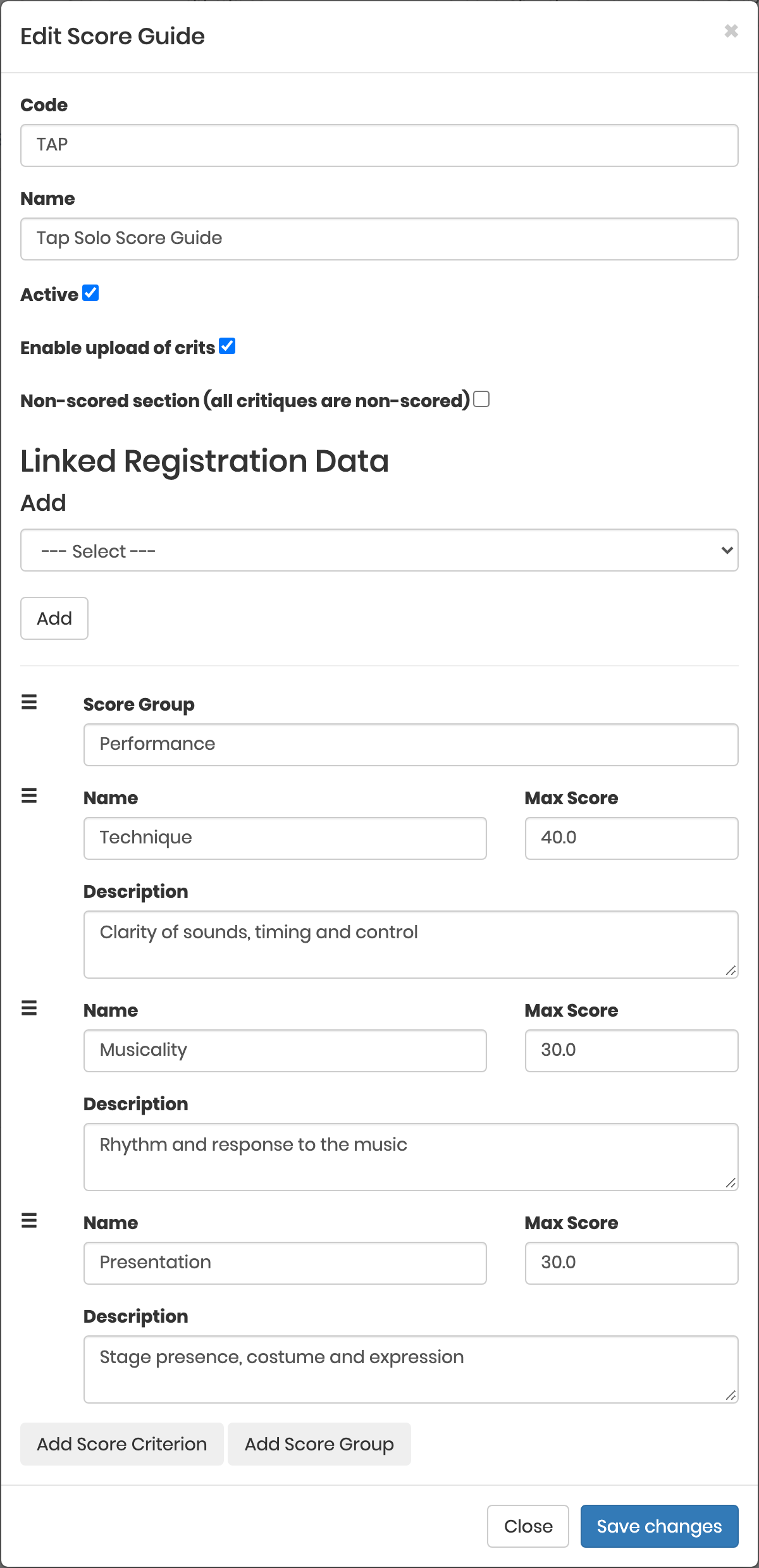
Score guide options
| Option | What it does |
|---|---|
| Enable upload of crits | Lets the adjudicator or writer attach a completed critique file (PDF) to the entry, for example a scanned hand-written critique. |
| Non-scored section (all critiques are non-scored) | Critiques in these sections are comments only. The score criteria are hidden, and you enter Instructions for judges (shown instead of score criteria). |
| Linked Registration Data | Registration data (such as the title of the performance) to show on the critique screen and printed critique. Choose the item from the Add list and click Add. |
Previewing a score guide
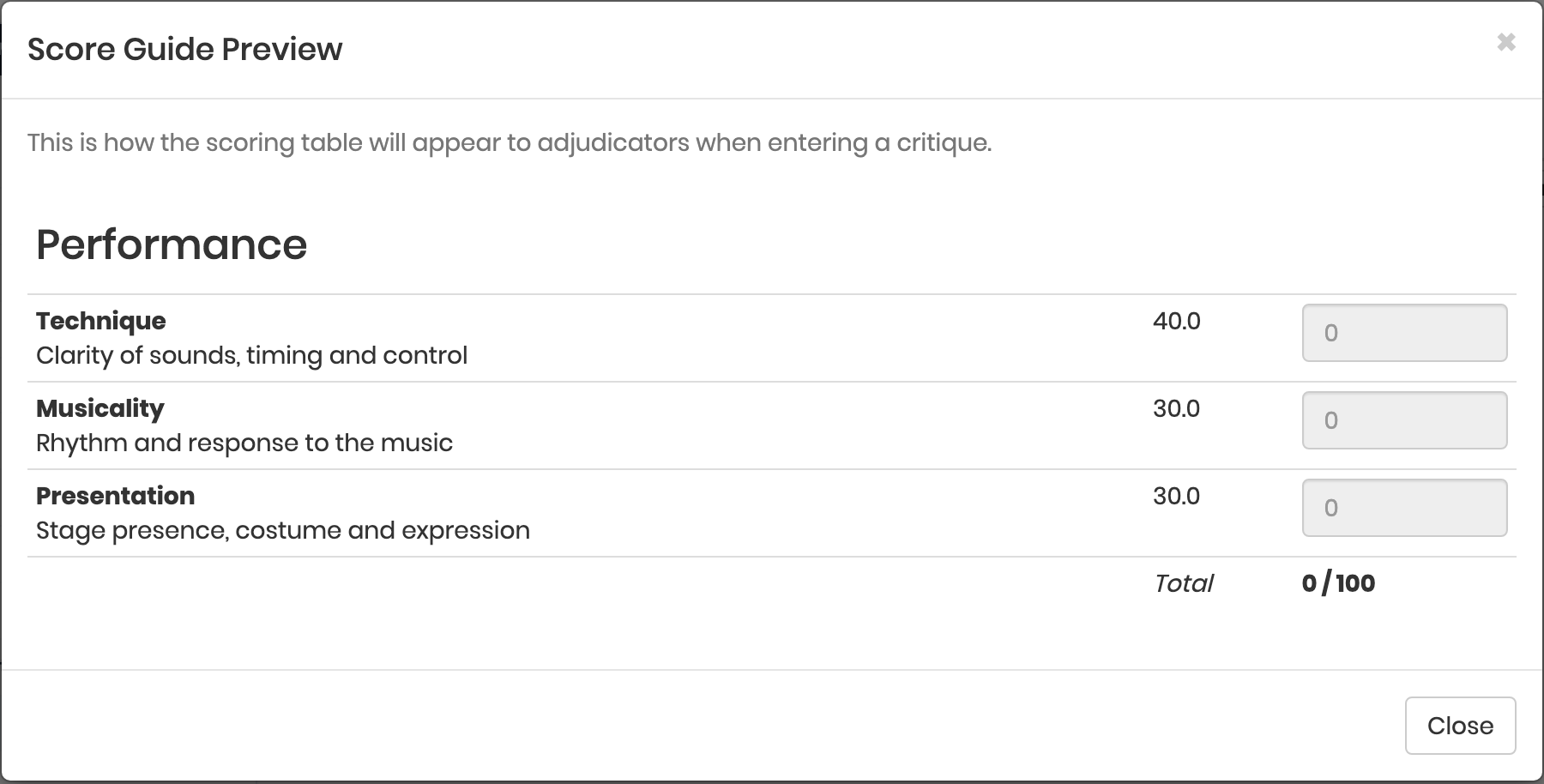
To check how the scoring table will look to adjudicators, click Preview next to the score guide in the list. The preview shows each group and criterion, the maximum scores and the total.
Linking score guides to sections
A section only uses critiques when it has a score guide.
- Open the section and click Edit.
- Under Scoring Guide:, select the score guide.
- Save the section.
Tip
To set the score guide on many sections at once, use bulk edit on the event's sections.
Result calculation method
Each event has a Result Calculation Method, set when you edit the event:
| Method | What it means |
|---|---|
| Manual Scoring | Results are entered by hand. Critique scores are not used. |
| Best Critique | When there is more than one critique for an entry, the highest finalised critique total is used. |
| Critique Average | The average of the finalised critique totals is used. |
Only finalised critiques are counted.
Entering a critique
Adjudicators and writers need the ROLE_CRITIQUE_EDIT role to enter critiques. See User Management.
- Open the section for the current day.
- Next to the competitor, click Score/Critique. The button shows once the competitor is Registered and until the entry is Complete.
- Click Edit.
- Check the Adjudicator Name:. This is the name shown on the critique.
- Check the Registration Information: for the entry, such as the performance title.
- Enter a score for each criterion. The Total updates as you type. If the section has no score criteria, enter a single Score instead.
- Type your comments in Notes.
- If uploads are enabled, choose the completed critique file under File (pdf).
- Tick Critique Finalised when the critique is finished.
- Click Save.
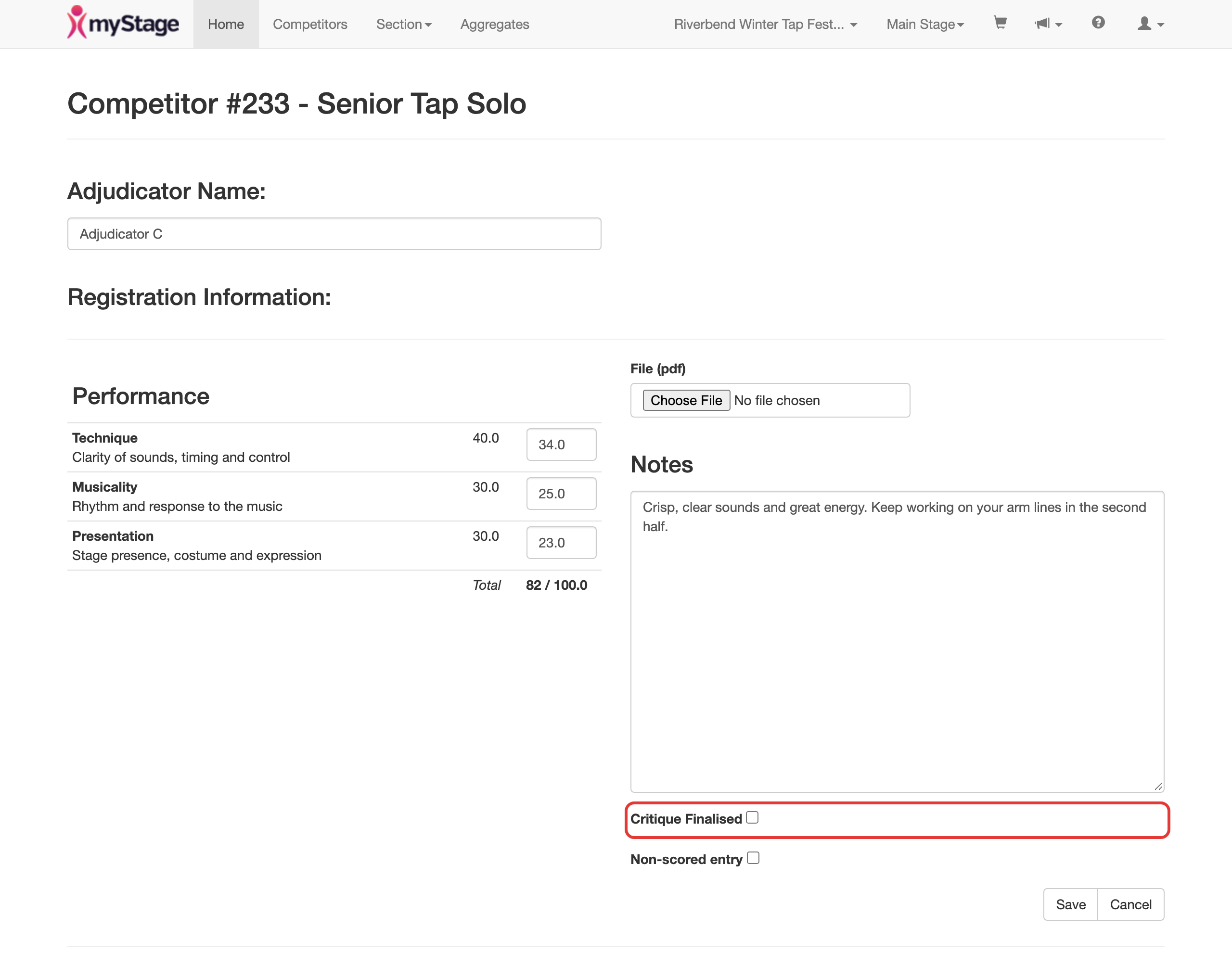
If you save without ticking Critique Finalised, myStage asks whether to Save (leave it unfinished) or Finalise and Save.
Note
While you are editing, myStage saves the critique in the background every 30 seconds, so work is not lost if the connection drops. Uploaded files are only saved when you click Save.
Tip
Only finalised critiques are sent to competitors or used in result calculations. Make sure every critique is finalised before results are released.
Comment-only critiques
Some entries or sections are not scored:
- If the score guide is set as a Non-scored section, every critique in the section is comment only. The adjudicator sees the Critique Instructions instead of the score criteria.
- For a single entry, tick Non-scored entry on the critique. The scores are hidden and the critique shows as "Non-scored entry".
Uploading a completed critique
If the score guide has Enable upload of crits ticked, you can attach a file to the entry's critique, for example a hand-written critique that has been scanned.
- Open the critique and click Edit.
- Under File (pdf), choose the file.
- Click Save.
Once uploaded, the file name, upload date and a Download button are shown on the critique. Uploading another file replaces it.
Using critiques for results
When entering results for a section with critiques, the results screen shows a Crits column with each entry's critique totals.
- A red warning icon shows if a critique is not finalised ("Crit is Incomplete") or no critique has been created ("No Crits have been created").
- An Incomplete Critiques message shows how many entries have unfinished critiques.
- Click Score from Crits to copy the critique score (using the event's result calculation method) into the score for each entry.
Click a critique total to view it, or the print icon to download the critique as a PDF.
What competitors see
Critiques are only shown to competitors after the section's results have been released.
- On their profile, the competitor, parent or teacher sees a View Crits button next to the entry on the entries and results lists, and on the entry itself.
- The critique shows the adjudicator, scores, notes and any uploaded file (with a Download button). Click Print for a PDF copy.
Critique emails
After a section's results are released, myStage emails the finalised critiques for that section. Each email has the critique PDF attached, plus the uploaded critique file if there is one. Critiques are only sent once for each section.
Critiques are sent to:
- the competitor's own myStage account, or the competitor's email address if they do not have an account; and
- related users (such as parents and teachers) who have Receive Crits set to Yes on the competitor's profile.
A related user's Receive Crits setting is shown on the competitor's profile, and defaults to Yes.