Pre-registration
To view your entries, simply click on Entries from the left hand side menu.
Pre-Registration
What is Pre-registration?
Pre registration allows you to enter the details of your performance ahead of time. This means on the day you arrive for registration and simply confirm everything is correct, saving you time before your performance
In other words, pre-registration is providing information required for a competition in advance to save time and ensure you are as organised as possible. Information you can may be required to provide as part of pre-registration include; - Fill-out and upload lighting sheets - Whether you would need a black-out or a reveal - How many competitors in a team - Whether there are any boys in the team and so forth.
Pre-registration process is initiated by a competition convenor and if you are required to provide any such information, myStage will display what is required on your profile.
Tip
You can go back in and change pre-registration information up until the competition closes pre-registration.
How to Pre-register
Login to myStage. If you are required to pre-register you will see a prompt on the home page.
You can pre-register in two ways, all at once, or by entry.
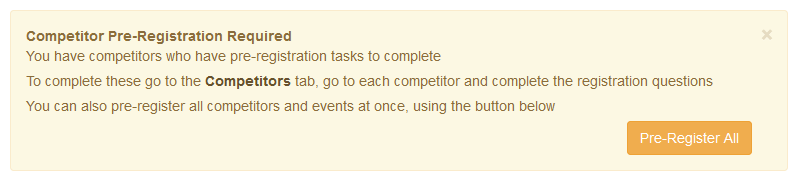
Pre-Register All
Click Pre-Register All to register all of your competitors and entries at once. If you are viewing a competitor you will see a list of the events that will require pre-registration.
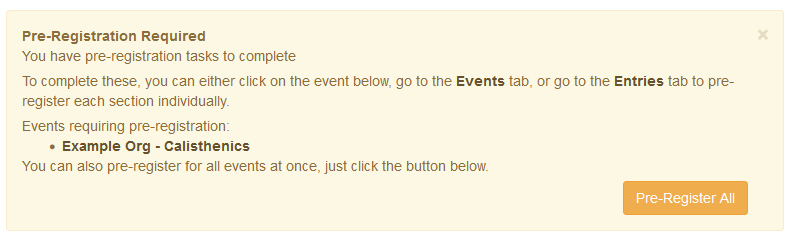
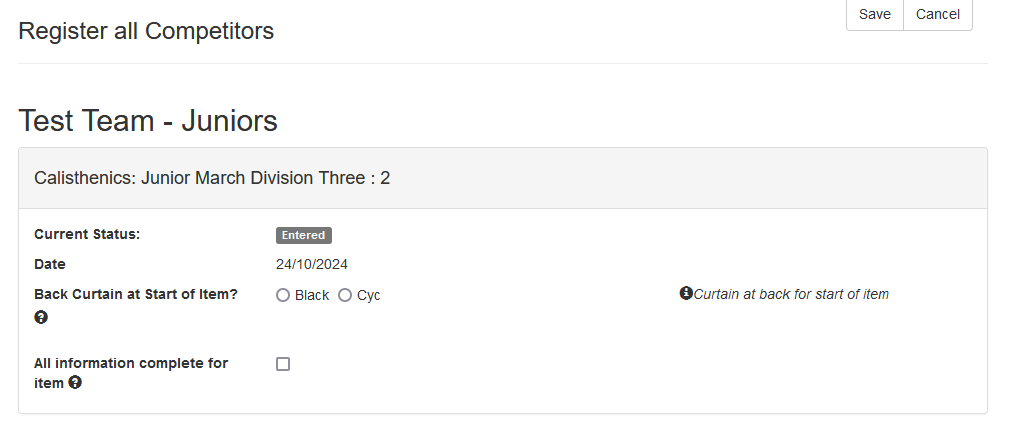
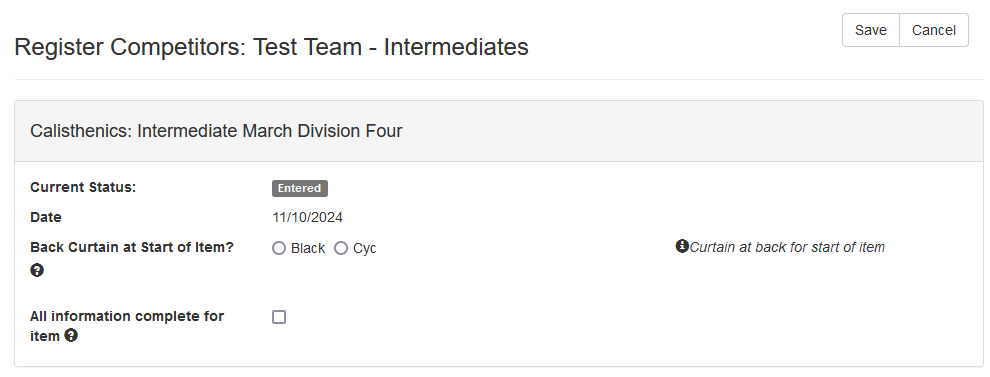
Depending on which you choose you will either see all the items for the single competitor, or all items for all competitors.
Tip
Pre-register all competitors - the competitor name is listed above each item
Tip
Pre-register all for single competitor - the name is at the top, then all items listed below
Pre-registration questions
Pre-registration questions vary based on the competition configuration, as well as the item you have entered. You should generally only see the questions relevant for the item.
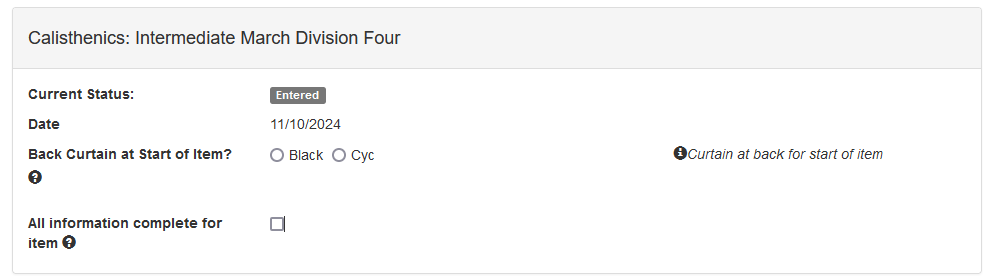
The example below is a simple item, which only requires curtain information. Here you would choose the option for the curtain and then tick "All information complete for item" to indicate you have completed pre-registration for this item. (If you open a single entry from your profile, the tick box is labelled "Tick finalise your registration".)
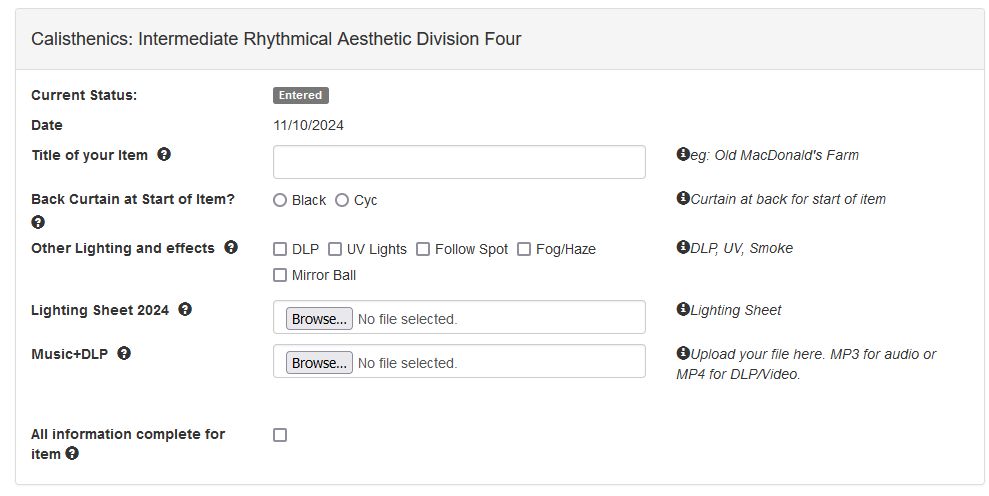
This example is an item that has more questions, including file uploads. Fill in each question and tick All Information complete for item when you are done.
Read-only questions
Some questions are filled in by the competition organisers for your information, such as a dressing room allocation. These show the answer as plain text with a lock icon, and you can't change them.

Uploading files
Some questions ask you to upload a file, such as music, a video or a completed lighting sheet.
- Click the upload box next to the question and choose your file. If the organiser has provided an example file, you can download it using the Example link.
- If the question only accepts certain file types, they are listed under the upload box as File types supported. Choosing a different type of file shows an error.
- Files can be up to 1 GB, or up to 5 GB for questions that allow large files. If your file is too large you will see a message such as "File too large. Maximum size for this field is 1GB."
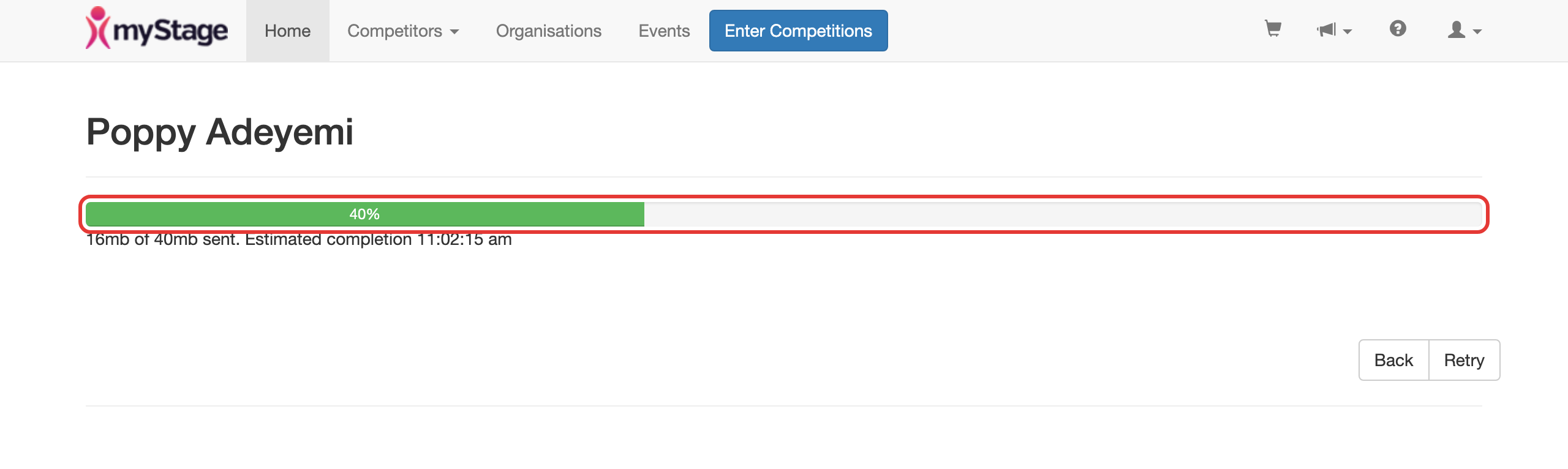
- Click Save. The form is replaced by a progress bar showing how much has been sent and an estimated completion time. Keep the page open until the upload has finished.
Once uploaded, the file name is shown next to the question as File:. You can click it to check the file.
Tip
Large video files can take a long time to upload on a slow connection. Upload them well before pre-registration closes, and use a reliable internet connection.
Note
Uploaded files are deleted by the competition some time after the event has finished. Keep your own copy of anything you upload.
Note
You will only be asked questions for entries in upcoming sections.