Creating and Managing Users
Users in myStage can be two types: Public or Internal
Public users are those that register on the sign up page. Internal users are those that can perform administrative tasks, or help run a competition day. This documentation is for the internal users.
Creating a user.
1 . On the administration page, click Users.
2 . Click New
3 . Fill out the details for the user in the Add User dialog.

| Field | Description |
|---|---|
| First name | Required |
| Last Name | |
| Username | Required, and cannot contain spaces. Tip: Start with org initials, org_role_site is a good way to do it |
| Optional | |
| Role | User role, configured in Reference Data. See Role below |
| Password / Confirm Password | |
| Allow access to admin screens | Tick if this is an administrative user. This gives the user ROLE_ORGANISATION_ADMIN |
| Create a Kiosk/Self Registration User | Tick if you want the self-registration screen to show when this user logs in. A kiosk user only gets ROLE_KIOSK_SELF_REGISTRATION |
Default security roles
A new user (other than a kiosk user) is automatically given ROLE_USER, ROLE_SECTION_VIEW, ROLE_SECTION_EDIT, ROLE_COMPETITOR_VIEW, ROLE_COMPETITOR_EDIT and ROLE_DISCIPLINE_VIEW.
4 . When added, the new user's details page opens and the user appears in the list. Click Edit to change the user's details.

5 . The edit screen lets you change the name, email and role. You can also add organisation roles and event access.
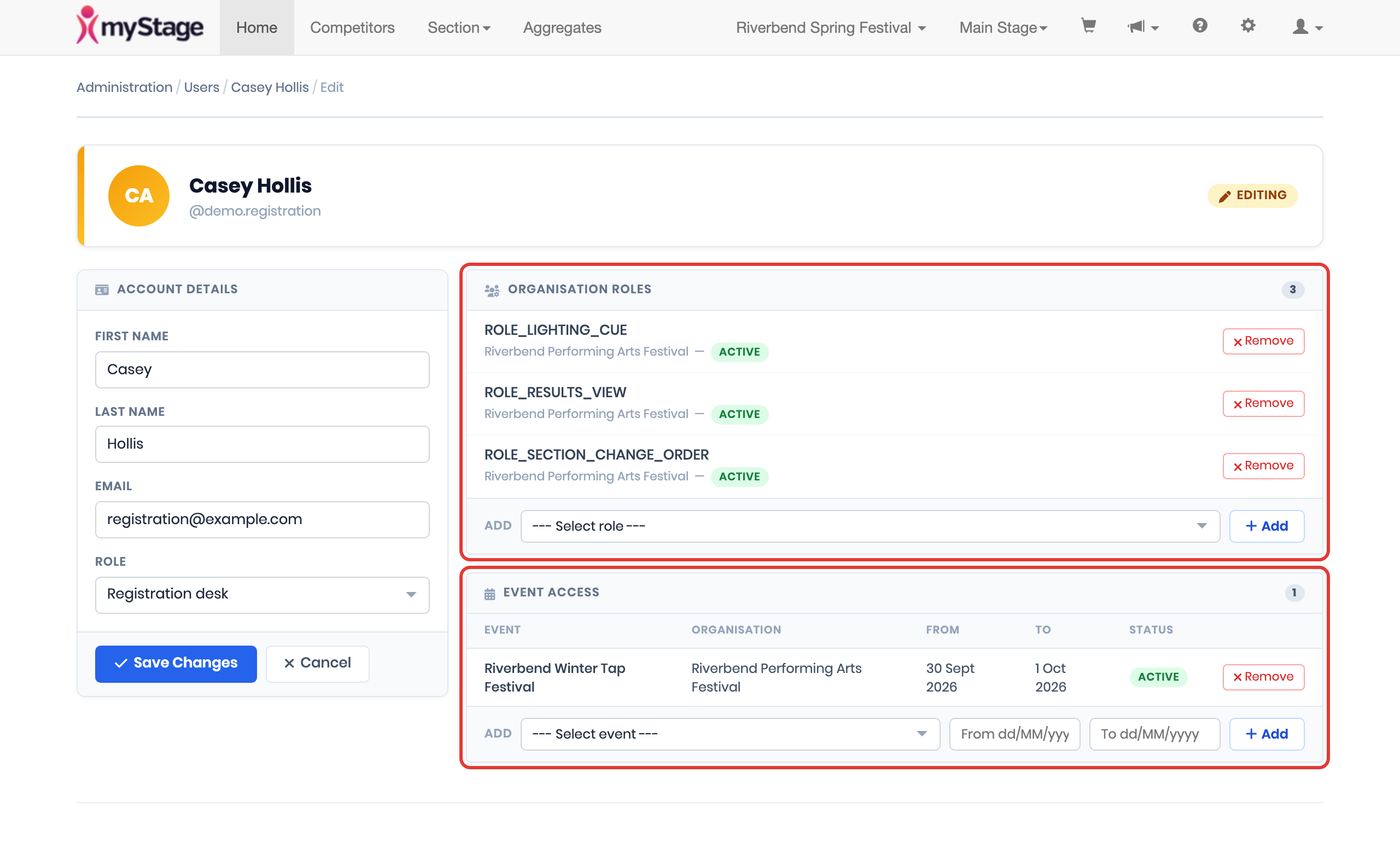
The edit screen has these sections:
| Section | Description |
|---|---|
| Account Details | First Name, Last Name, Email and Role. Click Save Changes to save |
| Organisation Roles | The security roles this user has in your organisation. Select a role and click Add, or click Remove beside a role |
| Event Access | The events this user can manage as an event administrator. See Event administrators |
Organisation roles
Security roles are now given to a user for a specific organisation. Roles you add in Organisation Roles apply to your organisation only. The section only shows for users who belong to an organisation.
Changes to a user's roles take effect the next time they log in.
Tip
Users set up before the change to organisation roles may also have older roles that don't show in Organisation Roles. If you remove a role and the user can still do something they shouldn't, contact myStage.
Security Roles
There are a number of security roles that you can allocate to a user, to restrict the access a user has.
| Role | Permission |
|---|---|
| ROLE_USER | Access to the system Required! |
| ROLE_ORGANISATION_ADMIN | Administrative user. All access except delete section below |
| ROLE_EVENT_ADMIN | Event administrator. Can manage only the events they have been given access to. See Event administrators |
| ROLE_COMPETITOR_VIEW | View competitor profile |
| ROLE_COMPETITOR_EDIT | Edit competitor profile |
| ROLE_CHANGE_COMPETITOR | Shows the Change Competitor button on an entry, so the entry can be moved to a different competitor |
| ROLE_PUBLIC_USER | Public user access, don't give to internal users |
| ROLE_COMPETITOR | Designates the user as a competitor |
| ROLE_RESULTS_VIEW | View section results before they are published |
| ROLE_RESULTS_EDIT | Allow editing of results |
| ROLE_RESULTS_PUBLISH | Allow publishing of results to users without results view permission |
| ROLE_DISCIPLINE_EDIT | Edit Disciplines |
| ROLE_DISCIPLINE_VIEW | View Disciplines |
| ROLE_KIOSK_SELF_REGISTRATION | Allow access to the self registration page |
| ROLE_SECTION_VIEW | View Sections |
| ROLE_SECTION_EDIT | Edit Sections |
| ROLE_SECTION_DELETE | Delete a section. Even admins cannot delete without this role |
| ROLE_SECTION_CHANGE_ORDER | Change performance order of a section |
| ROLE_CRITIQUE_EDIT | Ability to edit critiques |
| ROLE_LIGHTING_CUE | View the Cue ID on lighting sheets, and use Edit Cue to set it. Admins can do this without the role |
Event administrators
An event administrator can manage the events you give them access to, without having full administration access to your organisation. For example, you could give a volunteer access to complete the schedule for one event.
An event administrator can:
- See the events they have access to, and open each event's admin page
- View the event's entries, sections and registration data mapping
- Edit the schedule (Schedule > Edit Schedule)
An event administrator cannot see finance information, edit the event details or content page, release the schedule or order, publish the event, or use the other Actions menu items.
Giving someone access to an event
The easiest way is from the event page:
- Open the event from Administration > Events.
- Click Grant Access.
- In the Grant Event Access dialog, select the User.
- Optionally enter Access From and Access To dates. Leave them blank for access with no start or end date.
- Click Grant Access.
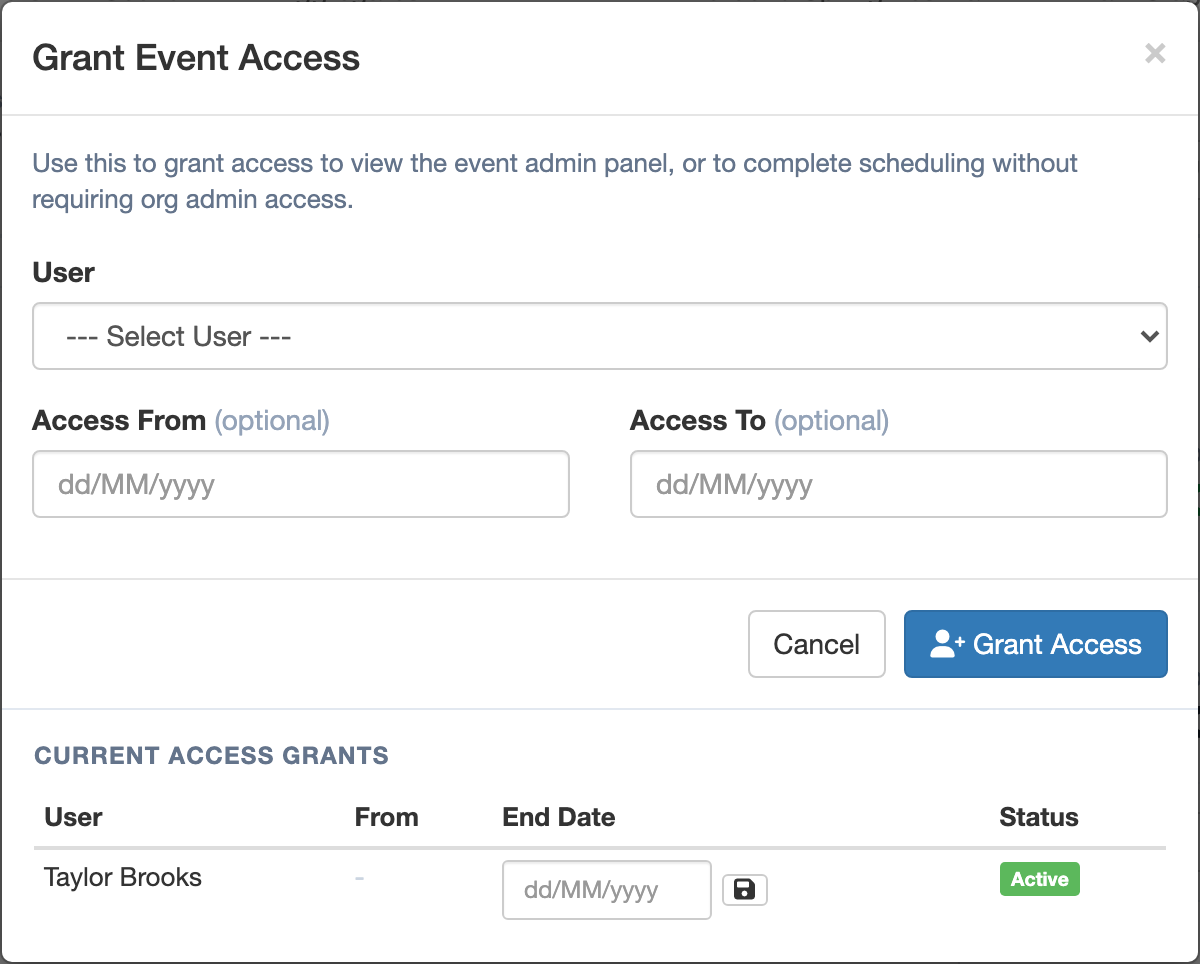
This gives the user ROLE_EVENT_ADMIN for your organisation and access to the event.
The dialog also lists Current Access Grants for the event. To change when someone's access ends, enter a new End Date and click the save icon beside it.
Note
Access is Active between the From and To dates. Outside those dates it shows as Inactive, and the user can no longer open the event.
You can also manage a user's event access from their edit screen, in the Event Access section. Select the event, optionally enter the From and To dates, and click Add. Click Remove to take the access away.
Warning
Adding event access from the user's edit screen does not add the ROLE_EVENT_ADMIN role. If you use this screen, also add ROLE_EVENT_ADMIN in Organisation Roles. Using Grant Access on the event page does both.
What the event administrator sees
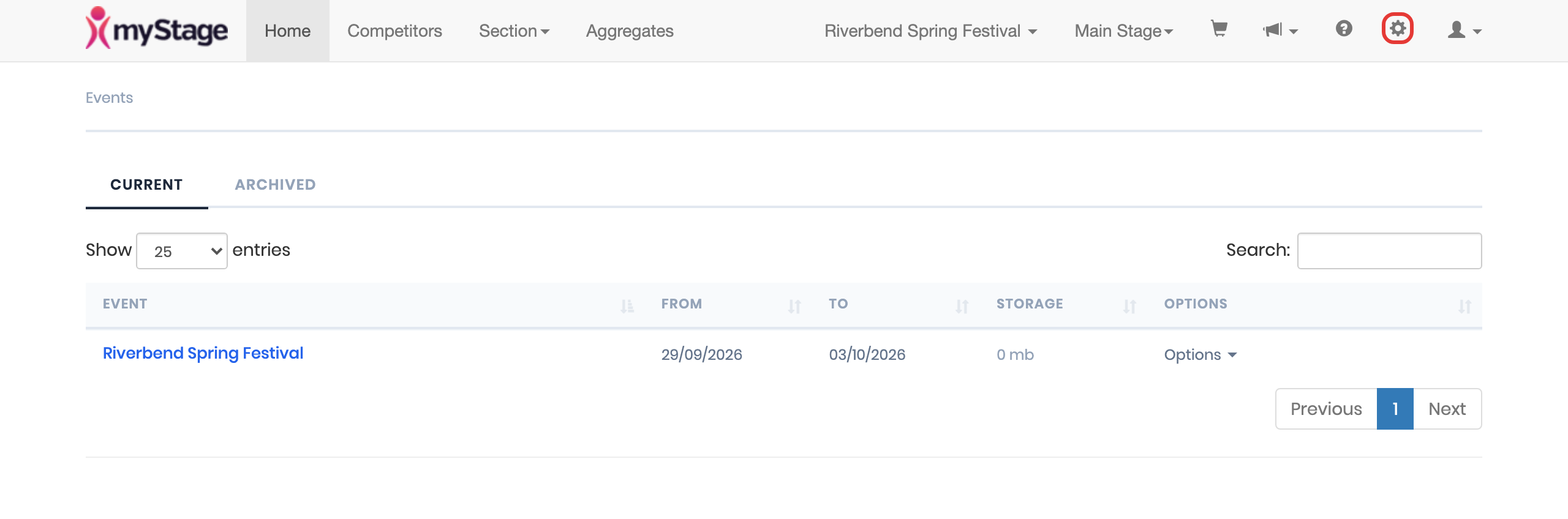
When an event administrator (who is not also an organisation administrator) logs in, they go straight to the Events page, which shows only the events they have access to. They can return to it at any time with the cog icon in the top menu, or My Events in their user menu.
Note
If the user is also a competitor or parent, they will land on their profile when they log in instead. They can use My Events to get to their events.
Role
As well as security roles, there are configurable roles available under Reference Data > Roles.
These roles are used to configure which registration data users have access to, as well as which statuses they can transition an entry to.
By default the system has the following roles:
- Registration
- Stage Manager
- Adjudicator
- Chairperson
- Administrator
New roles can be added to suit roles of your staff or volunteers. For example you could create a role for a Theatre Tech
User Roles
Create a role in the system for each position of worker or volunteer you have within your event. This way, you can configure access for each user type easily.
Security - Registration Data and Statuses
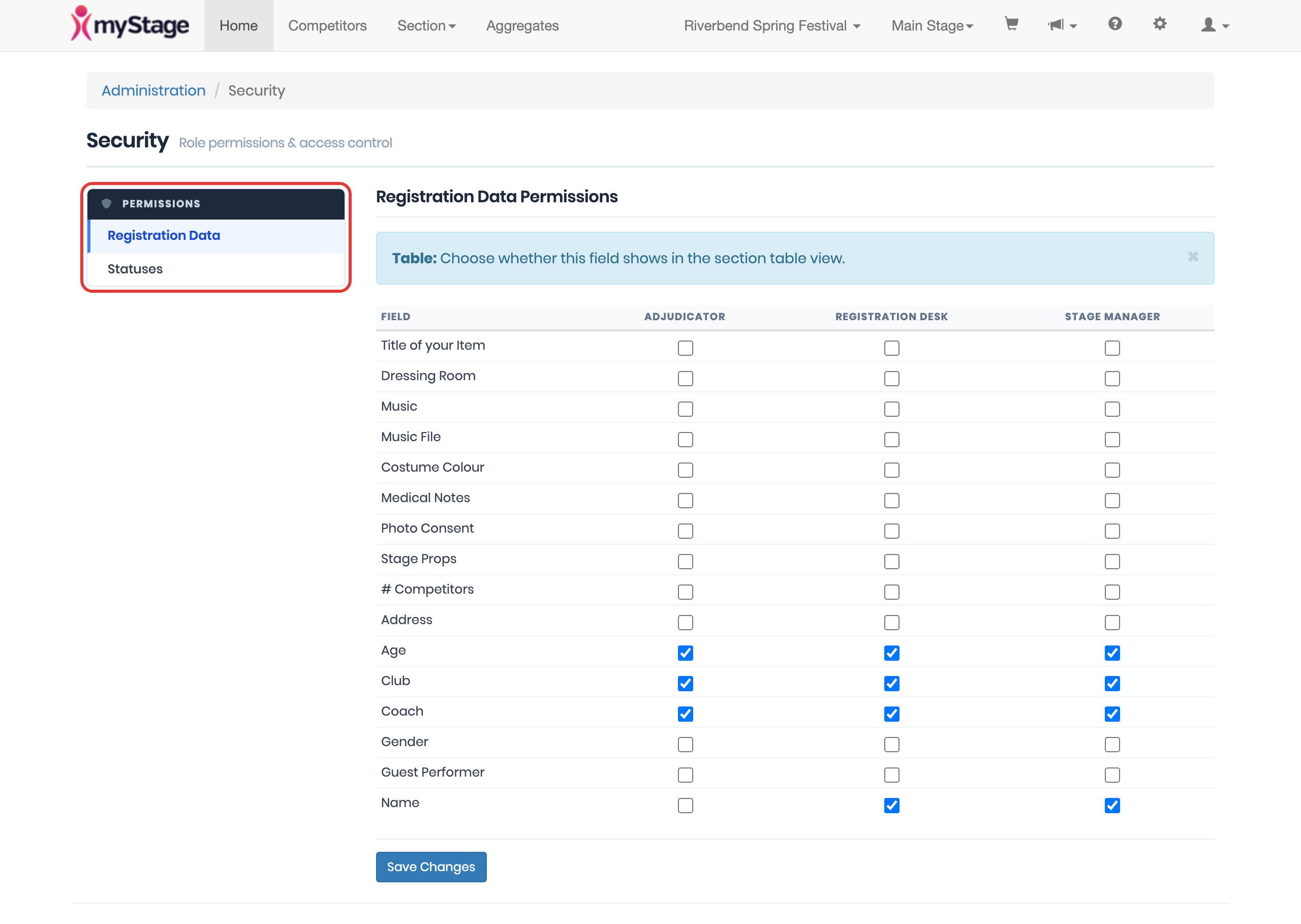
In the administration screen, the Security page lets you edit two things. Choose them from the menu on the left:
- Registration Data (Registration Data Permissions)
- Statuses (Status Permissions)
Registration Data
Registration data permissions allow you to configure which registration data shows in the section table view for each user role.
Place a tick in the box for each registration data item, against the user role that should see it, then click Save Changes.

Status Permissions
Status permissions are very similar to the Registration Data permissions, but allow you to specify which statuses a user can set an entry to.
For example, you would only allow a Registration user to set Registered or Delayed, but you might want a Stage Manager to have the ability to go to Stage Ready, Competing or Awaiting Results
Tick the statuses for each role and click Save Changes.

Example - Lighting Tech Access
This is an example for how to add a user to view the lighting sheets only. This way a lighting tech in a theatre doesn't get access to unnecessary information.
- Create a user following the instructions above.
-
Make sure the user only has the following roles:
- ROLE_USER
- ROLE_SECTION_VIEW
Giving these two security roles is the minimum needed for a user to view a section and any registration data configured for them. This way they don't get access to information they aren't meant to
If the technician needs to see and set the Cue ID on lighting sheets, also add ROLE_LIGHTING_CUE in Organisation Roles.
-
Set their role to a role you have created for the technician. Eg. Lighting Tech. If you need to add a role, follow these instructions above.
- Editing their Registration Data and Status Permissions make sure that the technician cannot change status, and that they only see the information you wish them to. For example, you could give them curtain information, blackout and a lighting sheet if that is the information you collect.