Playback Devices
Playback Devices
myStage Player is a desktop app that plays the music and video for a competition from the operator's laptop. The laptop downloads the running order and every competitor's original file before the day, so playback carries on even if the venue's internet drops.
A laptop is allowed to download an event's music by pairing it with the event. You do that on the event's Playback Devices page. This page covers:
- Opening the Playback Devices page
- Checking the music is ready
- Installing the Player
- Pairing a laptop
- Managing devices
The operator's side is described in Music Player.
Opening the Playback Devices page
- Go to the administration screen and click Events, then open the event.
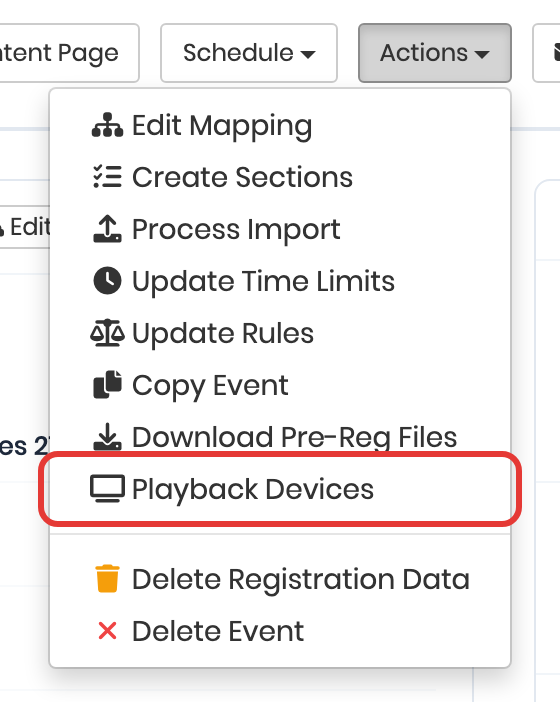
- Click Actions, then Playback Devices.
Checking the music is ready
The Media readiness panel at the top of the page covers the whole event.

| Figure | What it means |
|---|---|
| performances | Entries in the event that are still performing (withdrawn entries are not counted). |
| with music or video | Performances that have at least one audio or video file uploaded. |
| no music yet | Performances with nothing uploaded. These show as No music in the Player. |
| checksummed | Files myStage has fingerprinted (a SHA-256 checksum). The Player uses this to prove each downloaded file is identical to the one the competitor uploaded. |
| still being checksummed | Files waiting for their checksum. They show as Not ready in the Player until this is done. |
| missing from storage | Files myStage could not read from its storage, so they cannot be checksummed or downloaded. |
| to download | The total size a laptop will download if it is paired for the whole event. |
Files are checksummed in the background every few minutes. If some are still waiting, or some have failed, click Checksum now to start straight away. This also retries any failed files. While it runs, the page refreshes every 10 seconds.
Tip
Check this panel a few days before the competition, then again the night before. Chase up competitors for any no music yet performances, and ask for a replacement file if one is missing or can't be played.
Installing the Player
The Download myStage Player panel lists the installers for each operating system. Click Download next to the right file and run it on the operator's laptop. If the panel says no installers were found, contact myStage support.
Pairing a laptop
Use the Generate a pairing code panel. Make a separate code for each laptop.
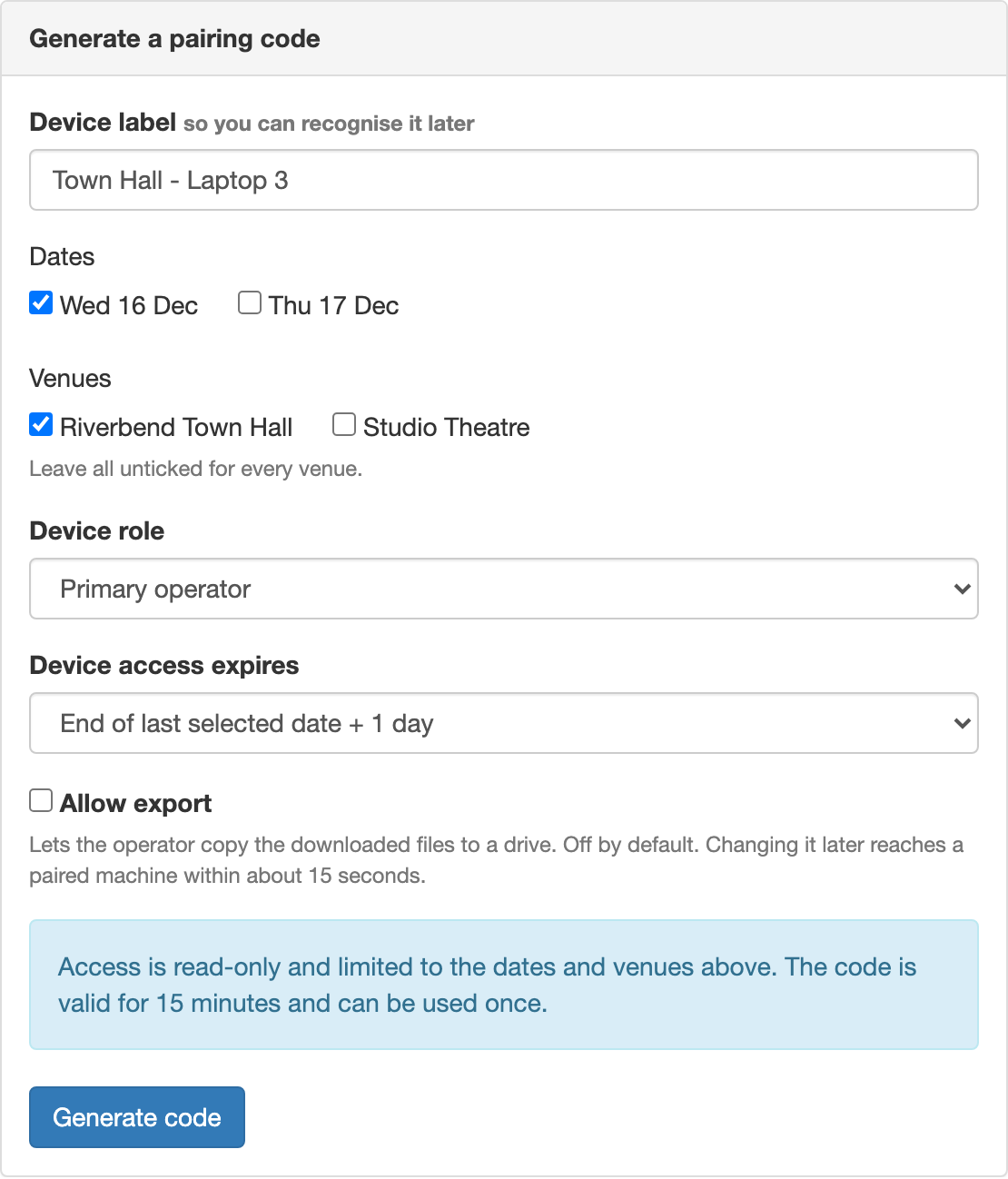
- Enter a Device label that you will recognise later, for example Town Hall - Laptop 1.
- Tick the Dates the laptop will be used on.
- Tick the Venues it will be used at. Leave them all unticked to allow every venue.
- Choose the Device role: Primary operator or Backup operator.
- Choose when the Device access expires.
- Tick Allow export only if the operator needs to copy the files to a drive (for example to use in QLab). It is off by default.
- Click Generate code.
| Device access expires | What it means |
|---|---|
| End of last selected date + 1 day | The laptop stops working the day after its last date. This suits most events. |
| After 7 days / After 30 days | The laptop keeps its access for that long from now. |
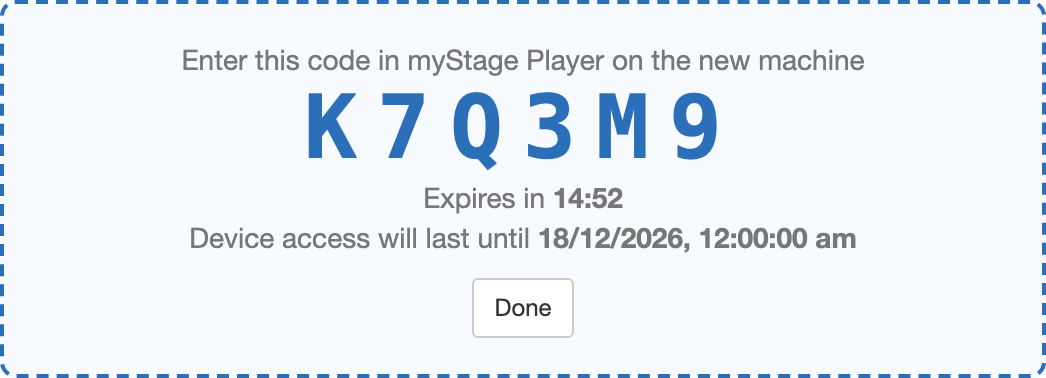
Give the 6-character code to the operator to type into the Player. The code is valid for 15 minutes and can be used once. It is never shown again, so generate a new one if it expires or is lost.
The laptop can only download audio and video files for performances on the dates and at the venues you ticked. Access is read-only.
Tip
Pair at least two laptops for each venue: a primary and a backup. Both should be synced before the day, so the backup can take over straight away.
Managing devices
The Devices for this event table lists every code and laptop for the event.
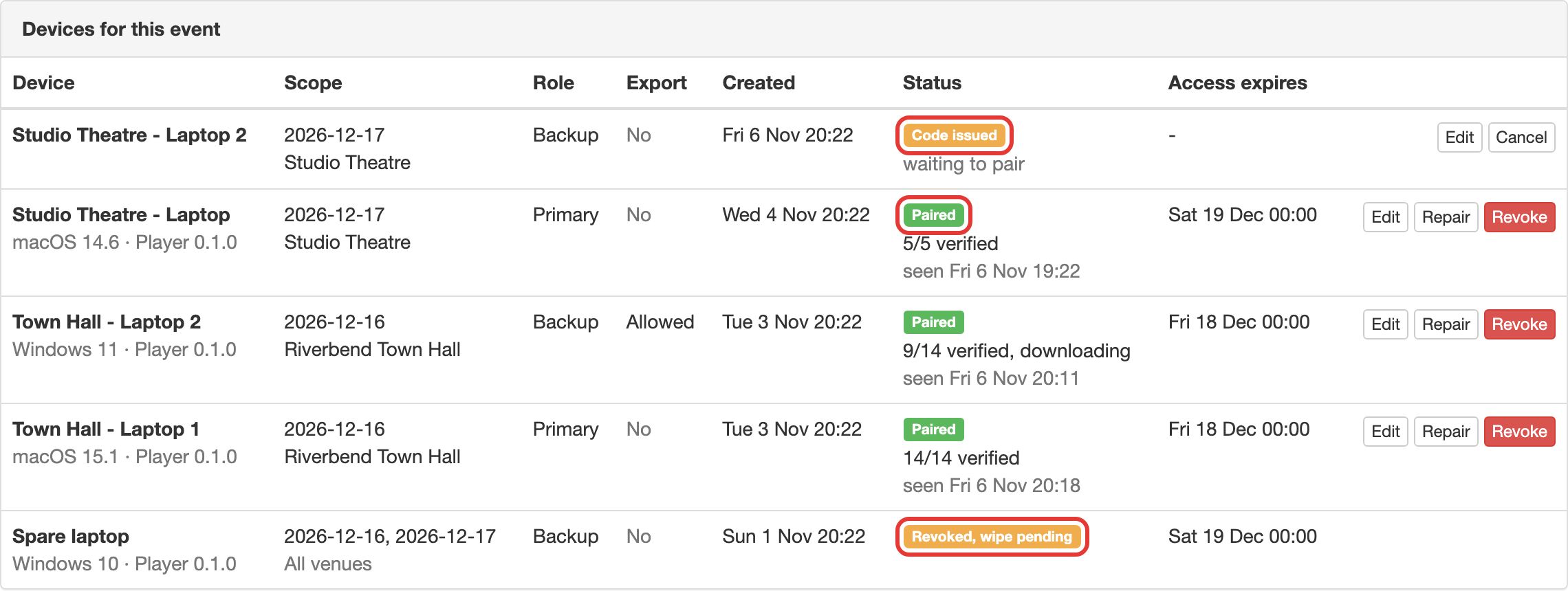
| Column | What it shows |
|---|---|
| Device | The label, plus the operating system and Player version once the laptop has paired. |
| Scope | The dates and venues the laptop may download. |
| Role | Primary or Backup. |
| Export | Whether the operator is allowed to export files. |
| Created | When the code was generated. |
| Status | See below. |
| Access expires | When the laptop's access ends. |
Status
| Status | What it means |
|---|---|
| Code issued | A code has been generated and is waiting for the operator to enter it. |
| Code expired | The 15 minutes passed before the code was used. |
| Paired | The laptop has paired. Below it you see what the laptop last reported (for example 14/14 verified or 9/14 verified, downloading) and when it last contacted myStage. |
| Repair code issued | A paired laptop has a repair code waiting to be used (see below). |
| Revoked, wipe pending | The laptop's access has been removed. It will delete this event's files the next time it reaches myStage. |
| Revoked, wiped | The laptop has confirmed that it deleted the event's files. |
| Cancelled | The code was cancelled before it was used. |
Tip
The status text a laptop reports is a good way to check the day before that every operator has finished downloading.
Editing a device
Click Edit to change a device's label, role, dates, venues or export permission. The form at the top of the page switches to Edit device. The expiry is set to Keep the current expiry unless you choose a new one. Click Save changes.
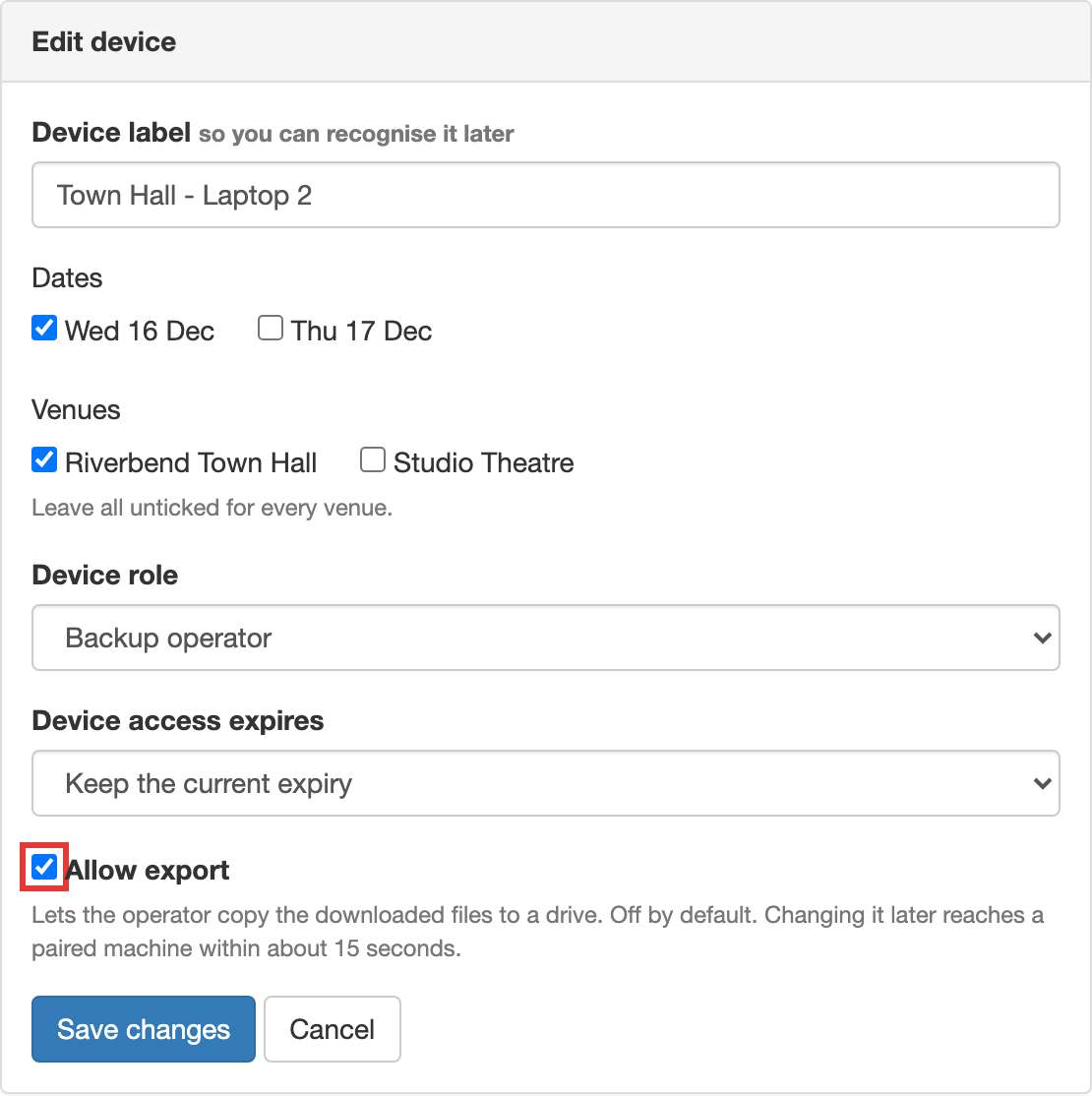
A change to Allow export reaches a paired laptop within about 15 seconds.
Repairing a device
If a paired laptop loses its pairing, for example after the Player is reinstalled, click Repair and confirm. This makes a new code for the same device, which keeps its label, scope and settings. Enter it in the Player on that laptop. The old pairing keeps working until the repair code is used. Click Cancel repair to withdraw an unused repair code.
Cancelling a code
Click Cancel next to a device that is still Code issued.
Revoking a device
Click Revoke and confirm to stop a laptop downloading. For example, use this if a laptop is lost or an operator should no longer have the music.
The laptop deletes the event's music, video and running order the next time it connects to myStage. A laptop that is offline keeps its files until it reconnects. Whatever happens, it deletes them automatically once its Access expires time has passed. The device shows as Revoked, wipe pending and then Revoked, wiped once the laptop confirms.