Music Player
Music Player
myStage Player is a desktop app for playing the music and video at a competition. It downloads the running order and every competitor's original file ahead of time, checks that each file is intact, and plays from the laptop. Once the files are downloaded you don't need the internet to play them.
The files are played exactly as the competitor uploaded them: at full volume, with no volume levelling and no conversion.
This page covers:
- Before you start
- Pairing the laptop
- Downloading the music
- Playing the music
- Following the competition
- Settings
- If something goes wrong
Before you start
- Install myStage Player on the laptop you will use on the day. An event administrator can give you the installer from the event's Playback Devices page.
- Ask the event administrator for a pairing code for your laptop. They create it on the same page, see Playback Devices.
- Make sure the laptop has enough free disk space. Video files can be large, and a whole day can be many gigabytes.
Tip
Pair and download the day before, at home or at the venue on a good connection. Then check everything shows Verified before you leave for the competition.
Pairing the laptop
When the Player starts for the first time it opens on the Pair tab.
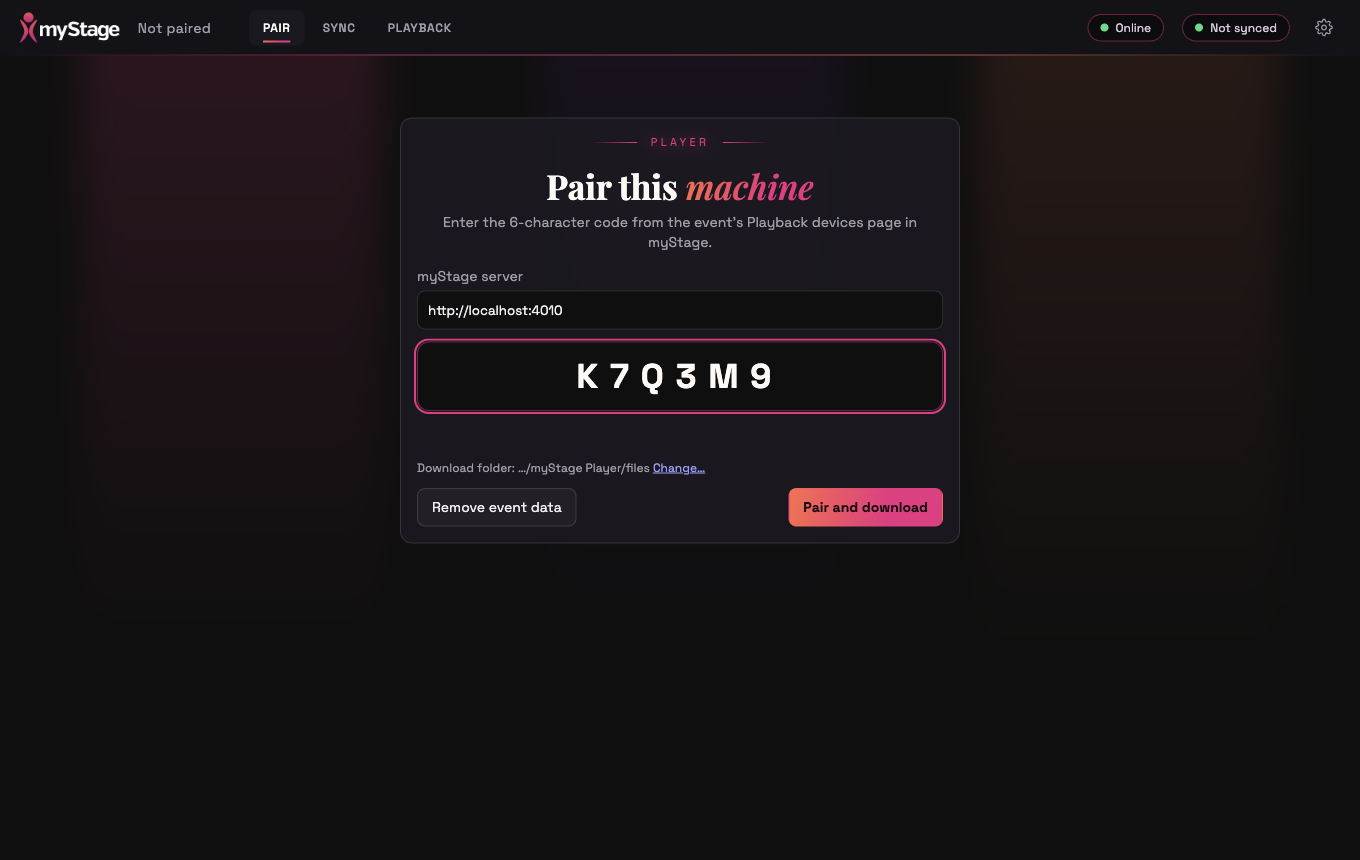
- Check the myStage server address. It is filled in for you, so only change it if you were given a different one.
- Type the 6-character code into the large box.
- Click Pair and download.
The Player pairs and starts downloading straight away. If the code is wrong, expired or has already been used, a message appears under the box. Ask the administrator for a new code.
The Download folder shows where the files are stored. Click Change… to use a different folder, for example an external drive.
Remove event data deletes everything downloaded for the event from this laptop.
Downloading the music
The Sync tab shows what has been downloaded.
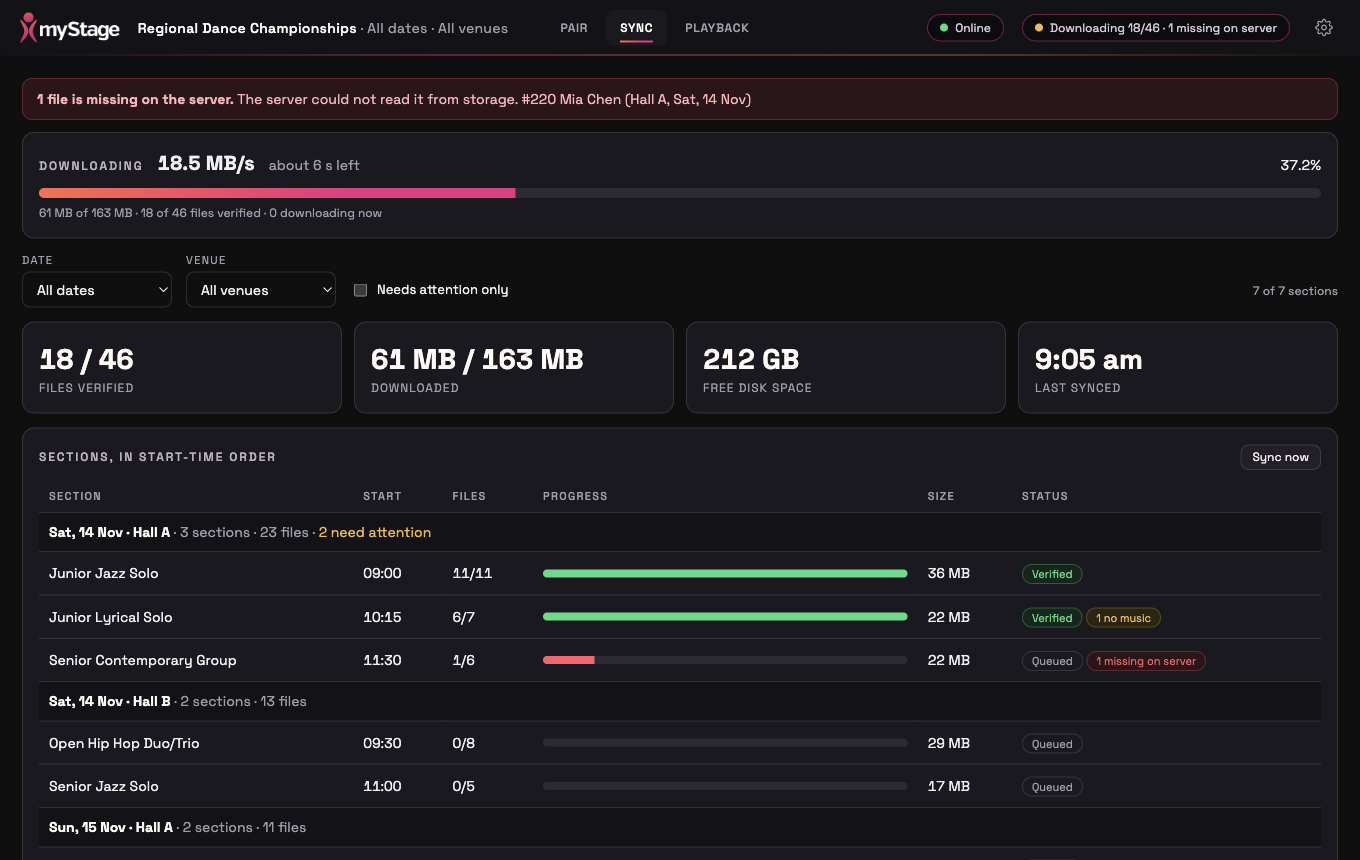
While files are downloading you see the speed, the time left and a progress bar. The top right of the screen shows a summary, such as Downloading 18/46 or 46/46 verified.
Four figures sit above the list of sections:
| Figure | What it shows |
|---|---|
| Files verified | How many files have been downloaded and checked, out of the total. |
| Downloaded | The size downloaded, out of the total size. |
| Free disk space | The space left on the laptop. It turns red if there isn't enough for what is still to come. |
| Last synced | When the Player last updated from myStage. |
The Player downloads the sections that start first, so a partly finished download is still useful.
Checking the sections
Each section in the list shows the number of files ready, a progress bar and a status. Click a section to see every file in it.
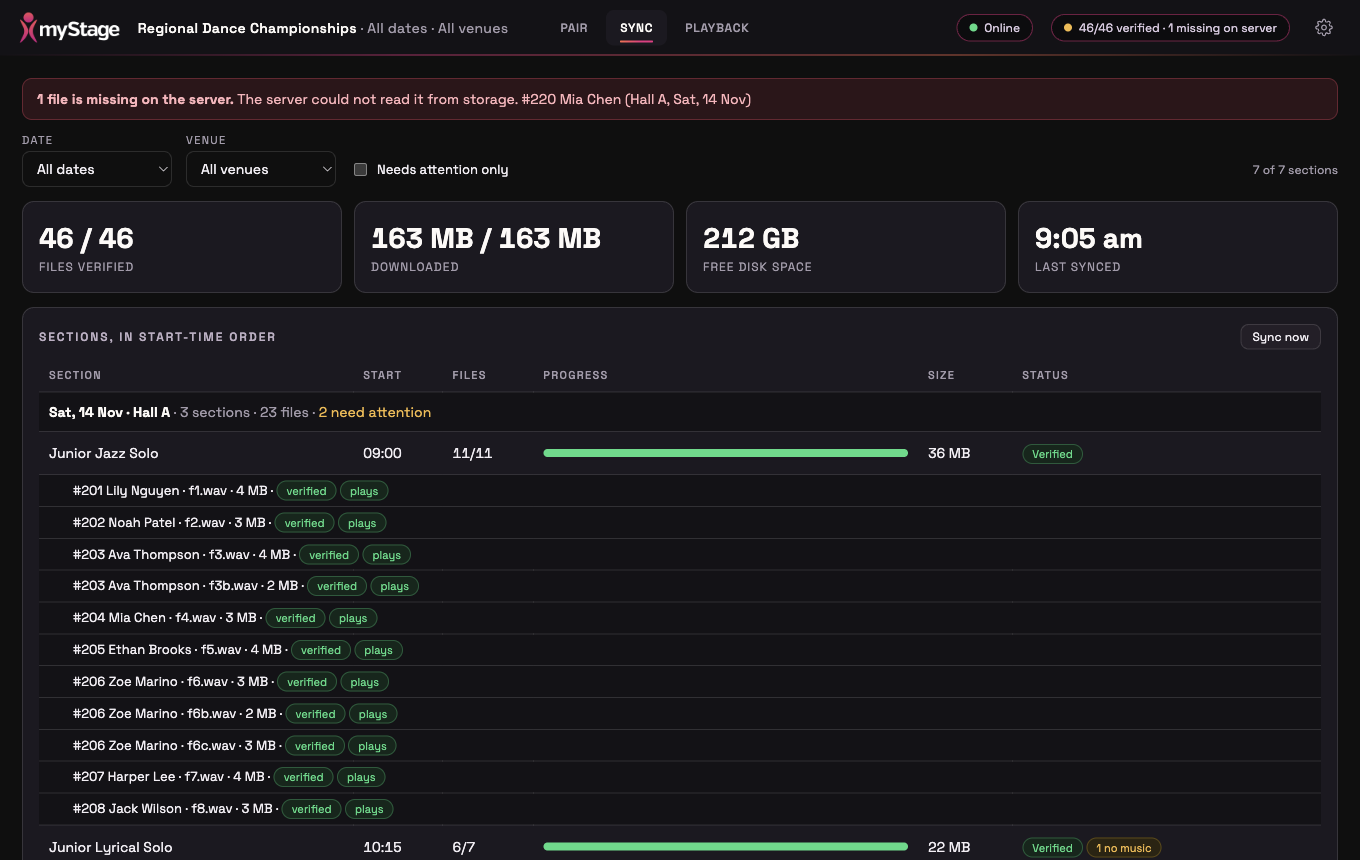
Every file is checked against its checksum when it finishes downloading, so you know it is identical to what the competitor uploaded. It is then opened to confirm it can be played.
| Label | What it means |
|---|---|
| Verified | The file has downloaded and matches the original. |
| plays | The file has been opened and can be played. |
| Downloading, Queued | The file is on its way. |
| No music | The competitor hasn't uploaded anything for this performance. |
| Not ready | myStage hasn't finished checking the file yet. It is picked up automatically on a later sync. |
| Missing on server | myStage could not read the file from its storage. Tell the administrator. |
| cannot decode | The file downloaded correctly but can't be played. Tell the administrator, who can ask the competitor for a new file. |
| problem | The download failed. The reason is shown, and the Player tries again. |
Red and yellow messages at the top of the page list the files that need attention. Use the Needs attention only tick box to show only the sections with a problem.
When an event has more than one day or venue you can choose a Date and Venue above the list. Your choice is remembered.
Note
A performance only plays if its file shows Verified. If a file isn't ready, the cue shows NOT READY and GO is disabled for it.
If a competitor changes their music
If a competitor replaces a file after you have downloaded, a banner appears: 1 change since last sync. The new file downloads in the background, but the running order doesn't change until you click Apply changes. If a cue is playing, the button waits and says Apply after cue ends.
Working offline
If the laptop loses its connection, the Online indicator at the top changes to Offline and a banner reminds you that everything already downloaded still plays. Downloads carry on when the connection comes back.
Playing the music
Open the Playback tab.
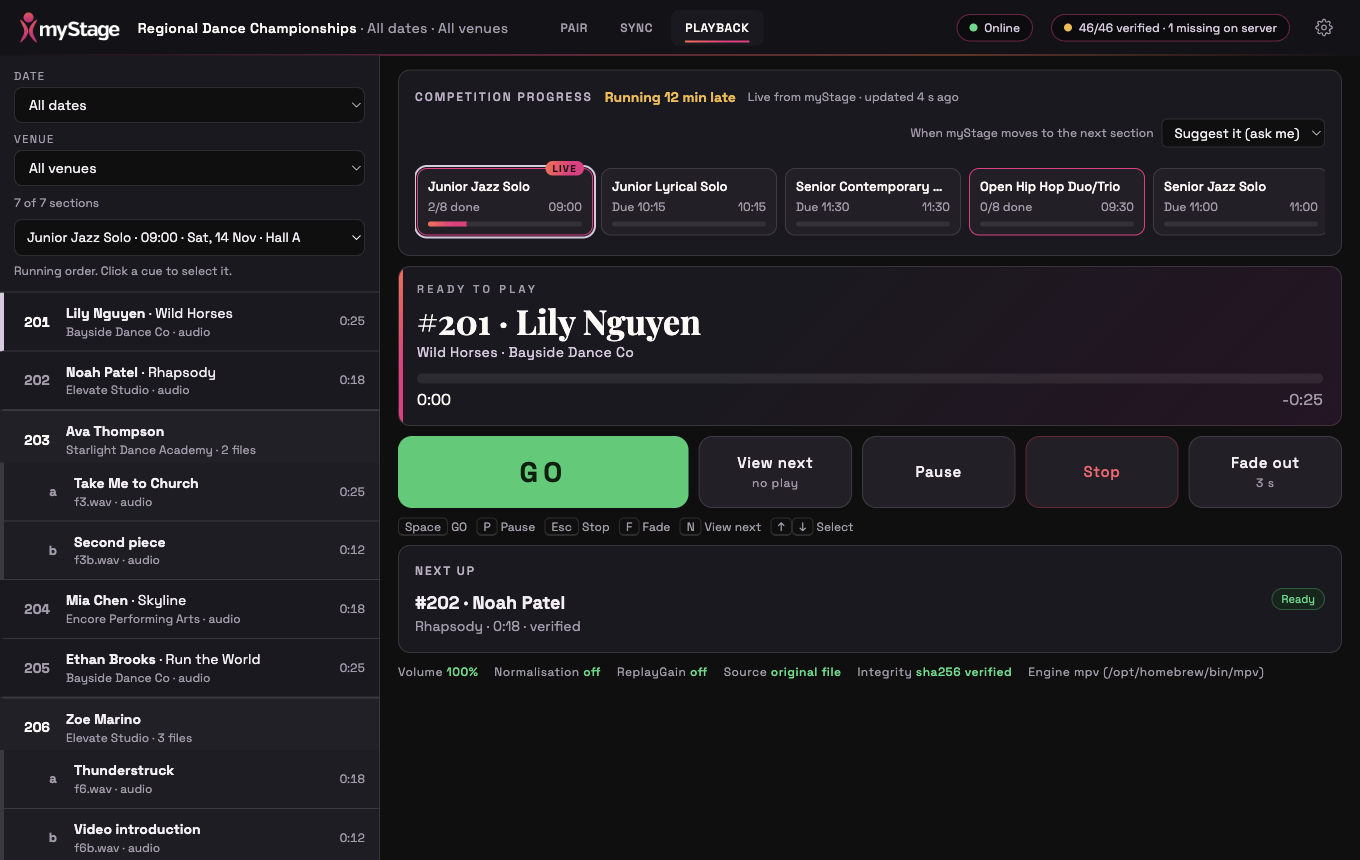
The list on the left is the running order for the selected section, one cue for each performance. Each cue shows the competitor number and name, the item and club, and the length. A performer with several files (for example a second piece) has a heading with one cue for each file, marked a, b and so on.
- Use the Date and Venue boxes, then the section box, to choose a section.
- Click a cue to select it. The selected cue is the one that plays when you press GO.
Controls
| Button | Keyboard | What it does |
|---|---|---|
| GO | Space | Plays the selected cue. While a cue is playing it says GO NEXT and plays the next cue when pressed. |
| View next | N or the down arrow | Moves the selection on to the next cue without playing anything. |
| Pause / Resume | P | Pauses the cue that is playing, or resumes it. |
| Stop | Esc | Stops the cue. |
| Fade out | F | Fades the cue out over 3 seconds. |
| Up arrow | Moves the selection back. |
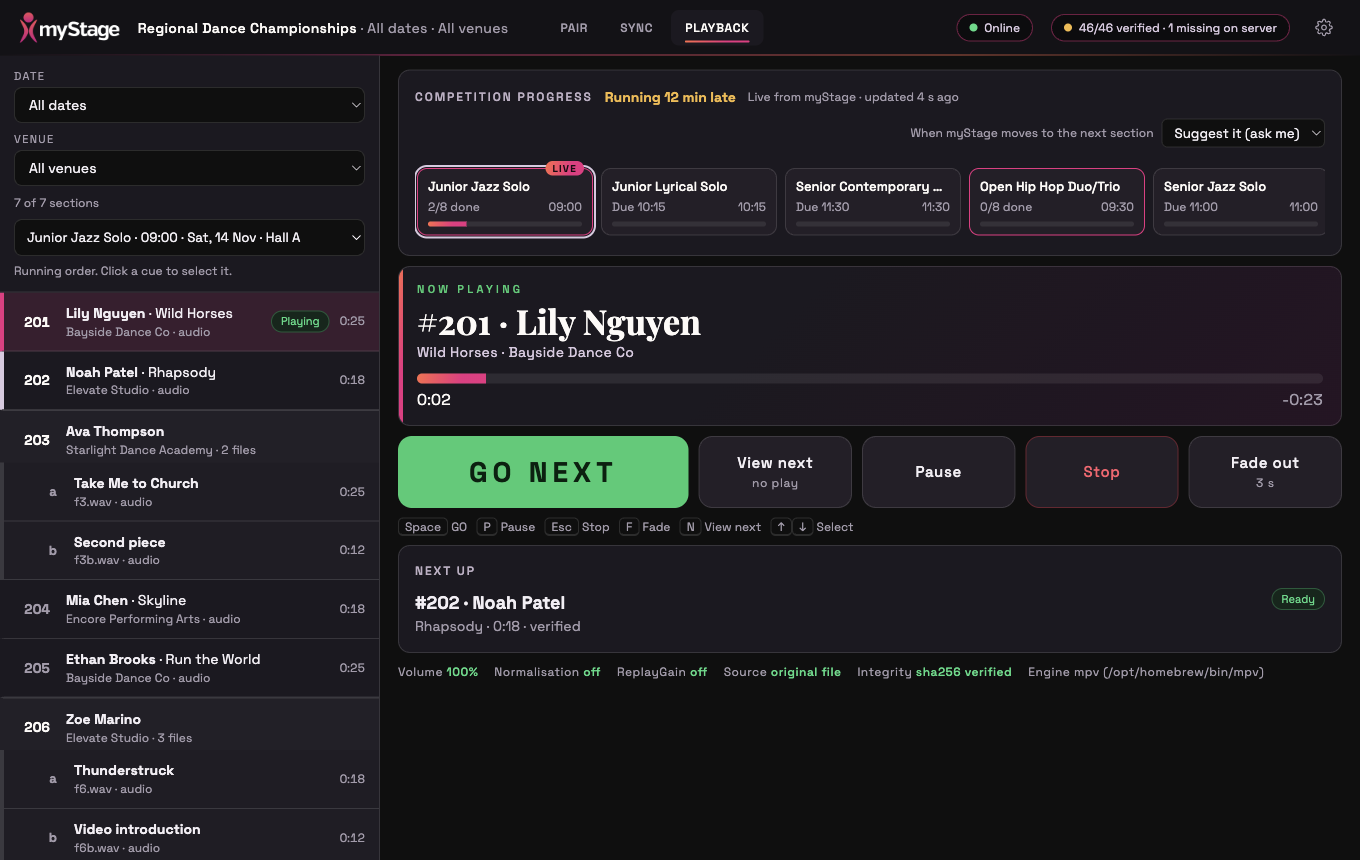
While a cue plays the Now playing panel shows who is performing and how much time has passed and is left. Next up below it shows the cue that comes next and whether it is ready. When the cue finishes, the selection moves on to the next one, but nothing starts until you press GO.
If the next cue is not verified, GO is replaced by NOT READY and the Player will not play it.
The line at the bottom of the screen is a reminder that the volume is 100%, normalisation and ReplayGain are off, and that the original file is played.
Following the competition
When the Player is online it shows how the competition is going, using the progress your stage managers enter in myStage.
The Competition progress panel shows each section as a card. The section that is on stage now is marked LIVE, with the number of performances done. Above the cards you see whether the competition is running late or early. Click a card to view that section.
If the Player can't reach myStage it shows Live progress unavailable and the scheduled times only. Switch sections yourself. Playing is not affected.
When myStage moves to the next section
Choose what happens using the box in the panel:
- Suggest it (ask me) shows a message when myStage moves on to a new section, with Switch now and Stay here buttons.
- Do nothing only moves the LIVE marker.
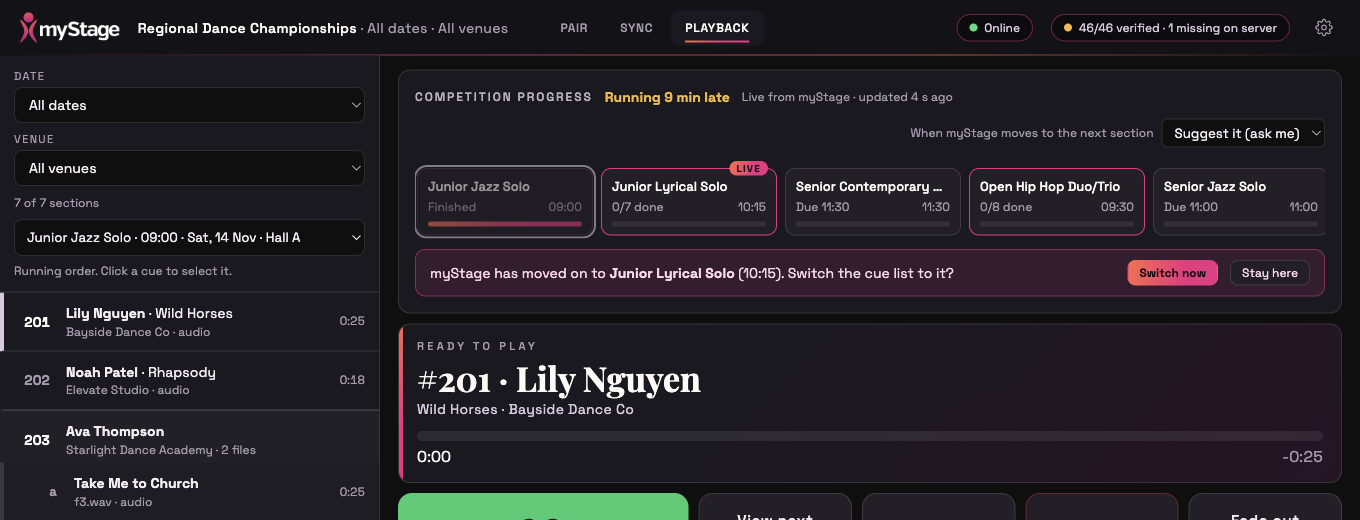
The Player will never change the cue list while a cue is playing. If a message appears during a cue, Switch now is disabled until the cue has finished. Switching sections only changes what you see. It never starts anything playing, so GO is always your decision.
Settings
Click the cog at the top right to open the settings, and click it again (or Back) to return.
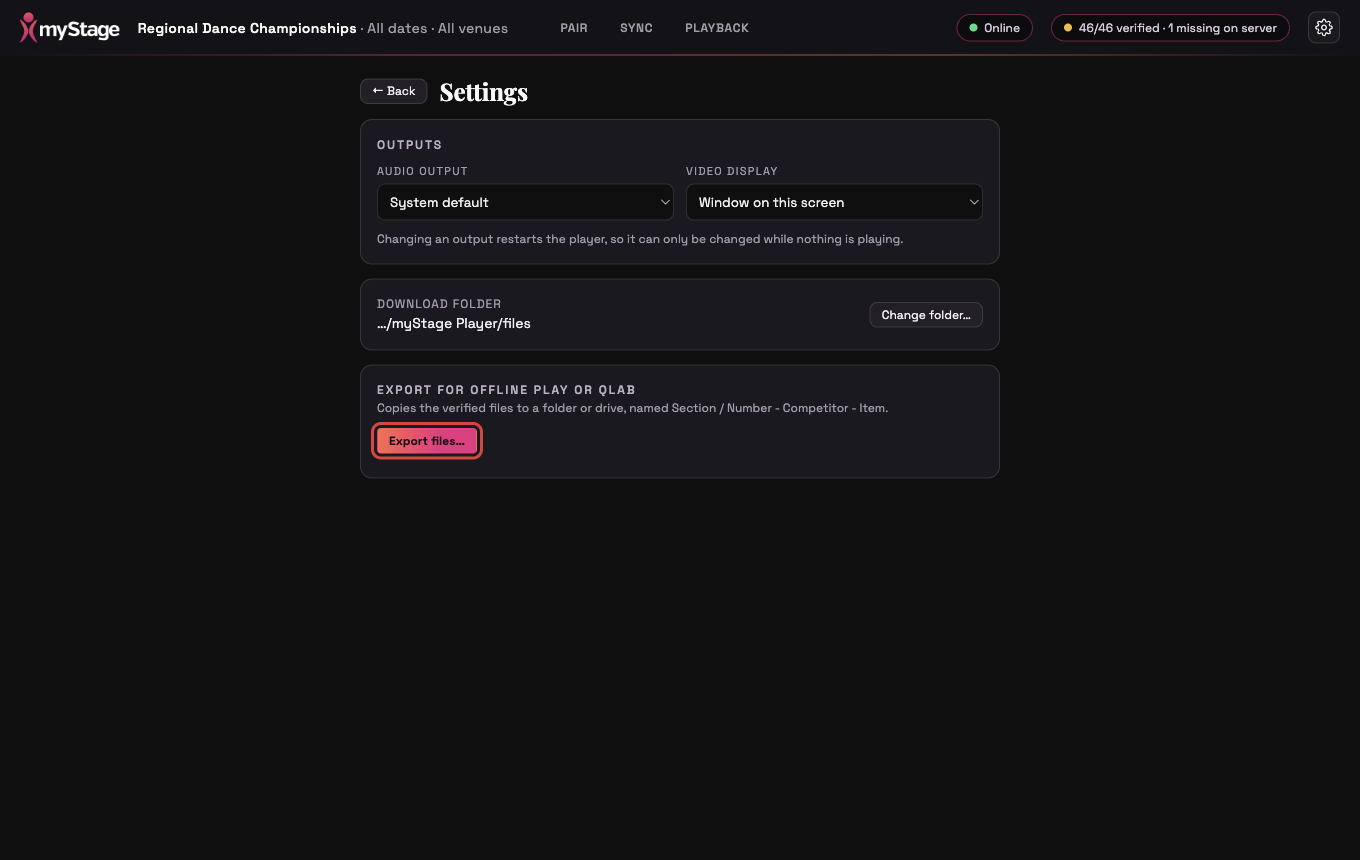
| Setting | What it does |
|---|---|
| Audio output | The speakers or sound device the music plays on. System default uses whatever the laptop is set to. |
| Video display | Where video plays. Window on this screen plays in a window. Choose another screen to play full screen on it, for example a projector. |
| Download folder | Where files are stored. Click Change folder… to move to another folder or drive, or Use default. |
| Export files… | Copies the verified files to a folder or drive. See below. |
Changing the audio output or video display restarts the playback engine, so you can only change them while nothing is playing.
Exporting files
The Export for offline play or QLab section only appears if the event administrator has allowed export for your laptop. Click Export files…, choose a folder or drive, and the Player copies every verified file into folders named after the section, with each file named Number - Competitor - Item. Each copy is checked as it is made. If you run it again, only files that are missing are copied.
While an export is running a progress bar shows the speed and time left, and you can click Cancel.
If something goes wrong
| What you see | What to do |
|---|---|
| NO MPV instead of GO | The playback engine can't be found. Reinstall the Player or contact myStage support. |
| The download folder isn't available | The drive the files are on isn't connected. Plug it back in or choose another folder. |
| Event data wiped on the Pair screen | The administrator removed this laptop's access, or its access period ended. Ask for a new pairing code if you still need it. |
| A cue says No music | Nothing has been uploaded. Ask the administrator or the competitor. |
| A cue says Unplayable or Missing on server | The file can't be used. Tell the administrator so they can get a new file before the performance. |
| The laptop was reinstalled or lost its pairing | Ask the administrator for a repair code, which keeps your device's settings. |
The Player keeps a log of everything it does in a file called player.log in its data folder. Send it to myStage support if they ask for it.